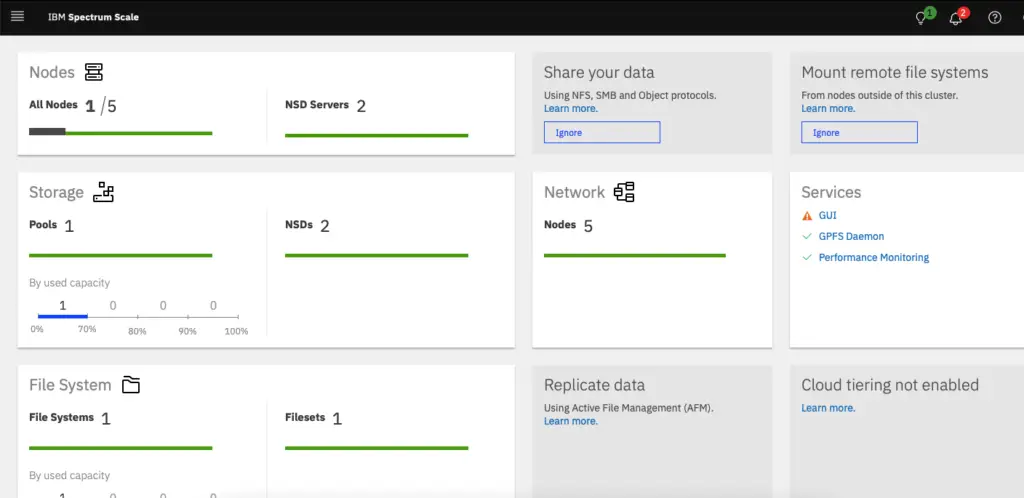
In this blog, we will take a deep dive into installing the IBM Spectrum Scale developer edition. Software has been downloaded to one of our ubuntu VM’s.
Lab Configuration
- Ubuntu 20.04 LTS deployed on all servers.
- NSD Nodes (storage):
- nsdnode01 – 172.16.11.157
- nsdnode02 – 172.16.11.158
- nsdnode03 – 172.16.11.159
- Protocol Nodes:
- protocol01 – 172.16.11.160
- protocol02 – 172.16.11.161
- GUI/Admin Nodes:
- client01 – 172.16.11.182
- client02 – 172.16.11.183
Prerequisites
Verify Ubuntu Install
There are a number of steps involved to configure the GPFS system and the first of it the OS installation.
vma@homeubuntu:~$ lsb_release -d
Description:	Ubuntu 20.04.2 LTS
Install all these packages
- apt-get update && apt-get upgrade -y
- apt-get install cpp gcc g++ binutils make ansible=2.9* iputils-arping net-tools rpcbind python3 python3-pip -y
Disable Auto Upgrades
We need to make sure our Ubuntu Server is not automatically upgrading any packages, because Spectrum Scale is kernel independent, and if you automatically upgrade the kernel you may end up with a cluster that stop working unexpected.
Modify the file /etc/apt/apt.conf.d/20auto-upgrades
FROM:
APT::Periodic::Update-Package-Lists "1";
APT::Periodic::Unattended-Upgrade "1";
TO:
APT::Periodic::Update-Package-Lists "0";
APT::Periodic::Download-Upgradeable-Packages "0";
APT::Periodic::AutocleanInterval "0";
APT::Periodic::Unattended-Upgrade "0";
And the file /etc/apt/apt.config.d/10periodic
FROM:
APT::Periodic::Update-Package-Lists "1";
APT::Periodic::Download-Upgradeable-Packages "0";
APT::Periodic::AutocleanInterval "0";
TO:
APT::Periodic::Update-Package-Lists "0";
APT::Periodic::Download-Upgradeable-Packages "0";
APT::Periodic::AutocleanInterval "0";
Reboot your system to make sure everything boots up normal.
Disable firewall
ufw disableSet the path of GPFS commands
cd /etc/profile.d
vim gpfs.sh
GPFS_PATH=/usr/lpp/mmfs/bin
PATH=$GPFS_PATH:$PATH
export PATH


#source /etc/profile.d/gpfs.sh
Configure user access to sudoers

Configure root access to all servers
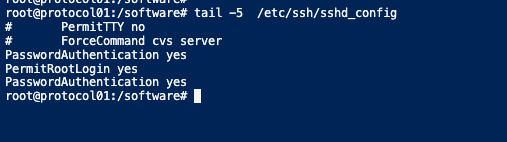
For us to do root authentication, we will add these parameters into my sshd config file
Configure password-less access auth
We will need to generate a key and share out with the public to all servers in the cluster so as to do passwordless authentication. There needs to be keys generated from the admin nodes and protocol nodes
root@node01:~/.ssh# ssh-keygen
Generating public/private rsa key pair.
Enter file in which to save the key (/root/.ssh/id_rsa):
Enter passphrase (empty for no passphrase):
Enter same passphrase again:
Your identification has been saved in /root/.ssh/id_rsa
Your public key has been saved in /root/.ssh/id_rsa.pub
The key fingerprint is:
SHA256:pE/6PZvq05YR/QmlnCEZMlsYyAxn4moTnSRUcvHAZso root@node01
The key's randomart image is:
+---[RSA 3072]----+
| .+oO=o.+ooo     |
|   B+B+ .=o . .  |
| ..++ . o  + =   |
|  Eo   o  . *    |
|  +   . S  . o . |
| . .   +  .   o  |
|      . .. o     |
|       ...=.     |
|       .+++o     |
+----[SHA256]-----+
root@node01:~/.ssh#
Copy the public key to all our GPFS servers
root@node01:~/.ssh# ssh-copy-id 172.16.11.150
/usr/bin/ssh-copy-id: INFO: Source of key(s) to be installed: "/root/.ssh/id_rsa.pub"
/usr/bin/ssh-copy-id: INFO: attempting to log in with the new key(s), to filter out any that are already installed

/usr/bin/ssh-copy-id: WARNING: All keys were skipped because they already exist on the remote system.
		(if you think this is a mistake, you may want to use -f option)

root@node01:~/.ssh# exit
Ensure the hostname is set correctly
Open /etc/hostname and Change the Hostname
hostnamectl set-hostname new-hostnameOpen /etc/hosts and Change the Hostname
root@protocol01:~# cat /etc/hostname
protocol01
root@protocol01:~# cat /etc/hosts
127.0.0.1 localhost
127.0.1.1 protocol01
Configure Static IP Address on all hosts
This step is necessary to ensure we have a static address on all our servers.
vi /etc/netplan/00-installer-config.yaml network:
version: 2
renderer: networkd
ethernets:
ens160:
dhcp4: no
addresses:
- 172.16.11.182/24
gateway4: 172.16.11.253
nameservers:
addresses: [172.16.11.4]Once done, save the file and apply the changes by running the following command:
sudo netplan applyAdd an Additional IP Address Permanently
Ubuntu allows you to add multiple virtual IP addresses on a single network interface card and we need our protocol nodes to have multiple IP’s on it.
Ansible: Define Ansible Host file
One last thing we need to do is to define all our hosts in the ansible host file with the user name we are planning to use for connectivity so in this case it’s the root.
root@protocol01:/etc/ansible# pwd
/etc/ansible
root@protocol01:/etc/ansible#
root@protocol01:/etc/ansible#
root@protocol01:/etc/ansible# tail hosts
172.16.11.161 ansible_user=root
172.16.11.182 ansible_user=root
172.16.11.157 ansible_user=root
172.16.11.158 ansible_user=root
172.16.11.159 ansible_user=root
172.16.11.183 ansible_user=root
172.16.11.182 ansible_user=root
root@protocol01:/etc/ansible#
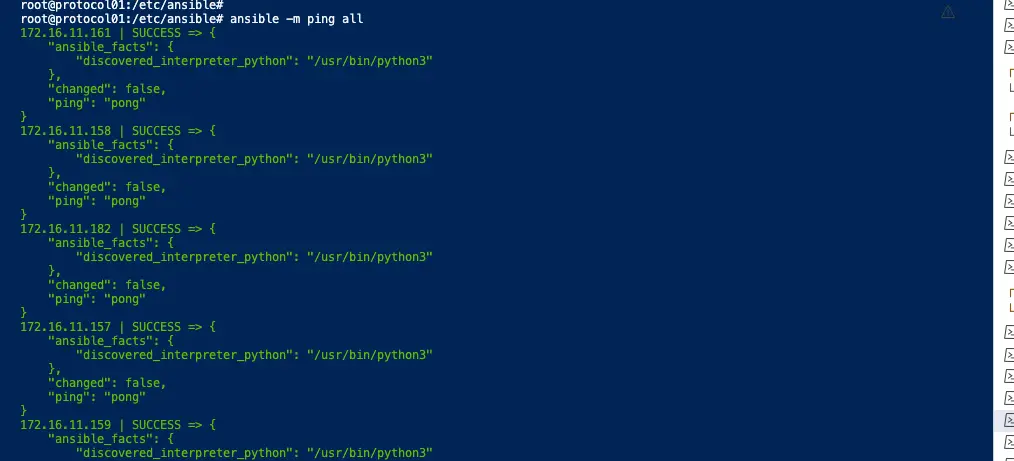
If the configuration is all correct up until now, we should just get validation as success from our ansible ping and this ensure all our ssh keys are as well validated.

via chmod, let’s make the package executable.

Extract the Spectrum Scale package

Configure Setup Node
I’ve chosen the node named protocol node as the setup node. Basically, this node is where you run the software in simple terms.
./spectrumscale setup -s 172.16.11.160 --setuptype ss
This command displays the list of nodes in our GPFS system.
./spectrumscale node list
Configure Admin Node
- First is the node that will administer the installation so this will be our protocol node itself
- The admin node will need promptless ssh to and from all other nodes.
# ./spectrumscale node add 172.16.11.160 -a
Add GUI Nodes
The GUI node is also the admin node always and this node will grant us GUI access to the GPFS system.
./spectrumscale node add 172.16.11.182 -g -a
Adding the next GUI node for HA
./spectrumscale node add 172.16.11.161 -g -a Add Protocol Nodes
These nodes are what is responsible for NFS/CIFS protocols to be shared with clients. We add the protocol nodes with a -p flag

Let’s add 3 NSD nodes
These nodes hold our storage disks so we will add three nodes with a -n flag
./spectrumscale node add 172.16.11.157 -n
./spectrumscale node add 172.16.11.158 -n
./spectrumscale node add 172.16.11.159 -n
Add NSD Disks
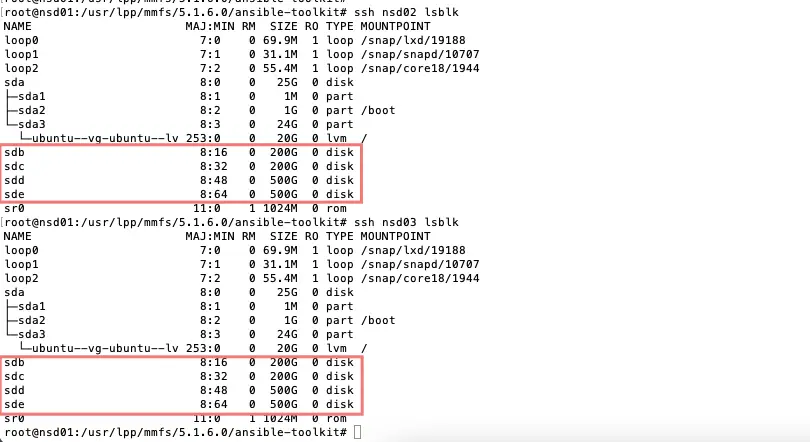
Nsdnode1 & nsdnode2 share the same physical disks, we’ll alternate primary/secondary servers to keep things balanced
spectrumscale nsd add [-h] -p PRIMARY [-s SECONDARY] [-fs FILESYSTEM] [-po POOL] [-u {dataOnly,dataAndMetadata,metadataOnly,descOnly,localCache}] [-fg FAILUREGROUP] [--no-check] [-name NAME] primary_device [primary_device ...]spectrumscale nsd add: error: argument -p/--primary: Could not find the node: nsd-node1.
We will now create a folder SchoolData on our /dev/sdb partition and /dev/sdc partition.
# SchoolData
# ./spectrumscale nsd add -p nsd02 -s nsd03 -u dataAndMetadata -fs SchoolData -fg 1 “/dev/sdb”
./spectrumscale nsd add -p nsd03 -s nsd02 -u dataAndMetadata -fs SchoolData -fg 2 “/dev/sdc”

Here’s how the NSDs will be setup

Here’s how the file systems will be setup
File systems are created during the deployment phase if their NSDs already exist
./spectrumscale filesystem list
Verify the GPFS settings are as expected

Set the GPFS cluster name

Disable Call home settings

Finally, let’s review the output of our node list by running ./spectrumscale node list.
We have now 3 NSD nodes, 2 protocol nodes which are our GUI/admin nodes, and 2 client nodes which are serving as our actual protocol nodes.
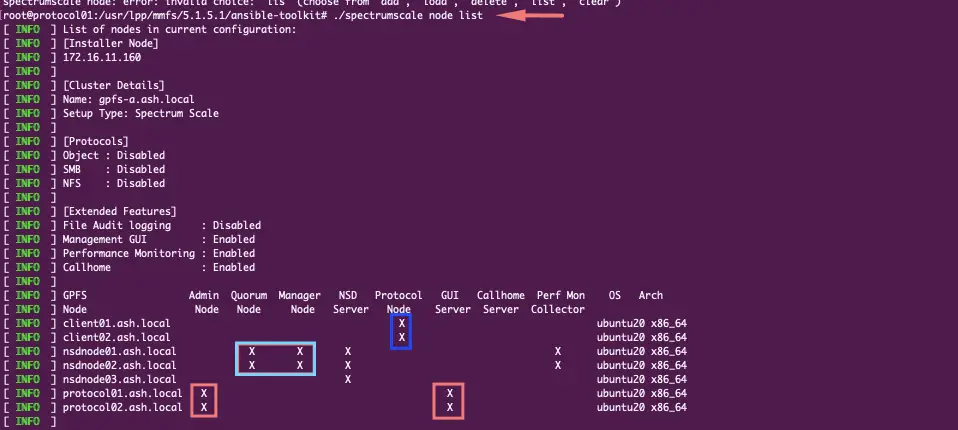
With all configurations done, let’s run a pre-check first using ./spectrumscale install –precheck

If all our configs are correct, we should see a Success message.

Kick off our actual installation using ./spectrumscale install

Our GPFS file system is active

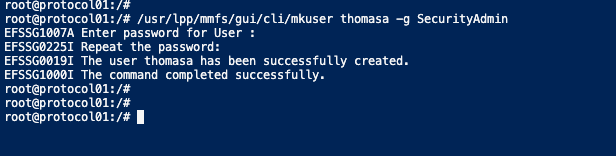
Create a user to login to GUI from the admin node
Launch a web browser and connect to the GUI node address via https://mgrip
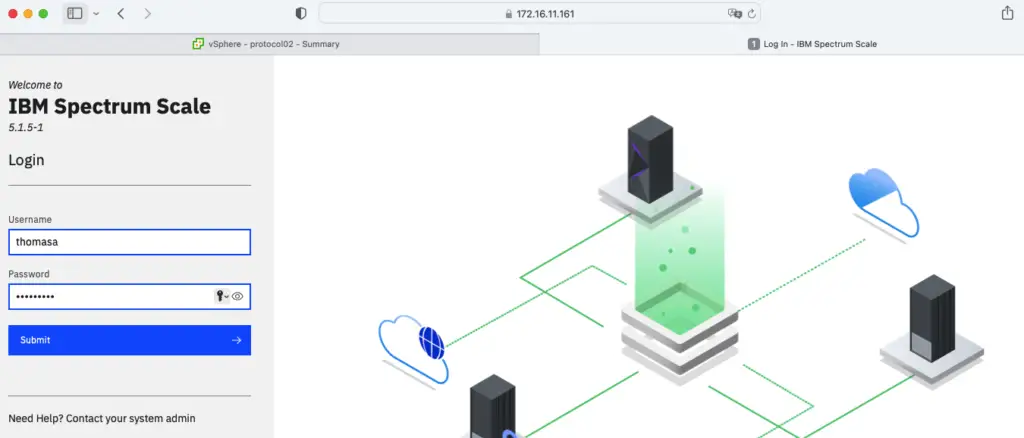
Our GPFS cluster is installed