


Setting up a Microsoft Certificate Authority (CA) is a foundational step when preparing your environment for secure communication and authentication. In this guide, we’ll walk through the prerequisite tasks — from installing the CA role to creating custom templates — so you can integrate certificates seamlessly into your VMware Cloud Foundation 9 deployment.
Step 1: Install Active Directory Certificate Services (ADCS)
Launch Server Manager and select Add Roles and Features.
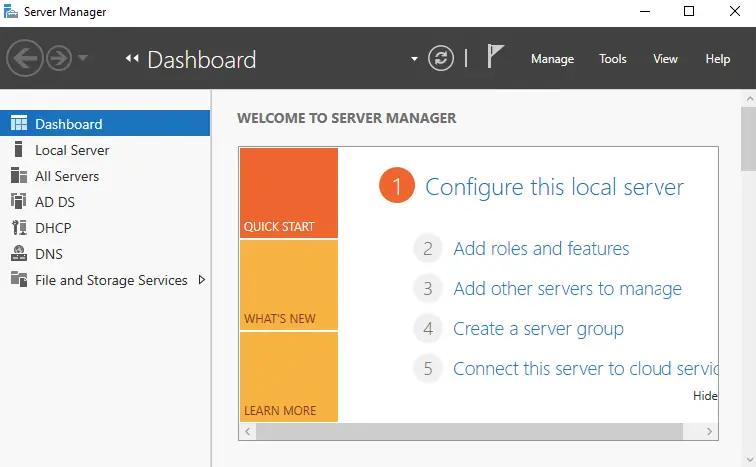
Click Next to continue
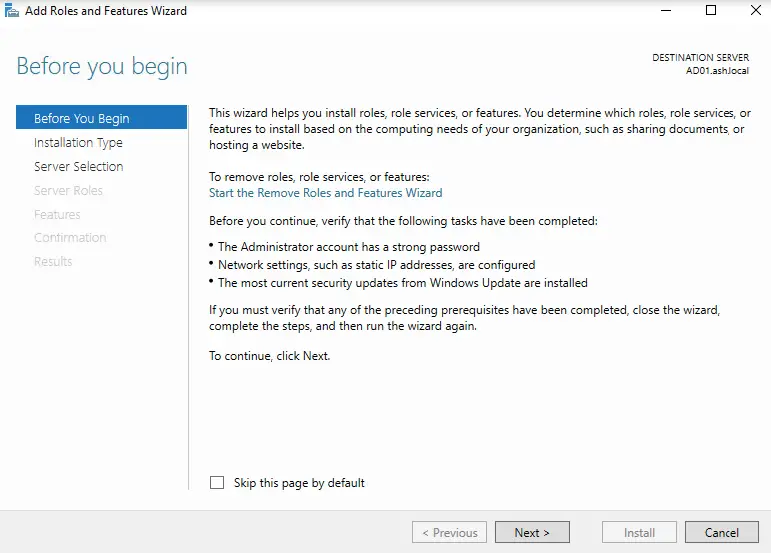
Select role-based installation and click Next
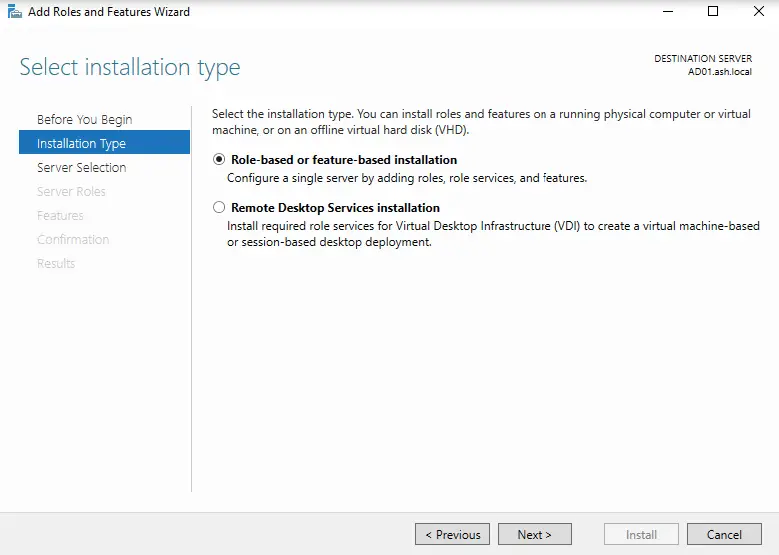
Choose Role-based installation and highlight the target server.
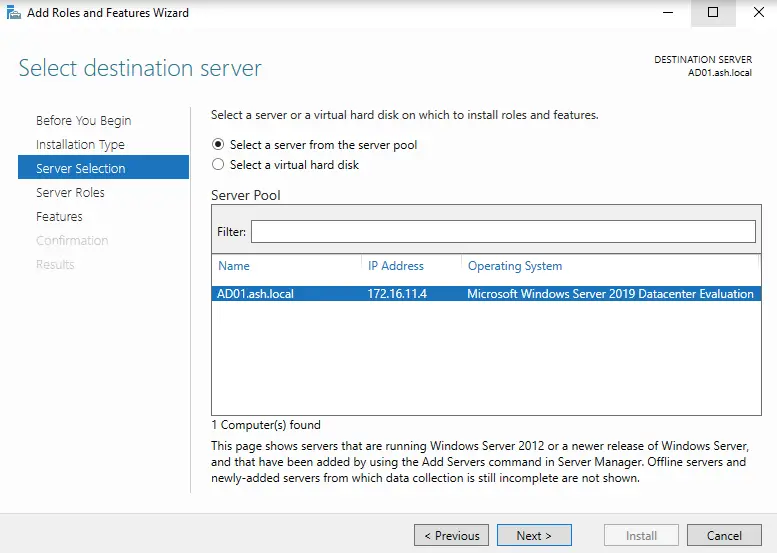
Under the Server Roles, select the Active Directory Certificate Services.
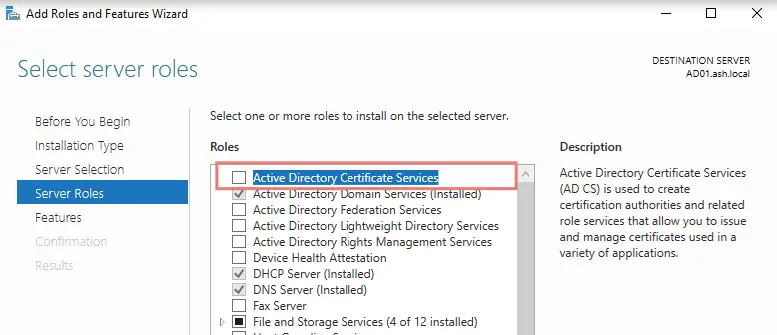
Click Add Features to Continue

Once the Features are added, you will see the option ticked as shown
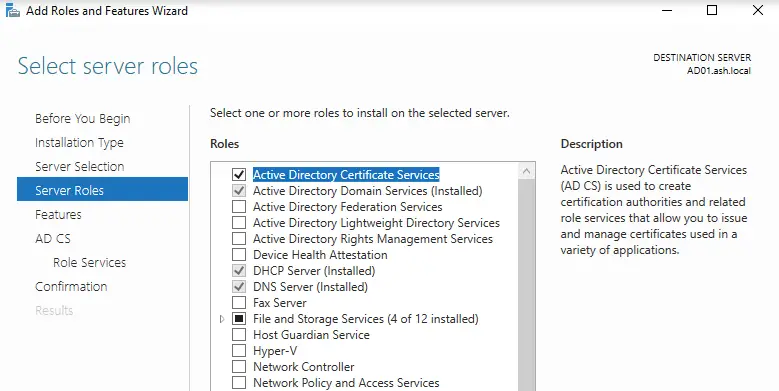
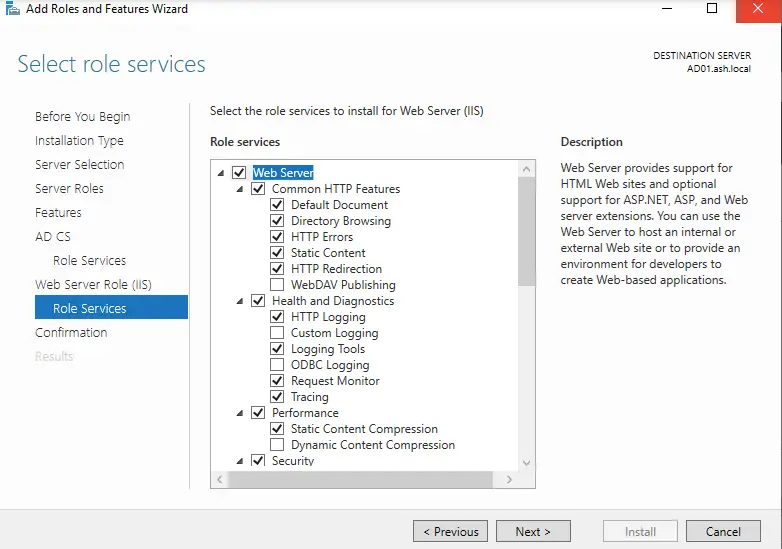
Expand Web Server (IIS) > Web Server > Security and enable Basic Authentication.

Click Next to Proceed
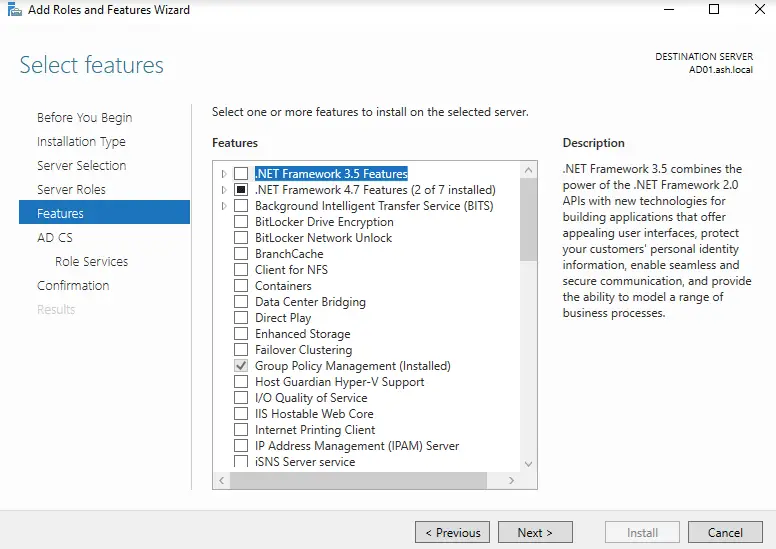
Click Next to Proceed
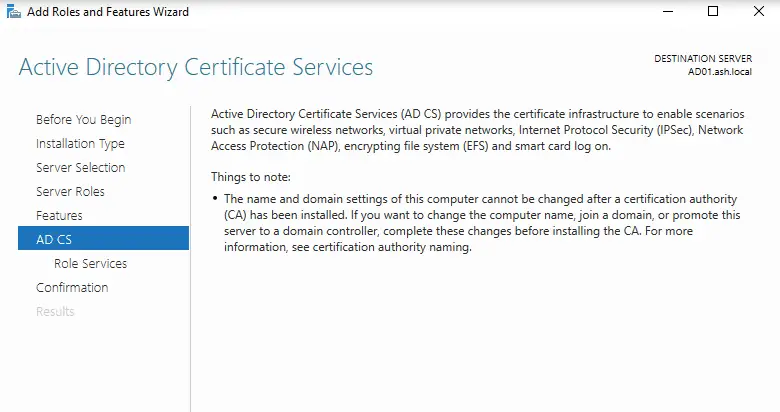
Select Certification Services Certification Authority & also Web Enrolment and click Next.
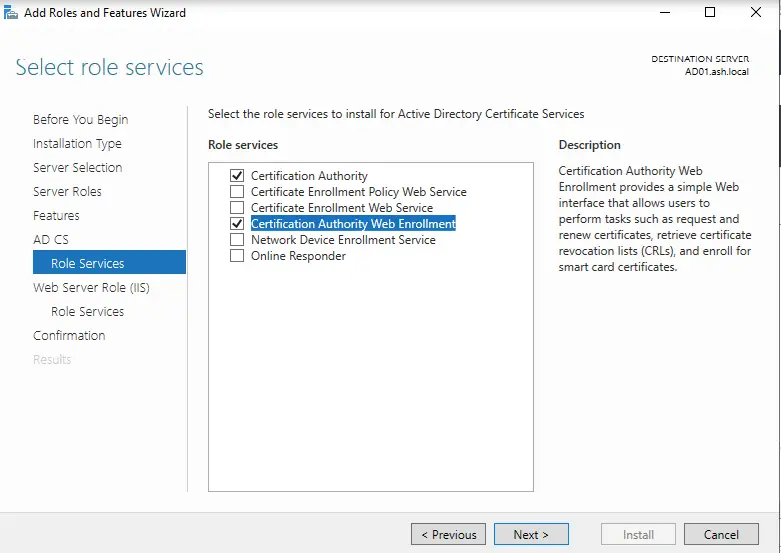
Click Next.
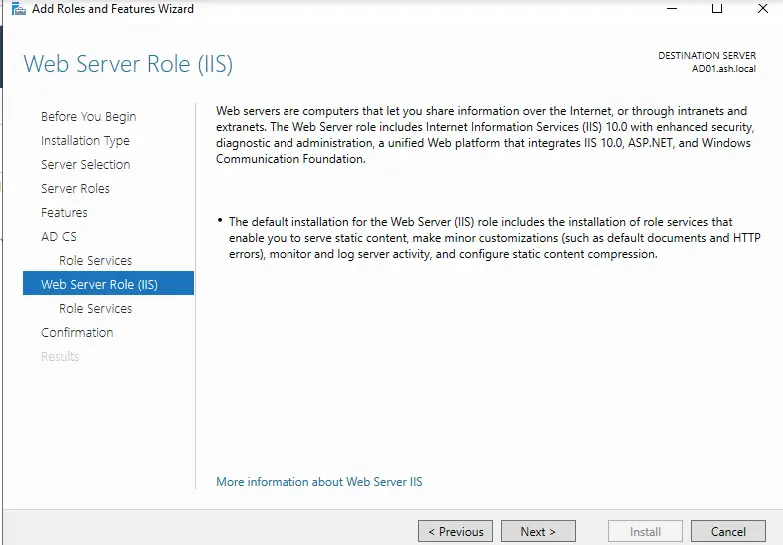
Click Next to Continue
Review your selections, click Install
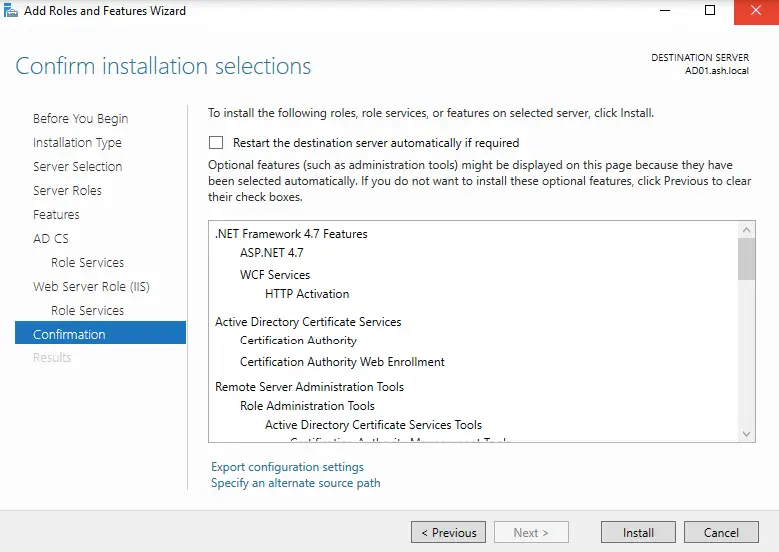
Select Restart the destination server

This will now take a few minutes
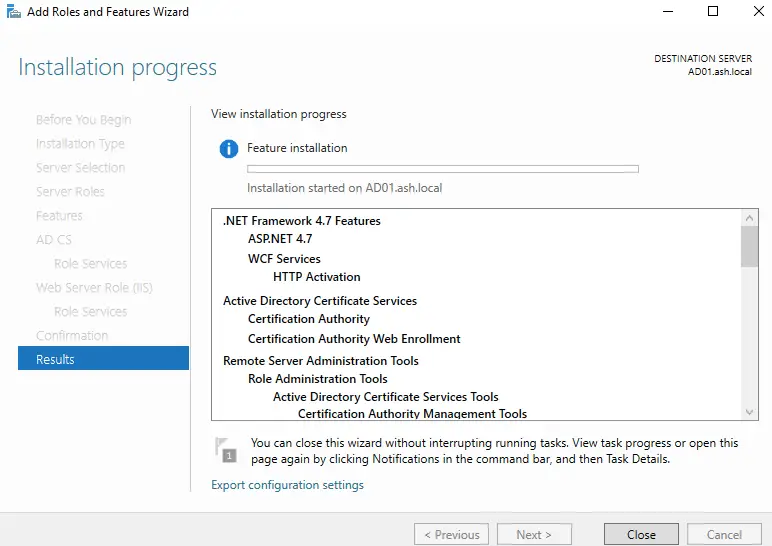
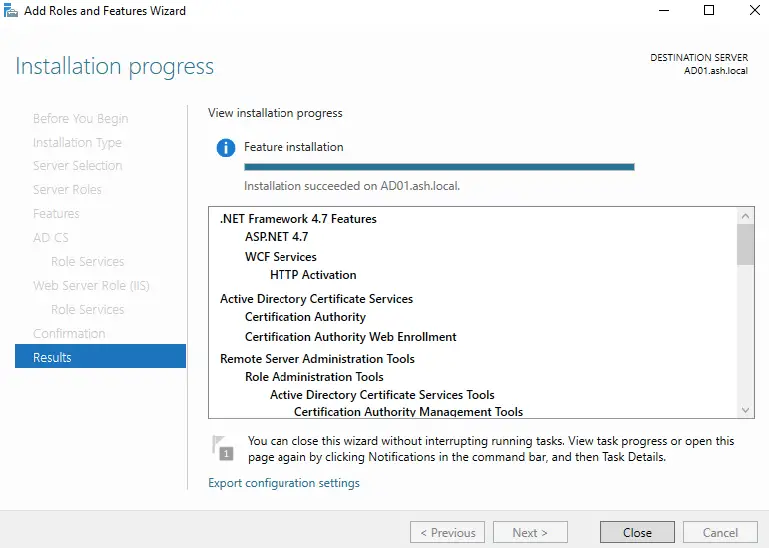
Once the ADCS role is installed, the results will show the state and will then need to do the post-install config
Step 2: Configure the Certificate Authority
From the Server Manager dashboard, choose Configure Active Directory Certificate Services
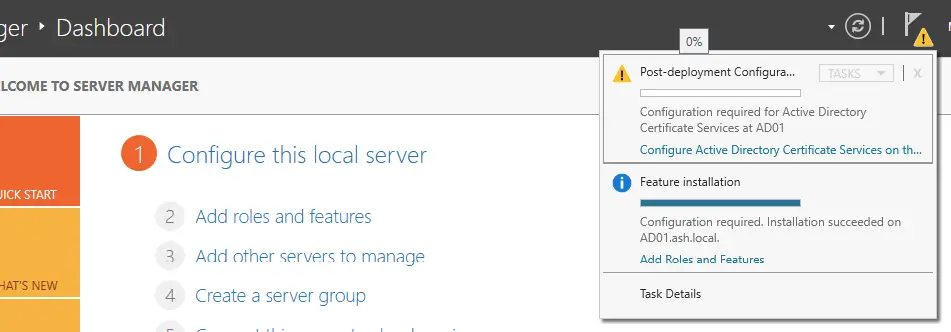
We now need to complete a few more tasks post-deployment of services for CA to work
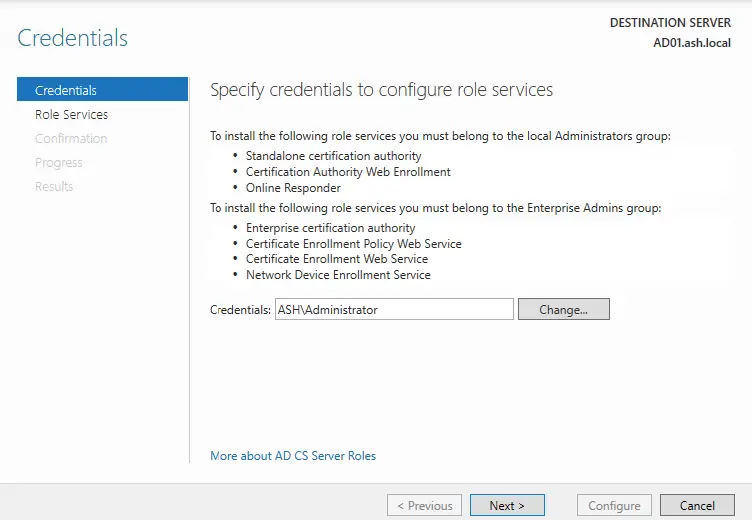
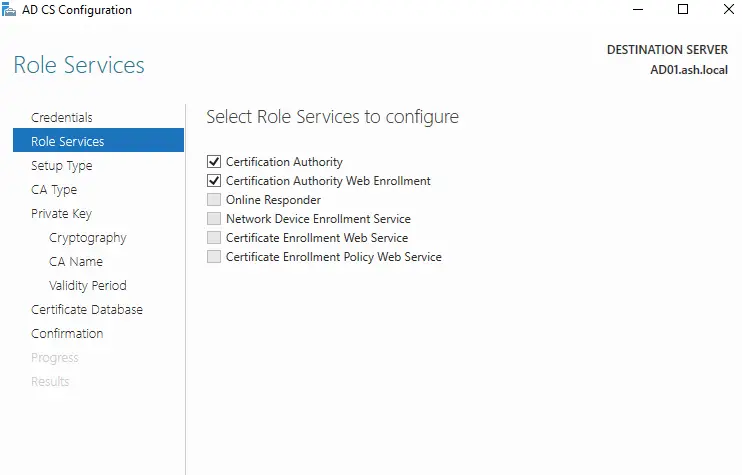
Select Certificate Authority and Web Enrolment.
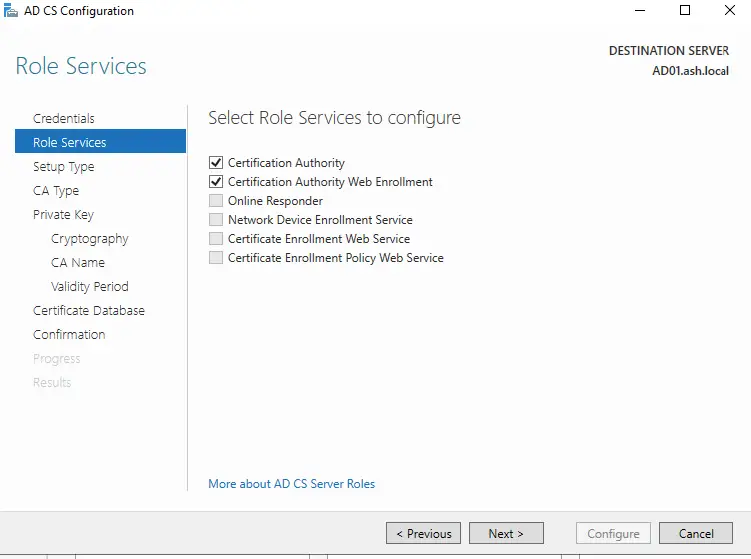
Keep default options, then tick Certificate Enrollment Web Service.

Tick Certification Authority and click Certificate Enrolment Web Service.
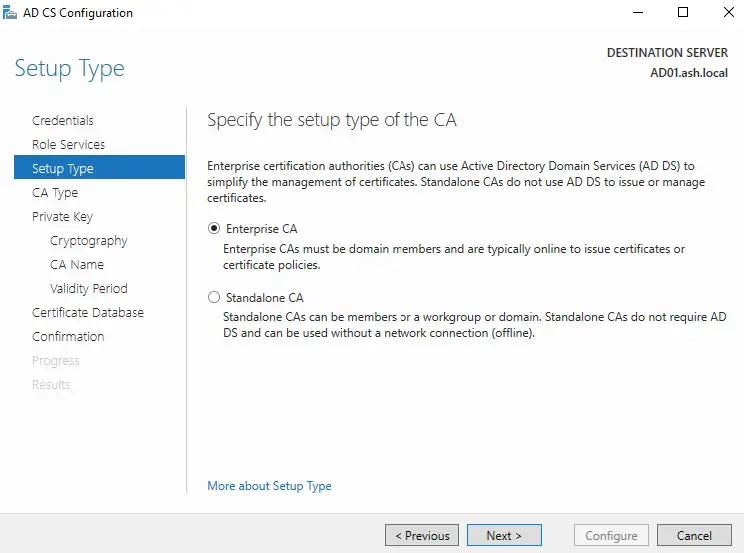
Choose Enterprise CA as our server is joined to the domain.
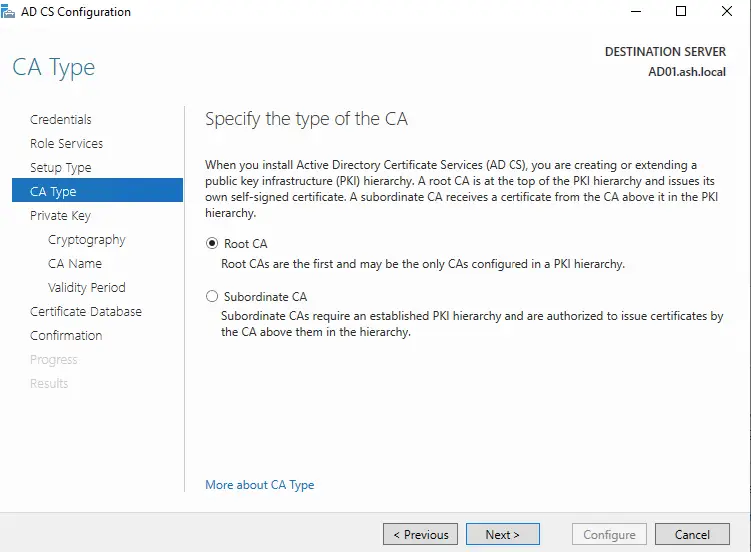
Deploy a Root CA. A subordinate CA Is chosen when you have a Root CA elsewhere where can make this new server a member.
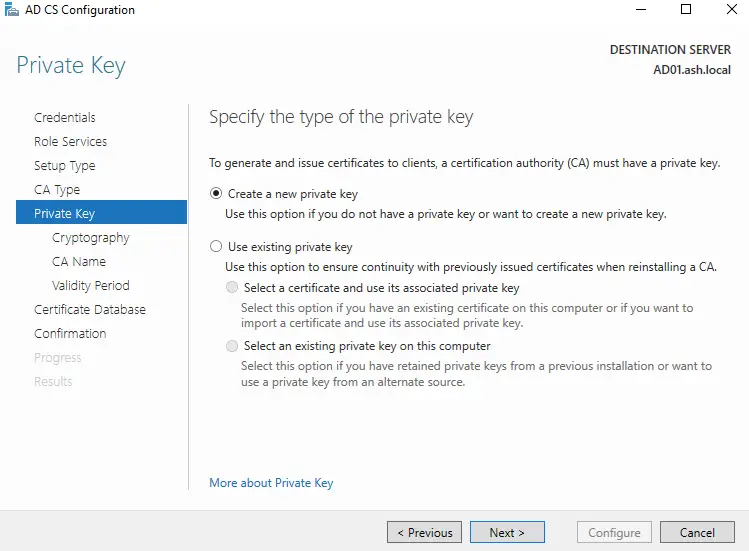
Create a new private key, define the key length, and assign a CA name.
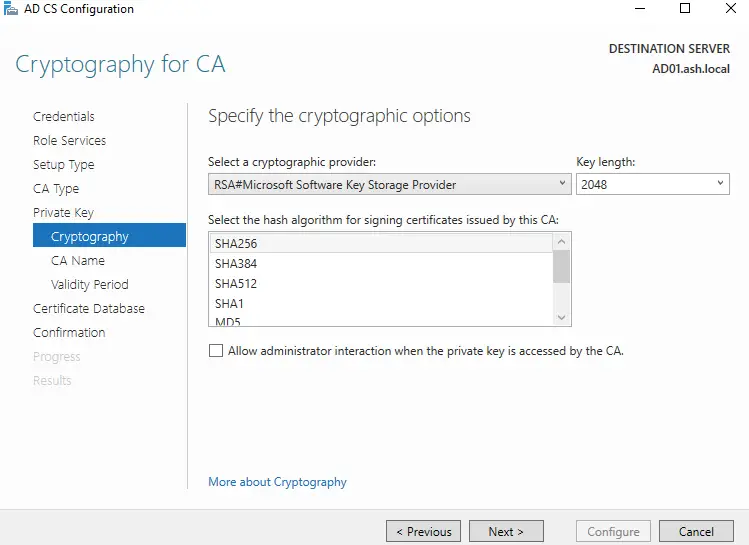
Choose the key length and Click Next to Continue
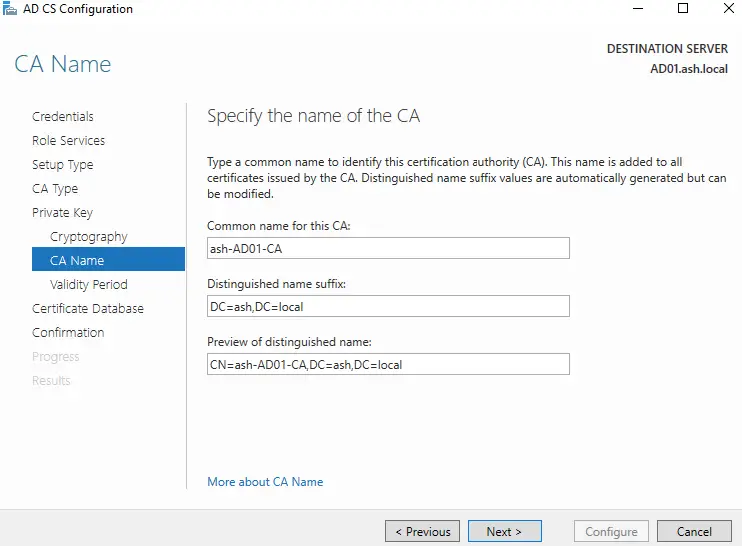
Provide the CA with a name and click Next.
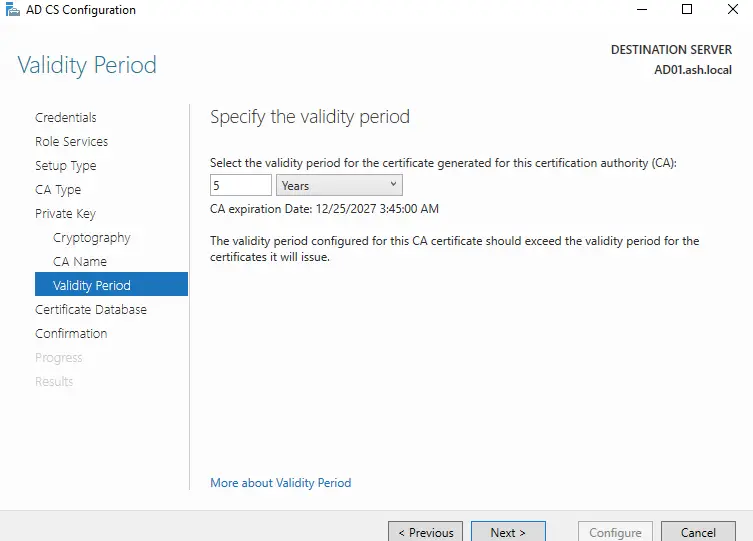
Set certificate validity (e.g., 5 years for lab environments)
Click Next to Continue
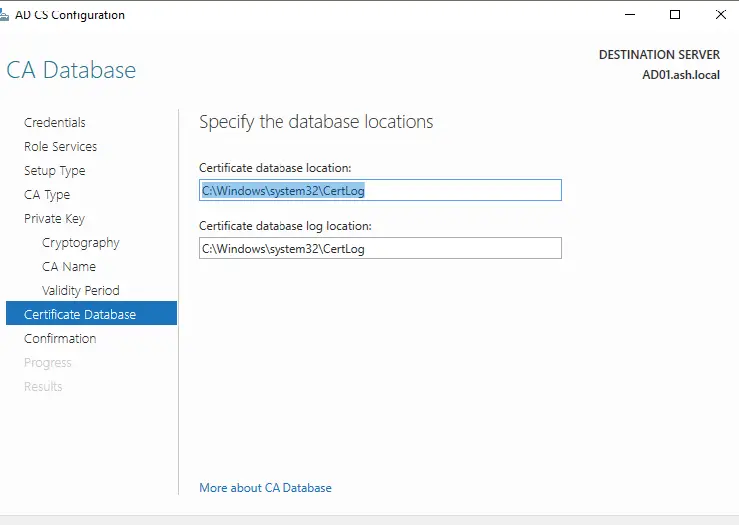
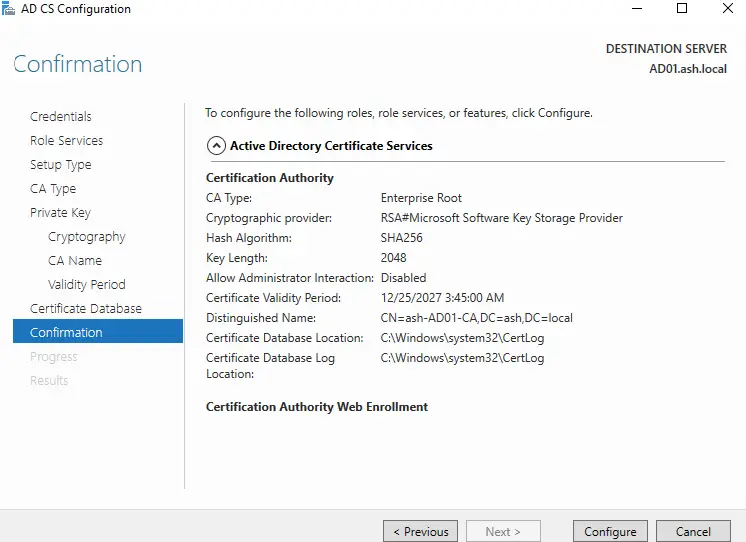
Click Configure to finish the post-configuration process
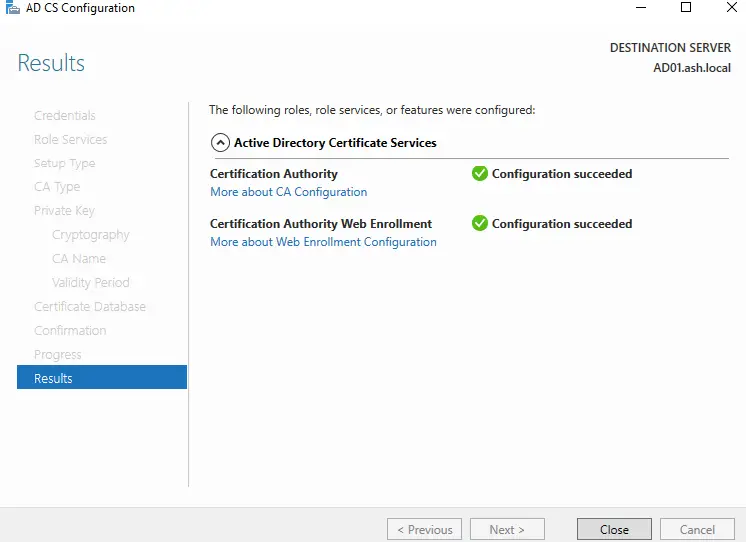
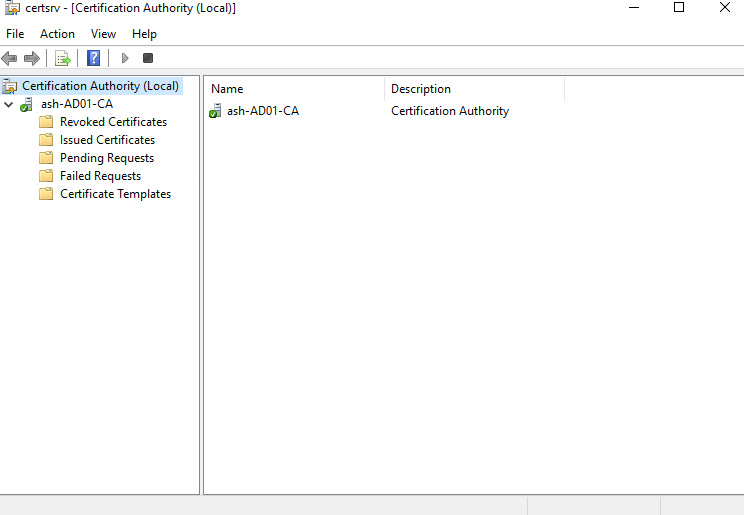
Finally we have a CA Server ready for use
Run certtmpl.msc to open the Certificate Template Console
Validate if web enrolment works.
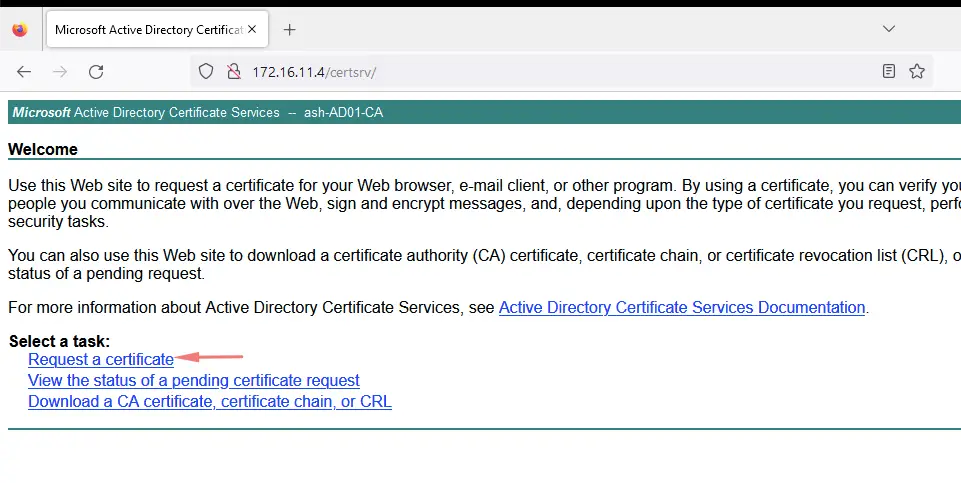
Step 3: Enable Basic Authentication in IIS
To configure the certificate authority web service and all sites for for basic authentication, open IIS manager and double click Authentication on CertSrv

Under the Authentication widow, right-click Basic Authentication and select Enable.

Select Default Web Site and In the Actions window, click Restart the site to enable the basic authentication change

This ensures that certificate requests via the web enrollment service are authenticated properly.
Step 4: Create a Custom Certificate Template
Next we need to set up a Microsoft Certificate Authority template on the Active Directory (AD) server. The template contains the certificate authority (CA) attributes for signing certificates for the SDDC components. After you create the template, you add it to the certificate templates of the Microsoft Certificate Authority.
Run certtmpl.msc to open the Certificate Template Console
In the Certificate Template Console window, under Template Display Name, right-click Web Server and select Duplicate Template.

In the new template’s General tab, give it a meaningful name (e.g., VMware).In the new template’s General tab, give it a meaningful name (e.g., VMware).

- Click the Extensions tab and configure the following.
- Select Application Policies and click Edit Application Policies → remove Server Authentication and Client Authentication.

If present, select the Client Authentication policy, click Remove, and click OK.
Edit Key Usage → enable Signature is proof of origin (nonrepudiation)

On the Subject Name tab, select Supply in the request.

Save the template.
Step 5: Publish the Template and Assign Permissions
Run certsrv.msc to open the Certification Authority console. Right‑click Certificate Templates > New > Certificate Template to Issue.

Select your custom template (e.g., VMware) and click OK.

To assign permission to the service account, open certtmpl.msc and right click on the CA properties → add your service account → grant Issue and Manage Certificates + Request Certificates.

On the template properties → add the same account → grant Read + Enroll.

Step 6: Export the Root CA Certificate
In the CA console, right‑click the Root CA certificate and choose Properties.
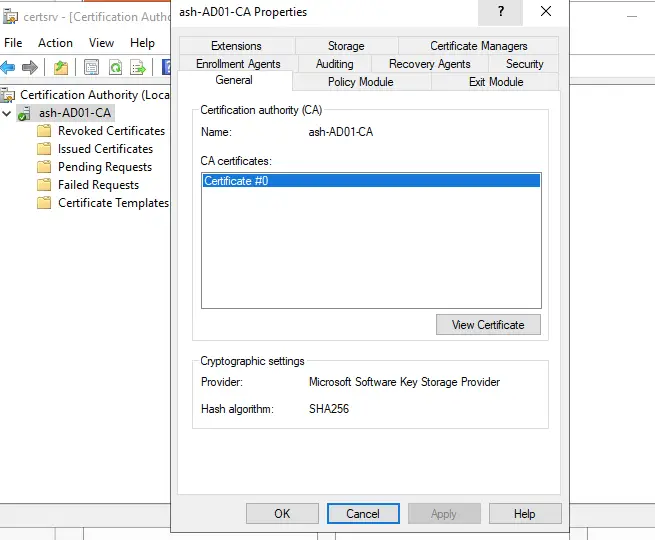
This will show a summary view of our root CA
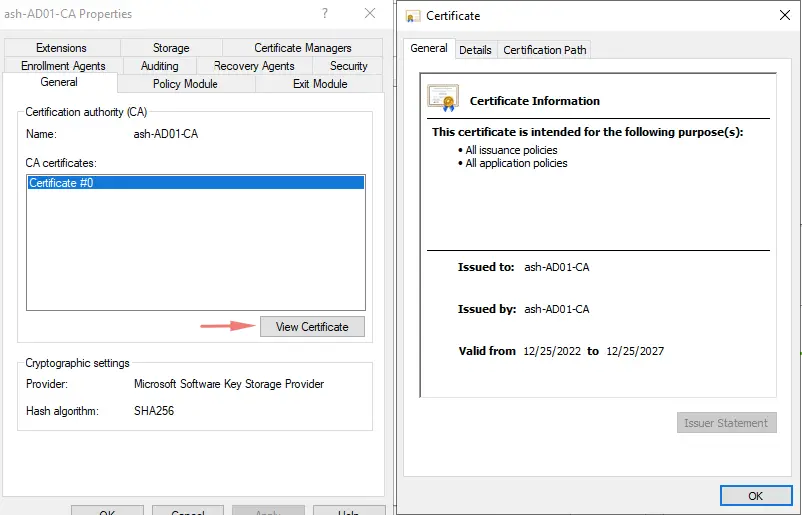
Hover over to the Details tab
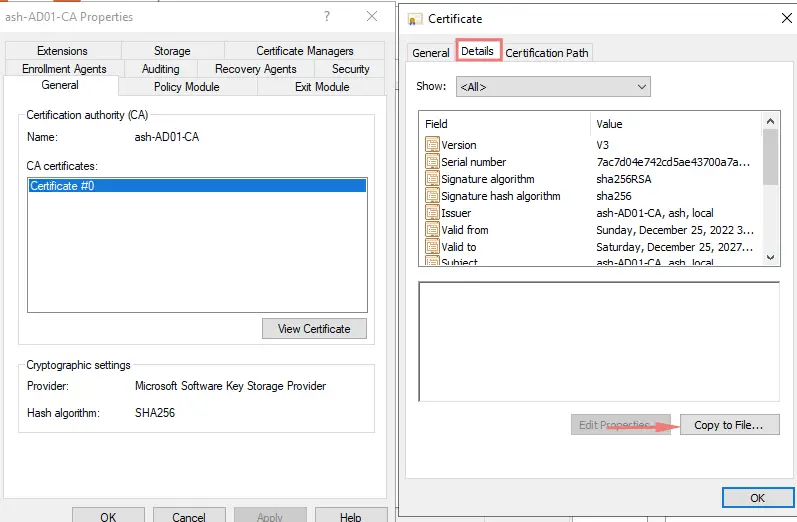
Select Copy to File Option
Select Base-64 and click Next.
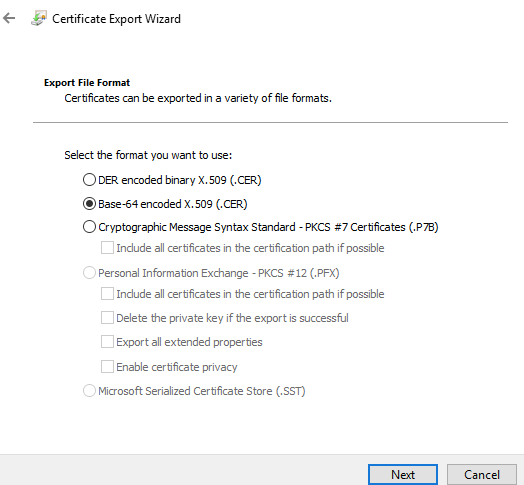
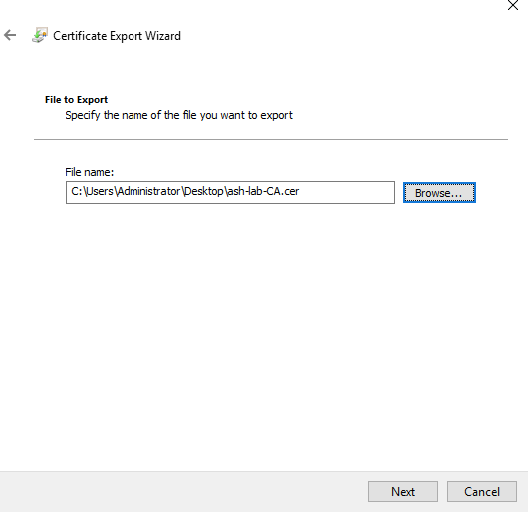
Choose a location on our server and click Next.
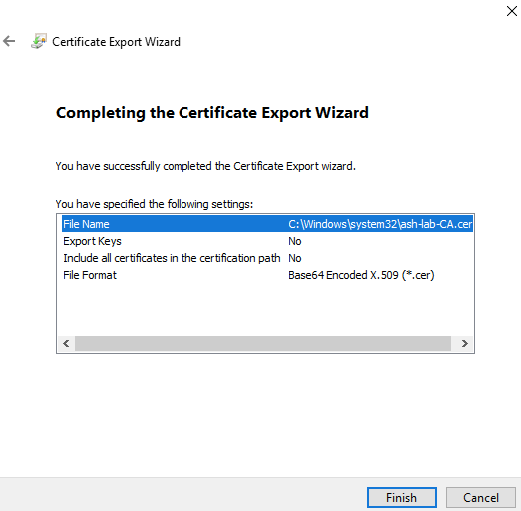
Complete the wizard
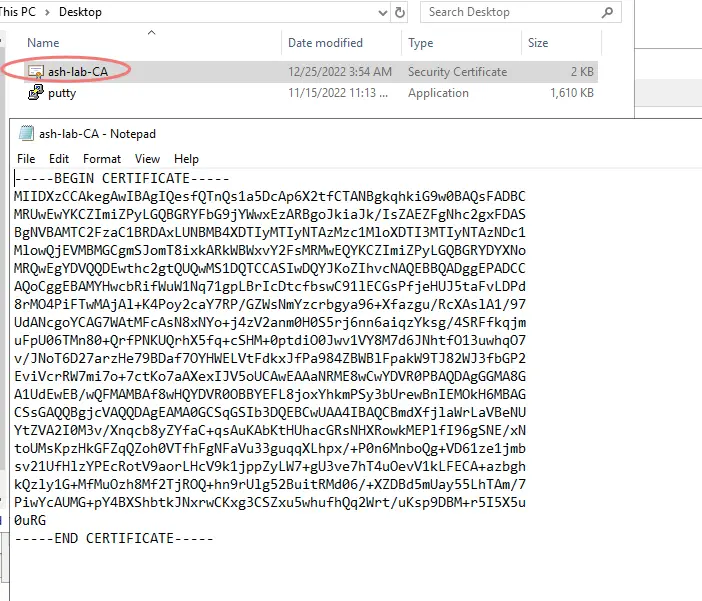
If we open the file, we will see something like this which we will need on the devices that need CA registration.
Wrapping Up
By completing these steps, you’ve successfully:
- Installed and configured ADCS with web enrollment.
- Enabled Basic Authentication in IIS.
- Created and published a custom certificate template.
- Exported the Root CA certificate for distribution.
References
Configure the Microsoft Certificate Authority for VMware Cloud Foundation Integration