


I’ll be honest: when I first looked at certificate management in VMware Cloud Foundation (VCF) 9, I thought it was going to be one of the easiest things to tick off the list. Click a few buttons, replace a few certs, done.
Turns out, I was wrong. I wasted a lot of time chasing errors, missing small but critical steps, and wondering why the UI wasn’t reflecting what I’d just done. Eventually, after retracing my steps more times than I’d like to admit, I finally got it working. That’s why I’m writing this — so you don’t waste the same hours I did.
Why Certificates Matter
- Self-signed certs might get you started, but they’ll bite you later.
- A proper CA integration builds trust across all components and saves you from endless browser warnings.
- In production or labs, the principle is the same: fix certificates early, and you’ll save yourself headaches later.
What’s New in VCF 9.1
- API-first approach: Certificate management is now exposed through the VCF Certificates API, making automation and scripting the preferred path.
- Supported CAs: You can configure either Microsoft CA or OpenSSL CA for integration.
- Management vs Instances: Both layers (Fleet Management and SDDC components) rely on the same API framework, but Microsoft CA remains the default for management services.
- Auto-renewal toggle: Still available, but now easier to script and monitor via API calls.
Prerequisites
Before starting, make sure you have read all these articles and the reference list added below.
- A Microsoft CA server with a Certificate template issued for VCF
- Read all these articles and blogs
- CA server URL not reachable error – Configure Certificate Authority for Microsoft fails.
- Special characters in the service account.
- Configure the Microsoft Certificate Authority for Basic Authentication
- The server certificate of MSCA contains empty subject
- Failed to fetch certificate from Microsoft CA
- CA server URL not reachable
- Certificate authorities update failed.
Step-by-Step Failure Points
Getting certificate enrolment right in VCF 9.1 wasn’t as easy as I first thought. What looked like a straightforward process ended up costing me hours of troubleshooting. Here’s the reality of what tripped me up and how I finally got it working.
- Basic Authentication in IIS
My first mistake was forgetting to enable Basic Authentication on the Microsoft CA IIS Web Enrollment site. Without it, VCF simply couldn’t talk to the CA. I kept scratching my head until I realised this wasn’t about issuing a simple web server certificate like we used to for vCenter — VCF requires Basic Auth to be turned on. - Password Pitfalls
Another issue was with service account passwords. Certain special characters aren’t recognised properly during CA configuration. If you’re using complex passwords (as you should), test them carefully — otherwise the integration silently fails. - Old Certificate Chains
A common lab mistake is running the Windows OS rearm after 180 days. In my case, this left behind stale certificate chains that blocked new enrolments. The fix was to opencertlm.msc, inspect the local certificate store, and manually remove broken or expired certs. If you don’t, you’ll likely hit the dreaded “Certificate authorities update failed” error. - Fleet vs Operations Logs
Renewal is handled by the Fleet Management appliance, not the Operations appliance. The CA‑related logs live under:
# login into fleet mgt not vc-ops

root@vcf9-flt [ /var/log/vrlcm ]# tail -f vmware_vrlcm.log | grep yoyo*
              at org.springframework.http.client.AbstractClientHttpRequest.execute(AbstractClientHttpRequest.java:66) ~[spring-web-5.3.43.jar!/:5.3.43]
        at org.springframework.web.client.RestTemplate.doExecute(RestTemplate.java:782) ~[spring-web-5.3.43.jar!/:5.3.43]
        ... 200 more
2025-11-27T08:20:17.215Z INFO vrlcm[1302] [http-nio-8080-exec-9] [c.v.v.l.c.l.MaskingPrintStream]  -- * SYSOUT/SYSERR CAPTURED:  -- yoyoyoException occurred while trying to validate Microsoft CA
^C

root@vcf9-flt [ /var/log/vrlcm ]# tail -f vmware_vrlcm.log | grep -i alternative*

025-11-26T11:12:24.399Z ERROR vrlcm[1309] [http-nio-8080-exec-6] [c.v.v.l.l.c.MSCARestClient]  -- Exception occurred while trying to validate Microsoft CA
org.springframework.web.client.ResourceAccessException: I/O error on GET request for "https://172.16.11.11/certsrv": Certificate for <172.16.11.11> doesn't match any of the subject alternative names: []; nested exception is javax.net.ssl.SSLPeerUnverifiedException: Certificate for <172.16.11.11> doesn't match any of the subject alternative names: []
^C- Keep this running while you configure the CA, and also monitor logs on the CA server itself. It saves a lot of guesswork.
- Stale CA Attachments
Repeated incorrect CA attachments left stale entries in my environment. To clean them up, I used PowerCLI: Link attached
Get-VCFCertificateAuthority Remove-VCFCertificateAuthority -id This cleared the way for a fresh configurationThis cleared the way for a fresh configuration
Configuring Microsoft CA in VCF 9.1
In the Fleet Management UI, go to the Certificates tab and click Configure CA
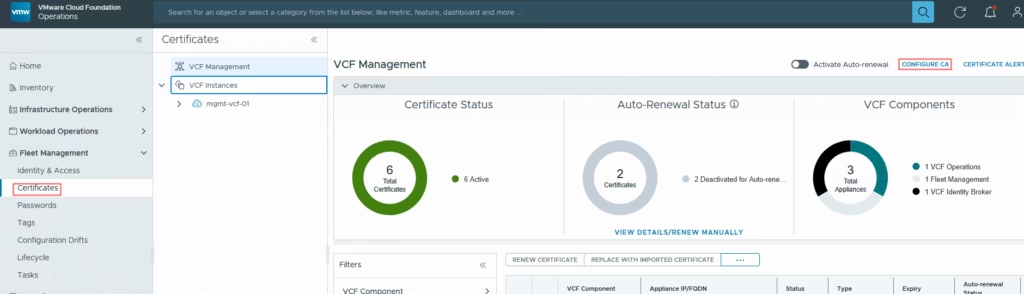
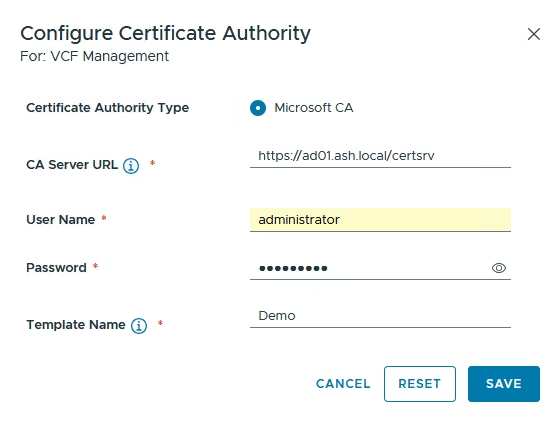
Select Microsoft as the CA type
- Enter the Web Enrollment URL in the format https://{CA-Server}/certsrv
- Provide the Service Account in UPN format
- Enter the template name you created earlier in Microsoft CA. This should match what you created in Microsoft CA
- Save the configuration, review the CA certificate details, and accept to complete.
Its now integrated so we can now begin replacing all certificates from the UI
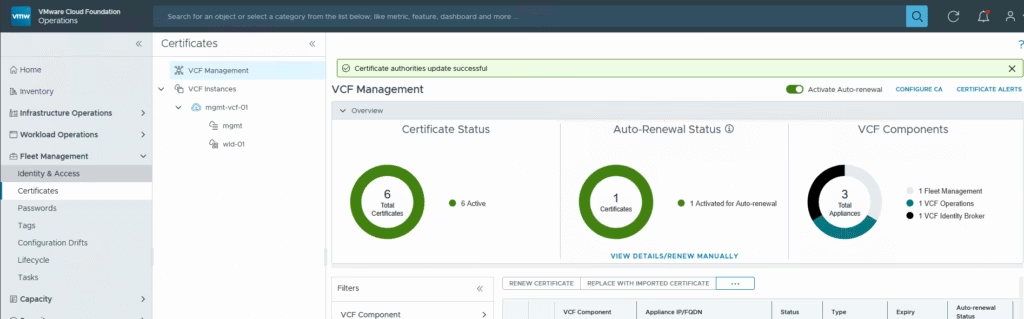
The process is automated once configured, but it’s still worth following each step carefully and verifying the results on the component itself before trusting the UI.
References
Here are two resources I found particularly helpful:
Prepare Certificate Authority for VCF Certificate Replacement
Configure the Microsoft Certificate Authority for VMware Cloud Foundation Integration