

Many SharePoint libraries start out tidy, but over time they fill up with documents that look similar but behave differently. Some files have metadata, some do not, and some follow a template while others do not. When this happens, it becomes harder for teams to stay organised.
Content types are one of the easiest ways to bring structure back into your libraries. They help SharePoint understand what a document is and what information should be collected about it.
What is a SharePoint Content Type?
A SharePoint Content Type is a reusable collection of settings that define a category of content. These settings can include:
- Columns (metadata)
- Document templates
- Workflows
- Retention policies
- Information management rules
Instead of configuring these settings repeatedly for each library or list, Content Types allow you to define them once and reuse them across multiple locations.
Why Use Content Types?
Using Content Types provides several benefits:
- Consistency: Ensures documents and list items follow the same structure across the organization.
- Reusability: One Content Type can be used in multiple libraries and sites.
- Better Metadata Management: Improves search results, filtering, and reporting.
- Governance and Compliance: Supports retention labels, auditing, and approval workflows.
Some common Content Types are Policy Documents, Contracts, Invoice, Change Requests, Project Documents. Each of these can have unique metadata, templates, and workflows.
Steps to create a Content Type
Step 1: Open SharePoint Admin Center
- Go to the SharePoint Admin Center
- Select Content type gallery from the left navigation
Step 2: Create a New Content Type
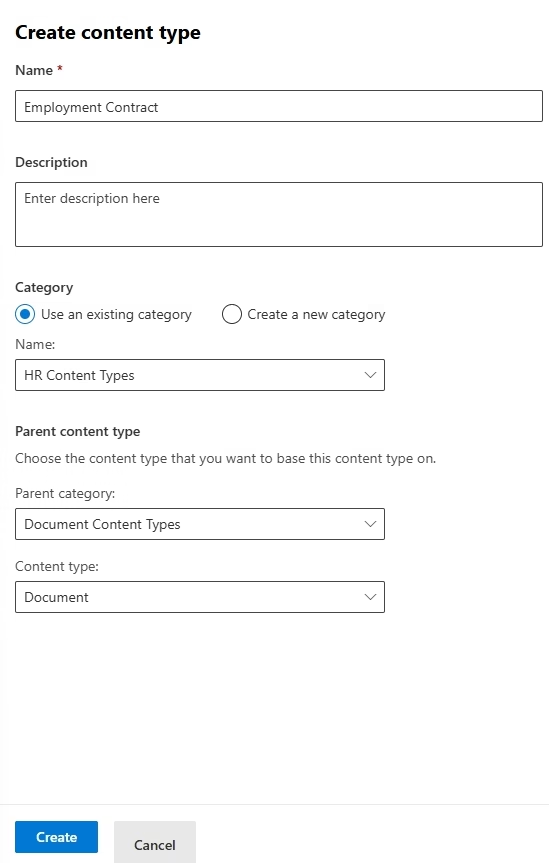
- Click Create content type
- Enter the following:
- Name: Contract
- Description: Used to manage contract documents
- Category: ‘Use an existing category’ or ‘Create a new category’
- Parent category: Document Content Types
- Content type: Document
- Click Create
Step 3: Add Columns to the Content Type
- Open the Content Type
- Click Add column
- Add required metadata
- Save changes
Step 4: Add a Document Template
- In the Content Type settings, select Advanced Settings
- Add a Document template (Word, Excel, etc.)
- Save changes
Step 5: Publish the Content Type
- Click Publish
- Confirm the action
Add the Content Type to a Library
- Open the Document library
- Go to Library settings → Advanced settings
- Set Allow management of content types to Yes
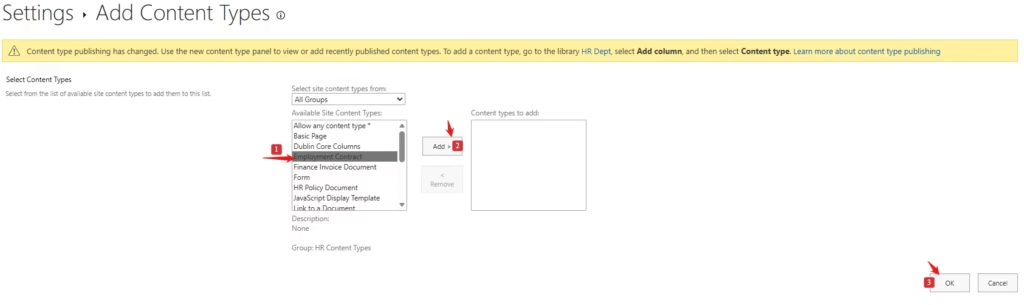
- Go back to Library settings, and click Add from existing site content types
- Add the Content Type to the library
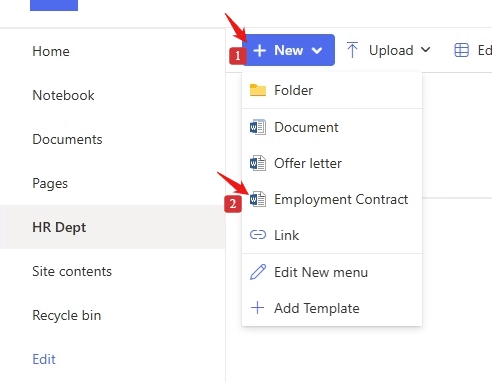
Content type is ready to use. Go to the Document library, click + New and choose the required Content Type.
- The document template opens automatically
- Required metadata is enforced
Summary
SharePoint Content Types are a foundational feature for building scalable, well-governed SharePoint solutions. By standardizing metadata, templates, and behaviors, they help organizations manage content more efficiently and consistently.
Whether you’re handling contracts, policies, or project documents, Content Types provide the structure needed for long-term success.