


In this blog, we are going to reset a lost password for our vCenter appliance. The process is the same for password resets on vCF
Step by step guide to Reset the Root Password in VCSA 6.X / 7.X /8.X / vCF 4/5.X
1 – Snapshot the vCSA appliance first
2- Reboot the vCenter appliance
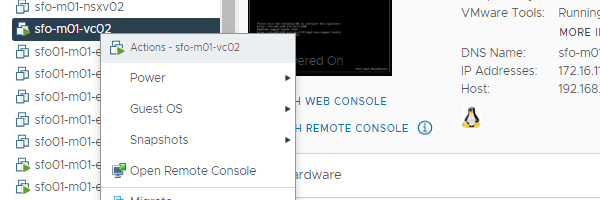
3- After rebooting the vCSA appliance, we need to get into the GRUB Menu to reset the root password. Press the e key to enter the GNU GRUB Edit Menu.

Find the line that opens with the word Linux.
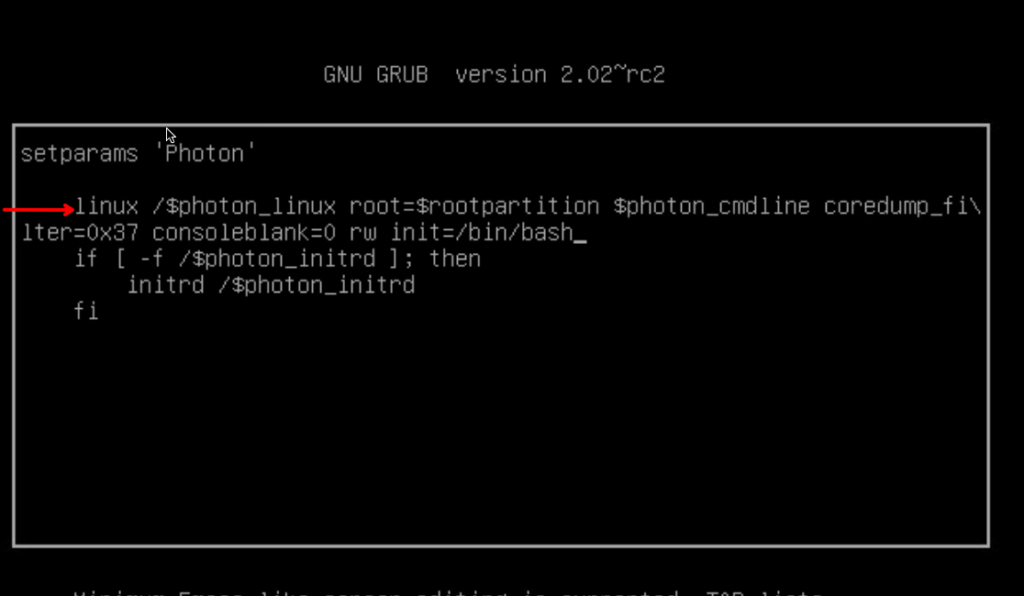
3- Type the below entries to the end of the line
rw init=/bin/bash
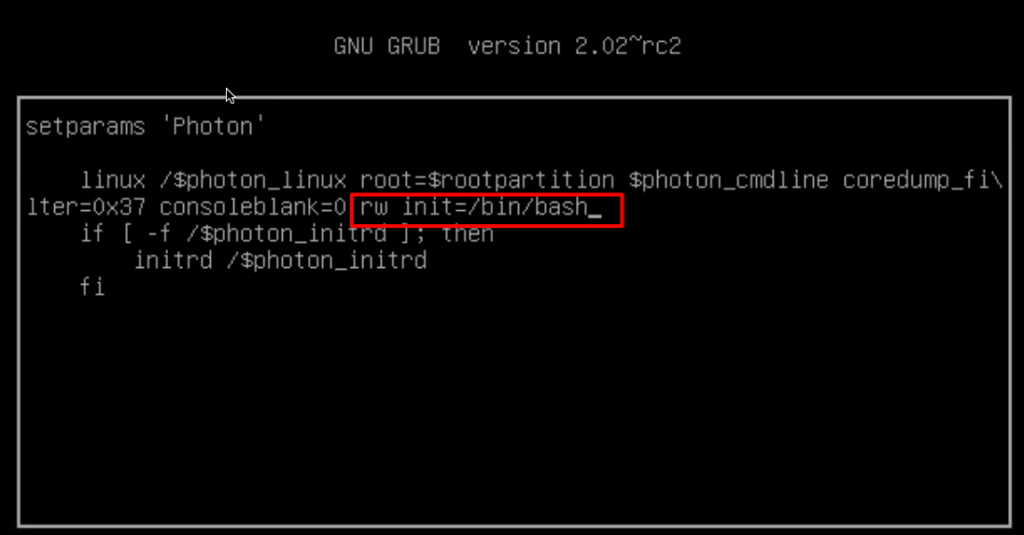
4- Press F10 to continue booting. The OS continues to boot and you will be presented with this screen
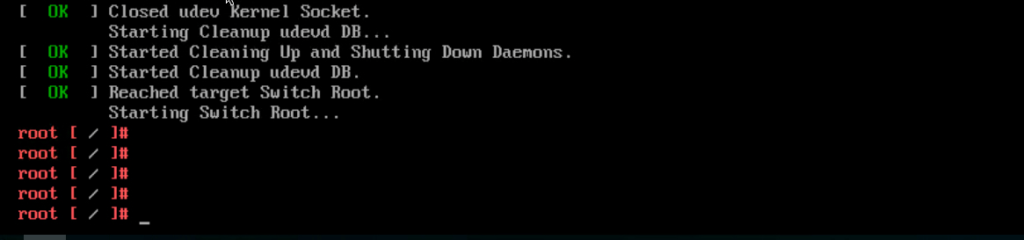
5 – Run the command mount -o remount,rw /

If the root account was locked due to x number of failed logon attempts type to following to unlock it
/sbin/pam_tally2 -r -u root
On vCenter 8.0 U2 and above, unlock the ‘root’ account using below command if it is already locked due to multiple logins with incorrect password.
/usr/sbin/faillock –user root –reset

6 – to reset password type command passwd

7 – Unmount the filesystem

8 – Reboot the system
reboot -f

11- Open a browser and type the FQDN address of the VCSA/vCF followed by port 5480 to validate access using our new root password

The “New” Way to Reset vCenter 8.x Root Passwords (CLI)
If you use the standard Linux BASH shell to change a password, the background management services (which run the VAMI and APIs) don’t always sync correctly.
Login with SSO account and run localaccounts.user.get –username root to check if its locked
- Status: Should be
enabled. - Passwordstatus: Should be
valid.

Reset the Password (The Secure Way)
localaccounts.user.password.update –username root –password

Unlock if Necessary
If the account was locked due to too many failed attempts, run:
localaccounts.user.unexpire --username root