


VMware now encourages administrators to use vCert as the primary tool for managing certificates across VMware Cloud Foundation environments — including workflows such as reviewing certificate health, updating expiring certificates, and replacing Machine SSL Certificates.
This post walks through the installation of the vCert 6.1 utility and explores what each menu option provides. Before we dive into certificate replacement in the next article, it’s worth understanding what this new tool brings to the table.
Blog Series
- End‑to‑End Machine SSL Replacement on VVF vSphere 8/9.x with vCert via CLI
- End‑to‑End Machine SSL Replacement on VVF vSphere 8/9.x with vCert via UI
- Walkthrough covers how to install and run the vCert 6.0.0 utility
- Create a CA and Replace vCenter Server SSL certificate with CA signed certificate via vSphere Certificate Manager
vCert is designed to streamline certificate operations across vCenter Server and its related components. Instead of jumping between CLI commands, UI screens, and manual checks, vCert gives you a clean, guided interface for:
- Inspecting certificate status
- Identifying expiring or mismatched certificates
- Regenerating or replacing certificates
- Validating certificate health across the environment
This walkthrough covers how to install the vCert 6.0.0 utility and what each menu option offers
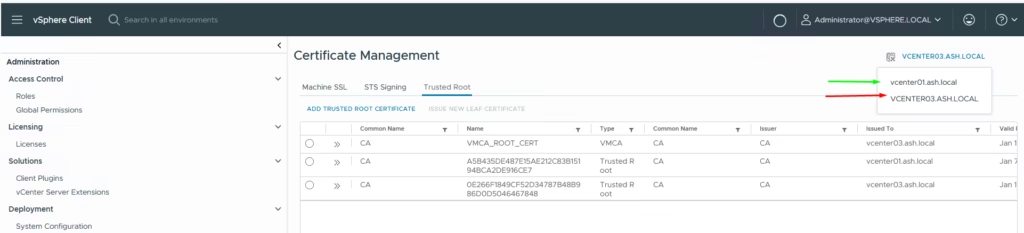
In our lab, we have two vCenters linked through the vSphere Client, so we’ll start by running a full certificate health check across both. The actual replacement workflow will follow in the next blog — for now, let’s get familiar with the tool and its capabilities.
Installing and Launching vCert 6.1.0
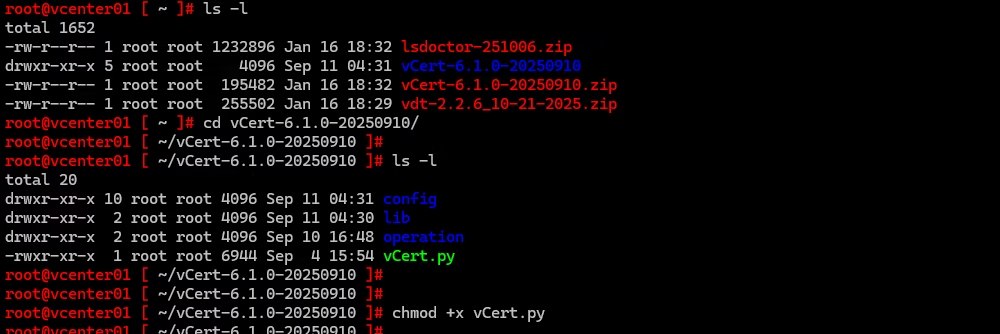
Before exploring the tool, pull down the latest utilities to your vCenter appliance:
- vCert (certificate management)
- lsdoctor (lookup service health and repair)
- vSphere Diagnostic Utility (general health and log analysis)
The legacy cert.py script is deprecated and fully replaced by vCert.py, so all certificate workflows now run through this new utility.
Bundle is downloaded

Unzip the tool using ~ ]# unzip vCert-6.1.0-20250910.zip
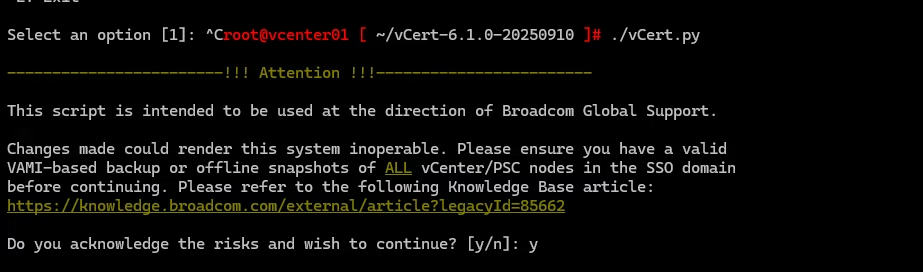
Run the ./vCert.py script to launch the interactive menu.
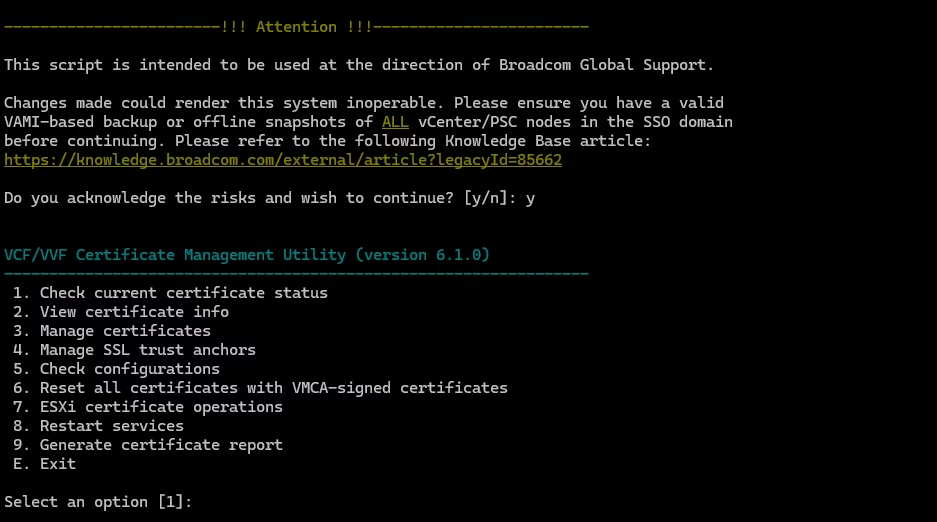
What Each vCert Menu Option Actually Does
Below is the “how to use it” version, not just what the menu says.
1. View Certificate Health
What it does:
Runs a full inspection of all vCenter certificates — Machine SSL, Solution User, STS, and Trusted Root chains.
This is your first step in any certificate troubleshooting scenario
When you use it:
- Before upgrades
- When UI login issues appear
- When you suspect expired or mismatched certificate
- STS tokens are failing
How to use it:
Select option 1 → vCert runs a full health scan.
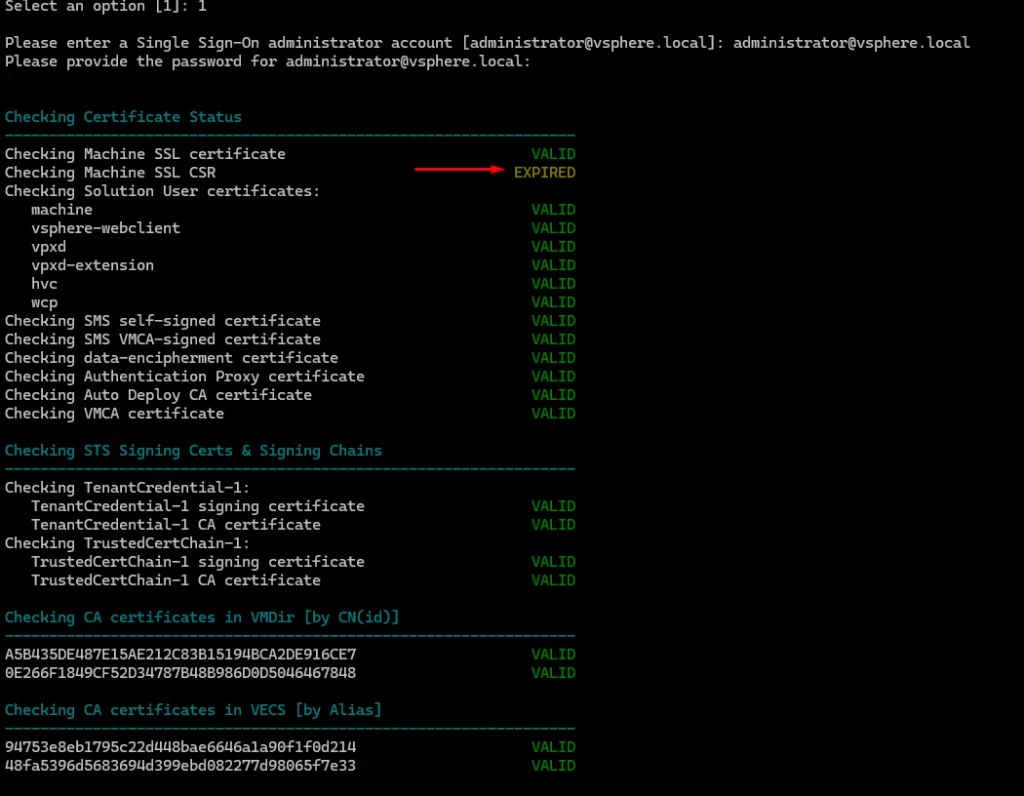
You’ll get a pass/fail summary for each certificate and store. Here is a potential PNID issue we will be facing during cert replacements due to the Upper case.
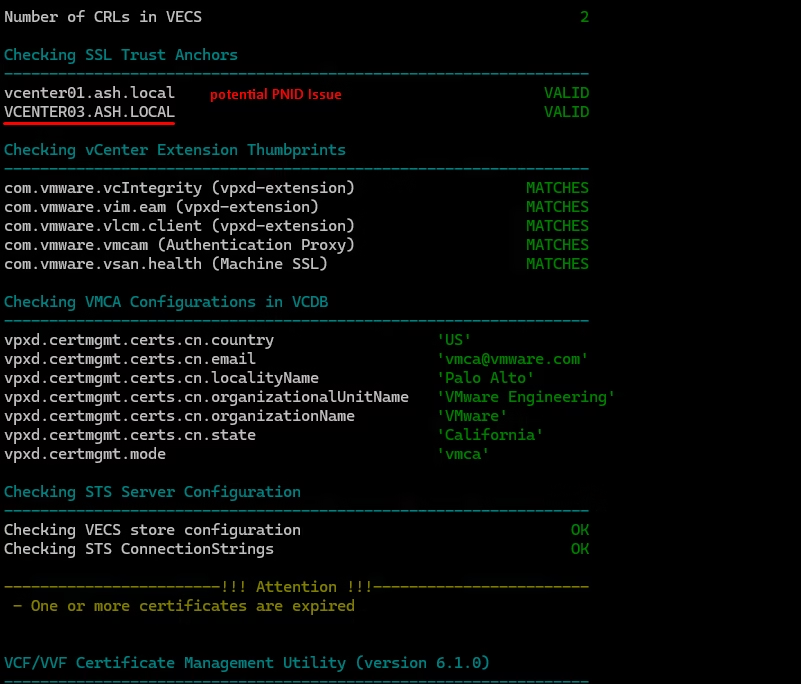
You’ll get a pass/fail summary for each certificate and store.
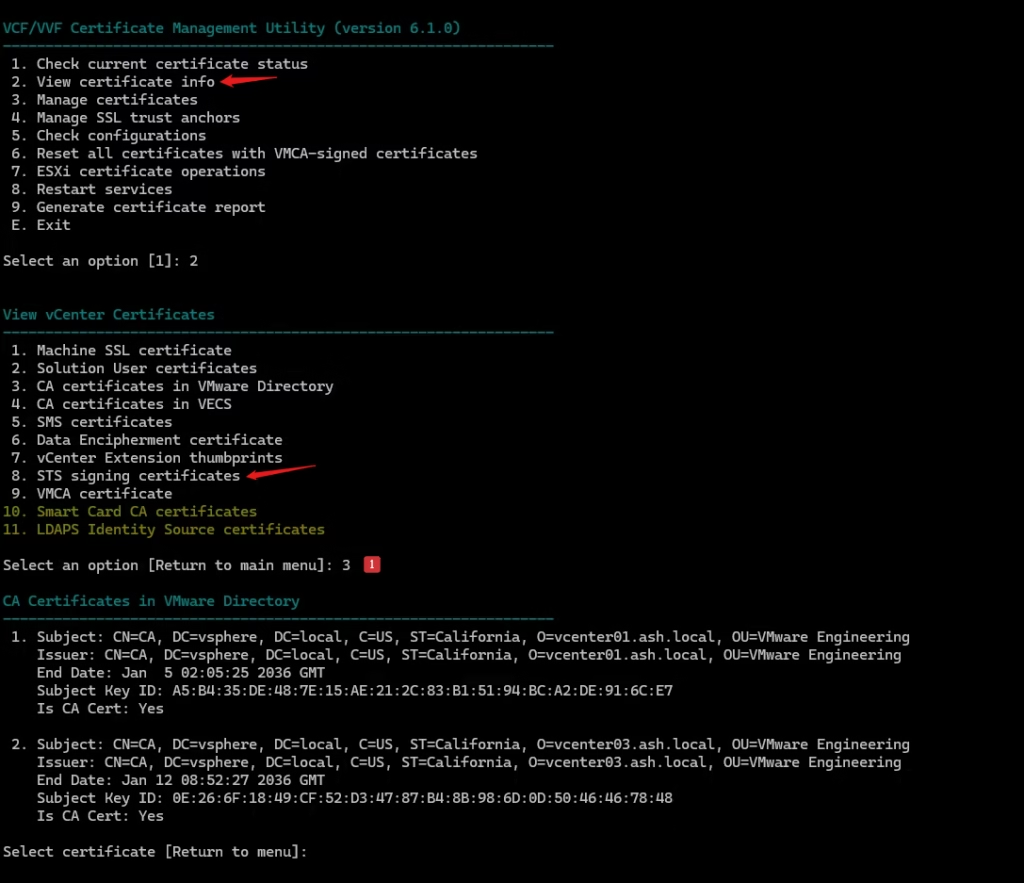
2. View Certificate Info
What it does:
Lists all certificates with their expiry dates in a clean, readable table
When you use it:
- Planning certificate rotation windows
- Identifying which certs are about to expire
- You want to inspect SANs, expiry, issuer, or key usage
- You’re validating a custom CA chain
How to use it:
Choose option 2, then pick the certificate type (Machine SSL, Solution User, STS, etc.).
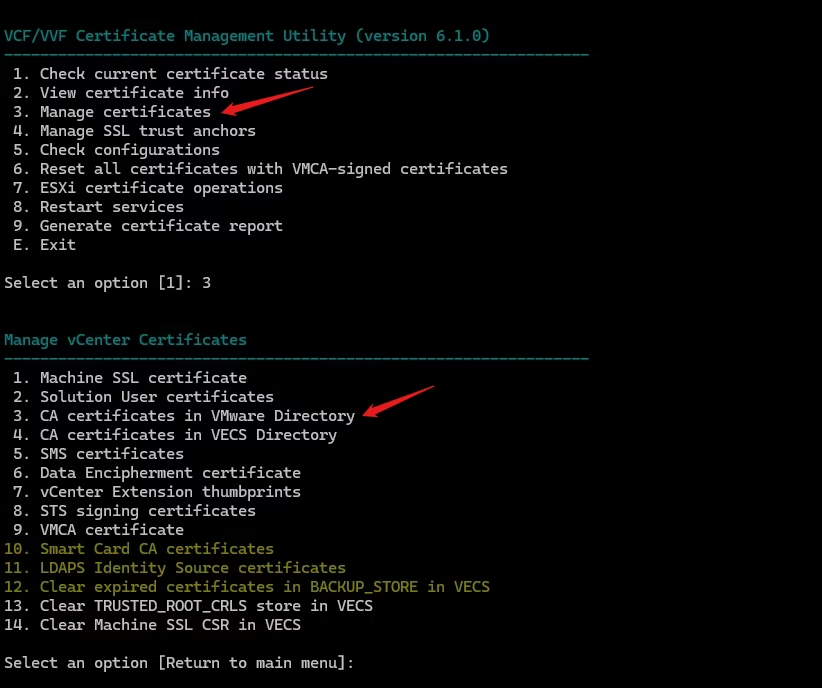
3. Manage Certificates
This is the heart of the tool.
What it does:
Guides you through replacing the Machine SSL certificate with a new CSR or a custom certificate.
When you use it:
- Replacing Machine SSL
- Replacing Solution User certs
- Importing custom CA‑signed certificates
- Updating STS signing certificates
- Fixing broken VECS entries
This is the workflow that replaces the old cert.py functionality
How to use it:
- Select option 3
- Choose the certificate type
- Provide the certificate/key/chain files
- Confirm the replacement
vCert validates the chain, updates VECS, restarts services, and ensures consistency.
Preparing the Custom Certificates
Before proceeding, ensure you have the following files ready:
cert.pem: The SSL certificate.key.key: The private key associated with the certificate.ca.pem: The root CA certificate or the full certificate chain.
We will cover this in our next blog so keep reading.
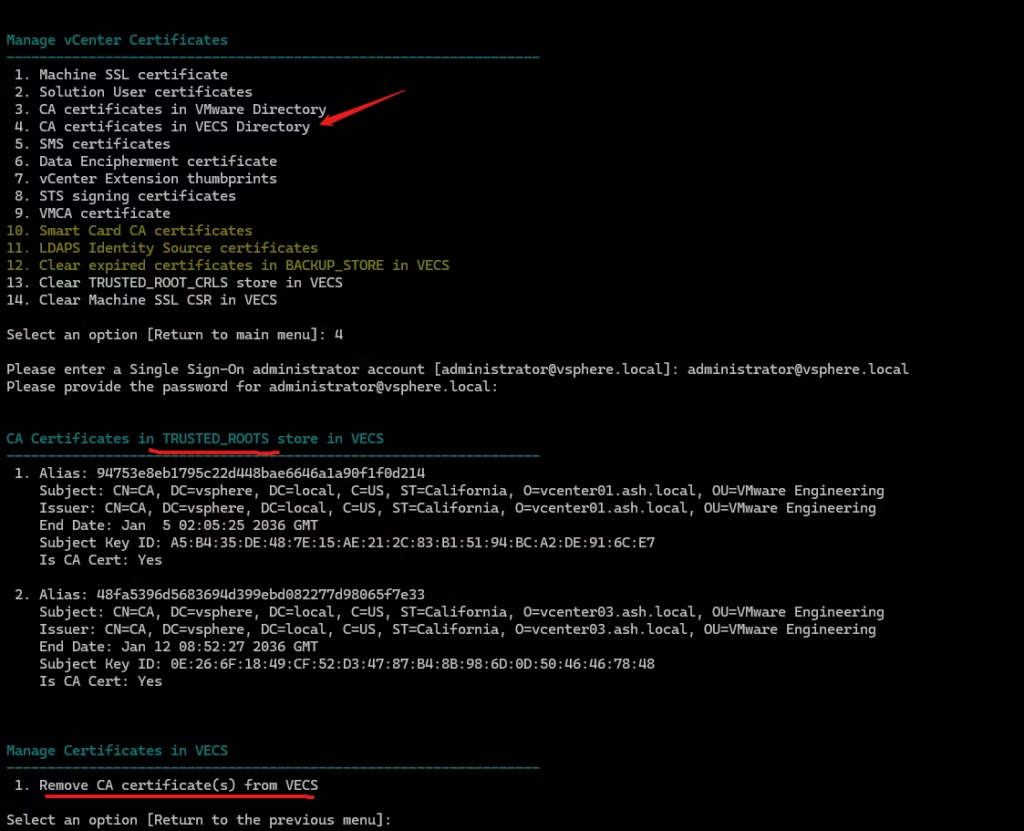
4. Manage SSL Trust Anchors
When you use it:
- Validate trust anchors used by Lookup Services
- This option prevents the classic “vCenter login broken due to STS expiry” scenario.
- You see “certificate not trusted” errors between PSC/vCenter nodes
5. Check Configurations
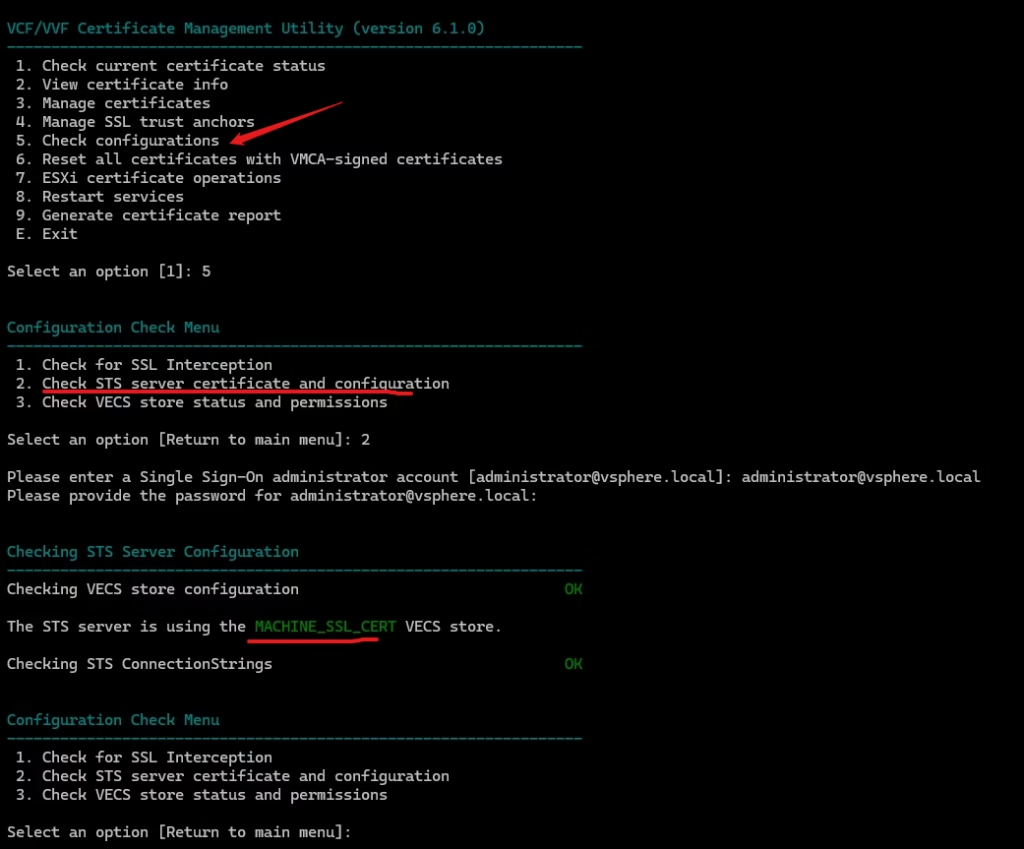
This is your pre‑flight check before doing anything major.
What it does:
SSL interception detection
When you use it:
- STS is expired or close to expiry
- STS server certificate and configuration
- Solution Users
6. Reset All Certificates
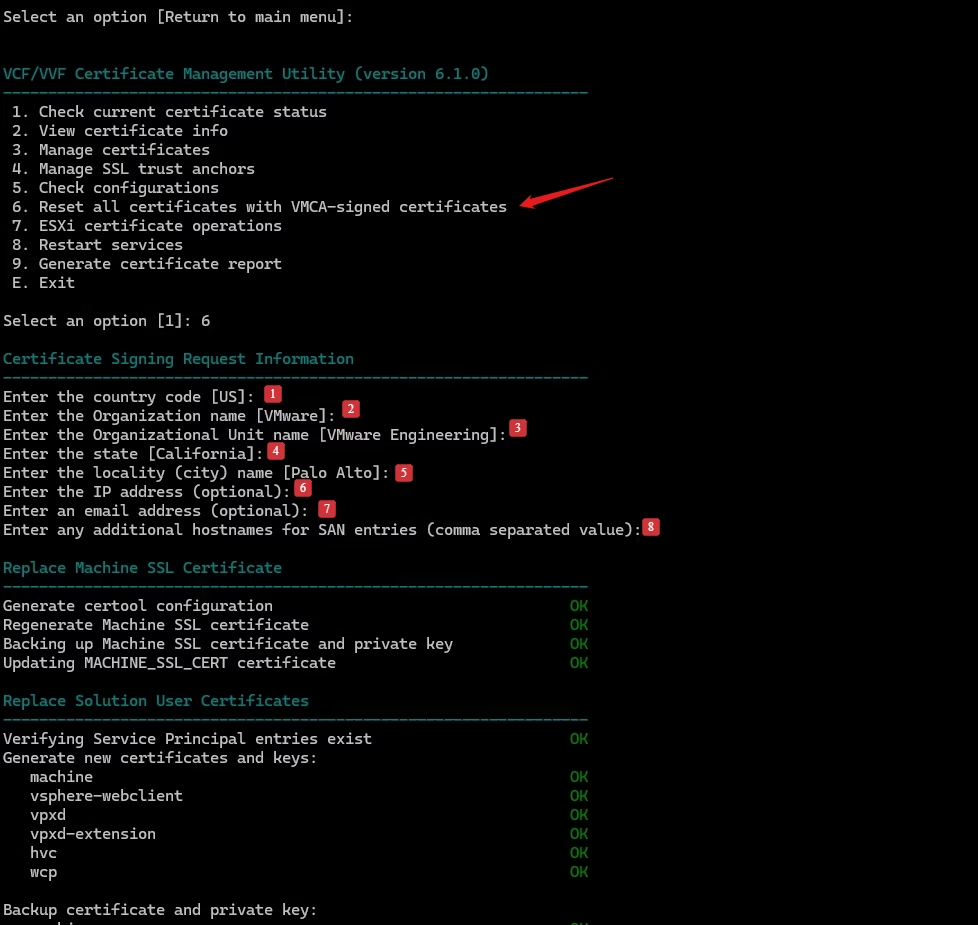
Use this when:
- Everything is broken
- Custom CA migration failed
- You want to return to VMCA‑signed defaults
How to use it:
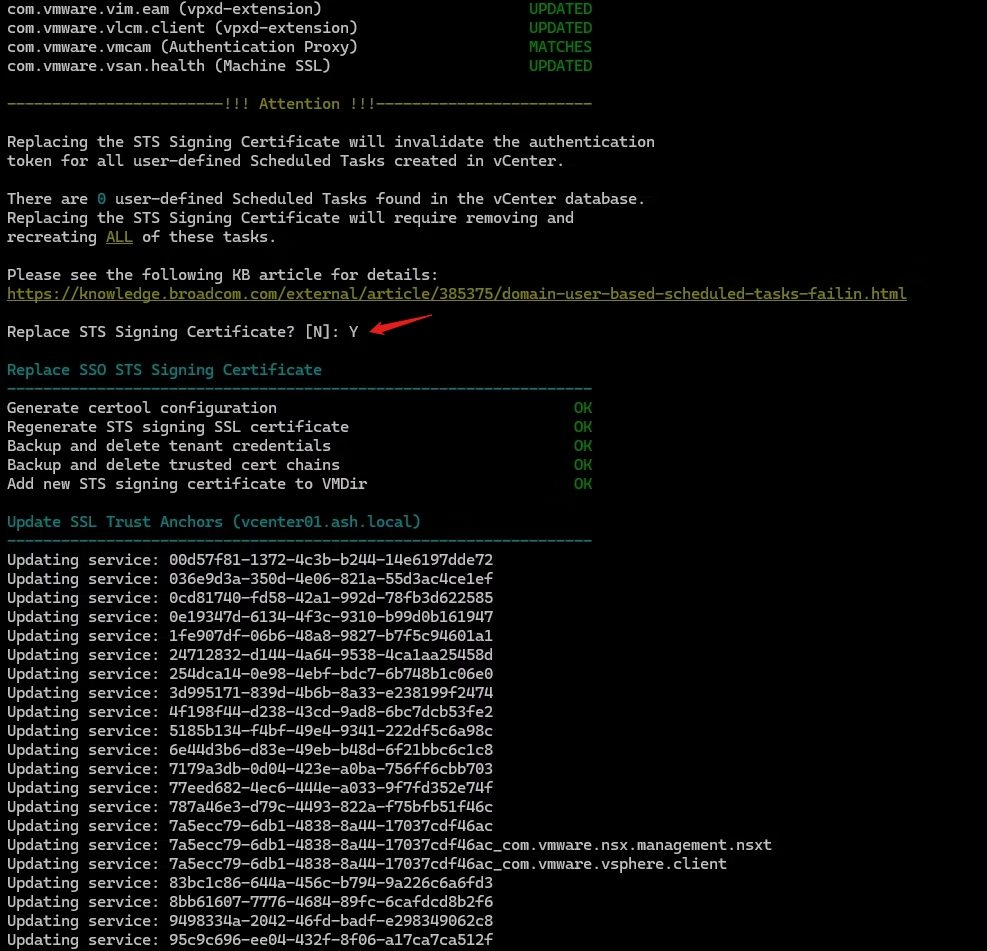
Option 6 → confirm → vCert regenerates:
- Machine SSL
- Solution Users
- STS signing
This is the “factory reset” for certificates.
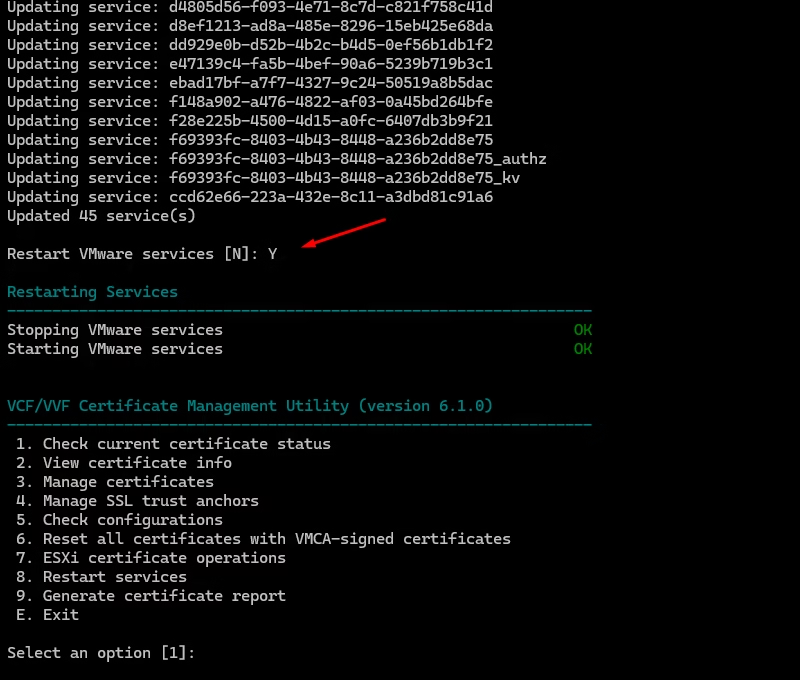
7.ESXi Certificate Operations
Use this when:
- ESXi hosts show trust errors
- rui.crt/rui.key are mismatched
- You’re replacing host certificates manually
- Replace host certificates (
rui.crt,rui.key,castore.pem)
How to use it:
Option 7 → choose validate or replace.
vCert handles the host certs and ensures vCenter alignment.
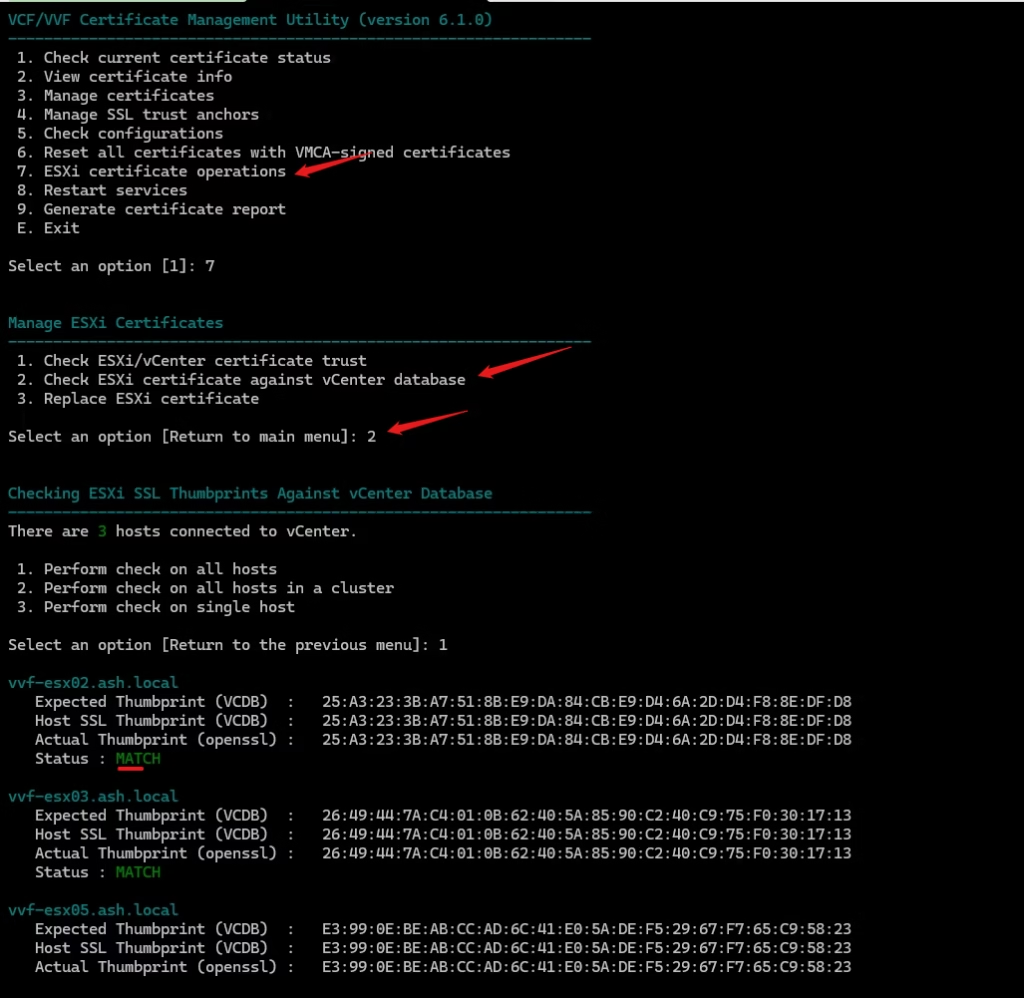
You’ll need to restart host services afterward.
8 Restart Services
Use this when:
- A certificate replacement requires service restart
- vCenter services are stuck
- You want to restart a specific service
How to use it:
Option 8 → choose “all services” or specify one.
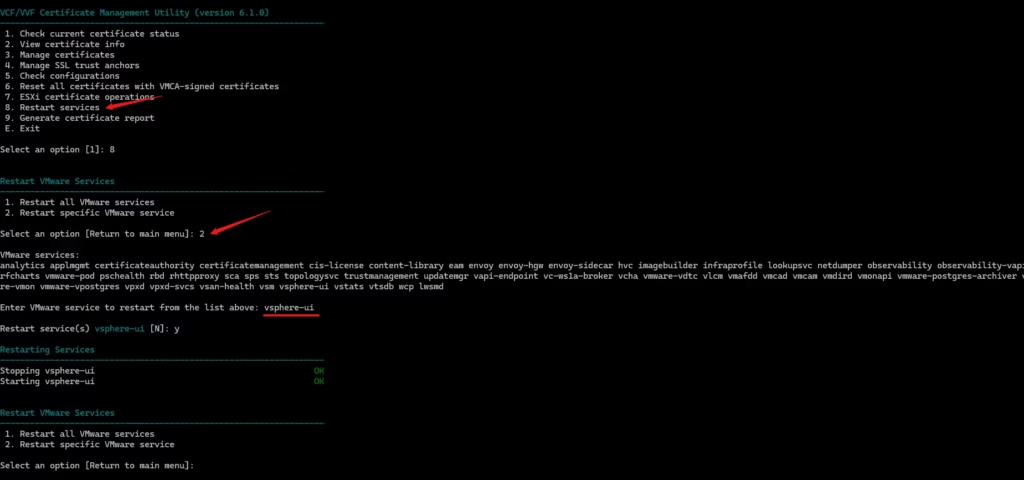
9. Generate Certificate Report
Use this when:
- You want a full certificate inventory
- Preparing for audits
- Documenting environment state before changes
How to use it:
Option 9 → vCert generates a detailed report under:/var/log/vmware/vCert/vcenter-certificate-report.txt
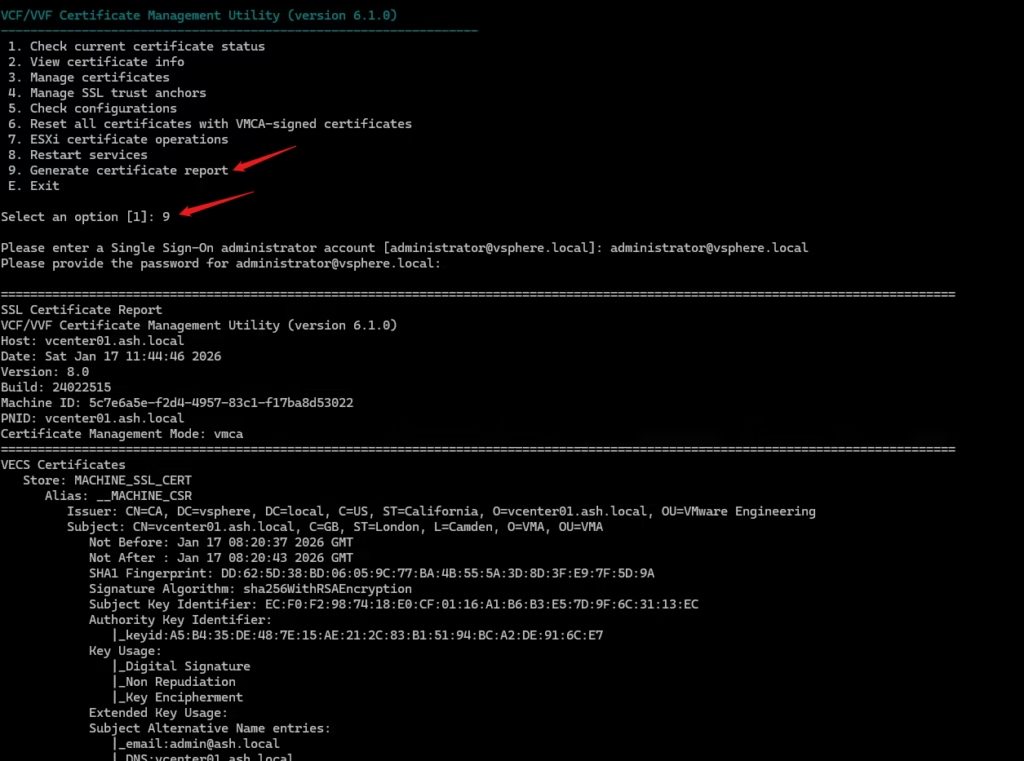
Certificate report is available at /var/log/vmware/vCert/vcenter-certificate-report.txt so lets us a regular expression to find out what’s going on
egrep -i "2025|2026" /var/log/vmware/vCert/vcenter-certificate-report.txt
# Search for expired ones

root@vcenter01 [ ~/vCert-6.1.0-20250910 ]# egrep -i "2025|2026" /var/log/vmware/vCert/vcenter-certificate-report.txt
Date: Sat Jan 17 11:44:46 2026
            Not Before: Jan 17 08:20:37 2026 GMT
            Not After : Jan 17 08:20:43 2026 GMT
            Not Before: Jan 17 11:13:01 2026 GMT
            Not Before: Jan  7 02:05:25 2026 GMT
            Not Before: Jan 14 08:52:27 2026 GMT
            Last Update: Jan 17 08:42:27 2026 GMT
            Next Update: Feb 16 08:42:27 2026 GMT
            Last Update: Jan 17 11:14:14 2026 GMT
            Next Update: Feb 16 11:14:14 2026 GMT
            Not Before: Jan 17 11:13:03 2026 GMT
            Not Before: Jan 17 11:13:04 2026 GMT
            Not Before: Jan 17 11:13:07 2026 GMT
            Not Before: Jan 17 11:13:09 2026 GMT
            Not Before: Jan 17 11:13:09 2026 GMT
            Not Before: Jan 10 01:59:57 2026 GMT
            Not Before: Jan 10 02:12:35 2025 GMT
            Not Before: Jan 10 02:12:35 2026 GMT
            Not Before: Jan 12 09:19:53 2026 GMT
            Not Before: Jan 12 09:36:50 2026 GMT
            Not Before: Jan 14 06:58:54 2026 GMT
            Not Before: Jan 17 11:13:12 2026 GMT
            Not Before: Jan  7 02:05:25 2026 GMT
            Not Before: Jan 14 08:52:27 2026 GMT
            Not Before: Jan 17 11:13:03 2026 GMT
            Not Before: Jan 17 11:13:04 2026 GMT
            Not Before: Jan 17 11:13:07 2026 GMT
            Not Before: Jan 17 11:13:09 2026 GMT
            Not Before: Jan 17 11:13:09 2026 GMT
            Not Before: Jan 17 11:13:12 2026 GMT
            Not Before: Jan 17 11:13:22 2026 GMT
            Not Before: Jan  7 02:05:25 2026 GMT
            Not Before: Jan 17 11:13:22 2026 GMT
            Not Before: Jan  7 02:05:25 2026 GMT
            Not Before: Jan  7 02:05:25 2026 GMT
            Not Before: Jan 10 02:03:36 2026 GMT
            Not Before: Jan 10 02:14:59 2026 GMT
            Not Before: Jan 17 11:13:01 2026 GMT
            Not Before: Jan 17 08:52:28 2026 GMT


root@vcenter01 [ ~/vCert-6.1.0-20250910 ]# egrep -i "Alias|Not After|Expiry" \
> /var/log/vmware/vCert/vcenter-certificate-report.txt
      Alias: __MACHINE_CSR
            Not After : Jan 17 08:20:43 2026 GMT
      Alias: __MACHINE_CERT
            Not After : Jan 17 11:13:01 2028 GMT
      Alias: 94753e8eb1795c22d448bae6646a1a90f1f0d214
            Not After : Jan  5 02:05:25 2036 GMT
      Alias: 48fa5396d5683694d399ebd082277d98065f7e33
            Not After : Jan 12 08:52:27 2036 GMT
      Alias: 4dd9e92e044edeb578fa88b7103bf58d294035cf
      Alias: 21c16de1351251d895231167b7d7f9a2e19aaaf3
      Alias: machine
            Not After : Jan  5 02:05:25 2036 GMT
      Alias: vsphere-webclient
            Not After : Jan  5 02:05:25 2036 GMT
      Alias: vpxd
            Not After : Jan  5 02:05:25 2036 GMT
      Alias: vpxd-extension
            Not After : Jan  5 02:05:25 2036 GMT
      Alias: hvc
            Not After : Jan  5 02:05:25 2036 GMT
      Alias: data-encipherment
            Not After : Jan  5 02:05:25 2036 GMT
      Alias: sms_self_signed
            Not After : Jan 10 02:12:35 2036 GMT
      Alias: sps-extension
            Not After : Jan  5 02:05:25 2036 GMT
      Alias: 89c31f42-5d06-d144-4e07-f770116be514
            Not After : Jan  5 02:05:25 2036 GMT
      Alias: a4d11f42-5425-7b0b-dd73-797cf9ac0ea2
            Not After : Jan  5 02:05:25 2036 GMT
      Alias: 47f91f42-f6a4-182d-a10a-b23fb5a99e44
            Not After : Jan  5 02:05:25 2036 GMT
      Alias: wcp
            Not After : Jan  5 02:05:25 2036 GMT
            Not After : Jan  5 02:05:25 2036 GMT
            Not After : Jan 12 08:52:27 2036 GMT
            Not After : Jan  5 02:05:25 2036 GMT
            Not After : Jan  5 02:05:25 2036 GMT
            Not After : Jan  5 02:05:25 2036 GMT
            Not After : Jan  5 02:05:25 2036 GMT
            Not After : Jan  5 02:05:25 2036 GMT
            Not After : Jan  5 02:05:25 2036 GMT
            Not After : Jan 17 11:13:22 2028 GMT
            Not After : Jan  5 02:05:25 2036 GMT
            Not After : Jan 17 11:13:22 2028 GMT
            Not After : Jan  5 02:05:25 2036 GMT
            Not After : Jan  5 02:05:25 2036 GMT
            Not After : Jan  5 02:05:25 2036 GMT
            Not After : Jul 11 02:14:59 2037 GMT
            Not After : Jan 17 11:13:01 2028 GMT
Not After : Jan 17 20:52:28 2028 GMTAll this info is is available from vCenter Server 7.0 Update2 and later from the UI
- Connect to the vSphere HTML5 client through
https://vcenter_server_ip_address_or_fqdn/ui. - From Home Menu, Select Administration.
- Under Certificates, Click on Certificate Management.
- View all certificate information.
Summary
vCert 6.1 is a critical utility for environments where robust certificate lifecycle management is required. It streamlines common yet high-risk tasks such as replacing Machine SSL certificates, resolving STS signing certificate issues, and validating trust relationships between vCenter Server and ESXi hosts—all through a controlled, guided workflow.
As with any certificate operation, proceed carefully and ensure full backups or snapshots are in place before making changes.
For certificate validation and replacement, use the Manage Certificates menu within vCert following the below Broadcom article
References
vCert – Scripted vCenter expired certificate replacement