

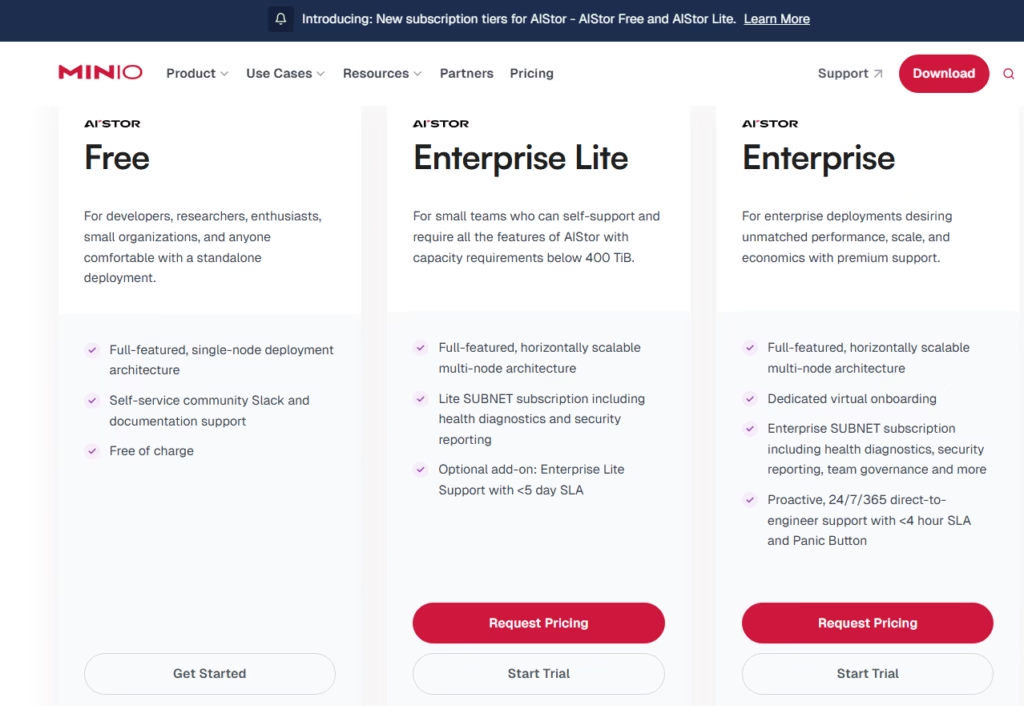
This MinIO service allows us to provision Object Storage on VMware Cloud Foundation (VCF) environments but to run MinIO as an object store through VMware Data Services Manager, you need a MinIO SUBNET commercial license (also called the MinIO Enterprise License).
MinIO itself is not included with VMware VCF and must be licensed directly from MinIO. The open‑source AGPL version cannot be used for production deployments inside VMware environments so you need the enterprise license that has the SUBNET subscription on it.
I’ve reached out to MinIO for a enterprise test license. If they provide one, I’ll complete the full demo; otherwise, we’ll take the workflow as far as we can
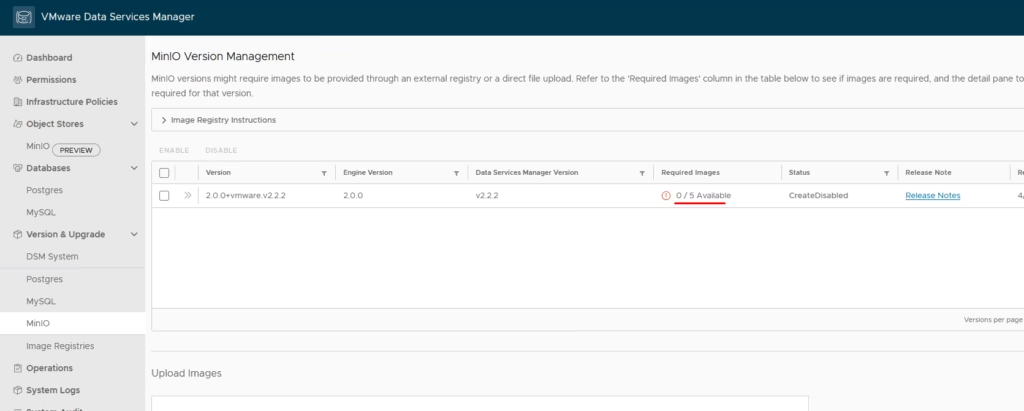
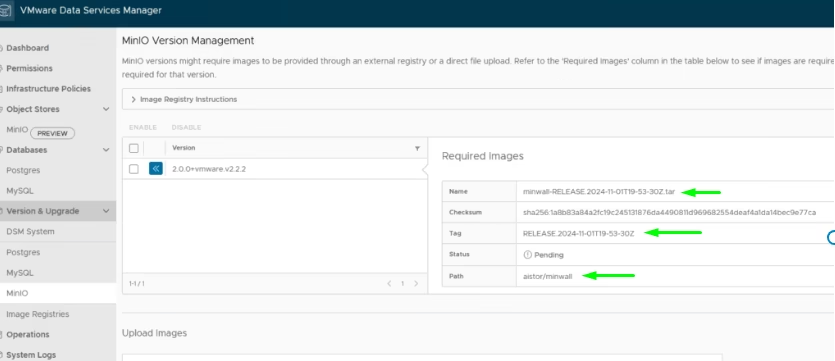
When you navigate to Version & Upgrade → MinIO, DSM initially reports: 0/5 required images available
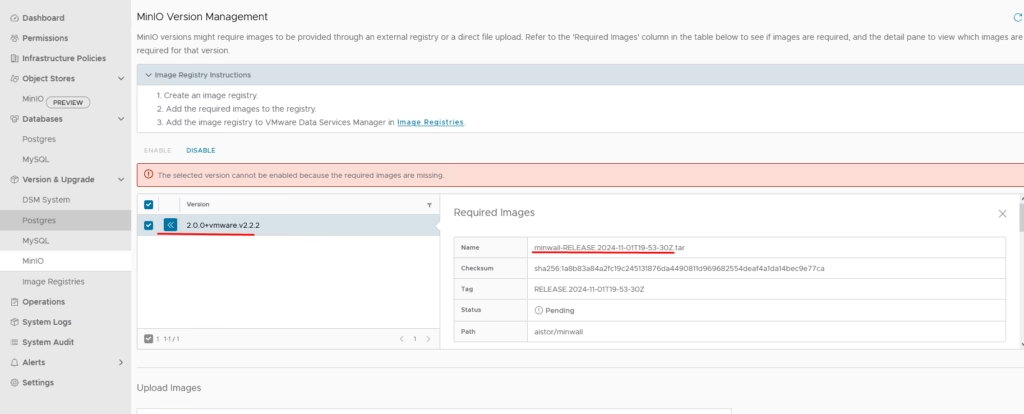
Expanding the service shows all required images in a Pending state
If your vSphere environment has internet access, DSM can pull these images automatically via an Image Registry.
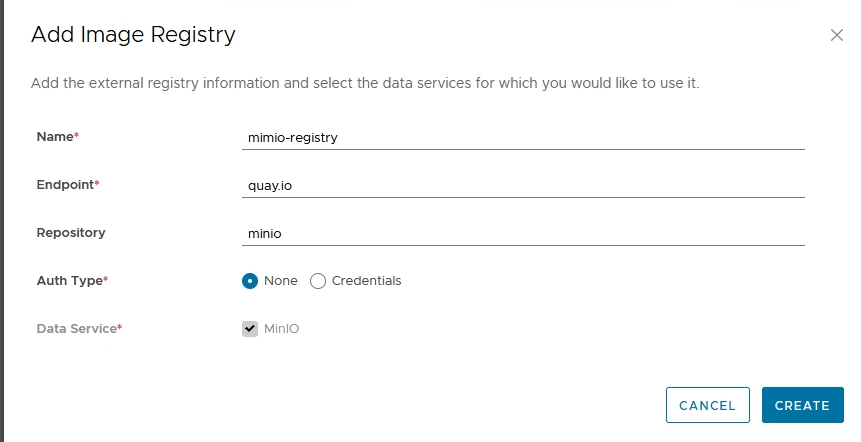
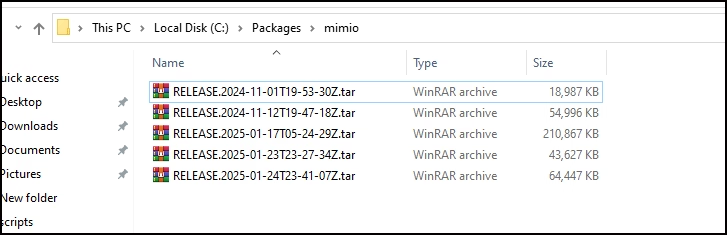
My environment is offline, so I had to manually fetch the images using Docker and upload them to DSM as .tar bundles. DSM 2.2 requires five MinIO images before an Object Store can be created.
You can see the exact list by clicking the MinIO version inside the DSM UI — it displays:
- Bundle name
- Tag
- Docker image path
- Registry location (
quay.io/minio)
Downloading the Images (Offline Workflow)
Since my environment has no internet access, I pulled the images on a connected host using Docker.
Example:
docker pull quay.io/minio/aistor/minio:RELEASE.2025-01-17T05-24-29ZnRELEASE.2025-01-17T05-24-29Z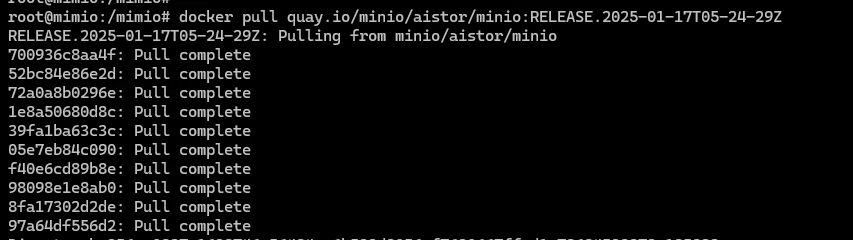
Once the image is downloaded, verify it and you should see something like
docker images
Then save it as a .tar bundle using docker save image:tag > .tar bundle
docker save
Repeat this for all five required images and just go to Version & Upgrade > MinIO > Upload Images in DSM
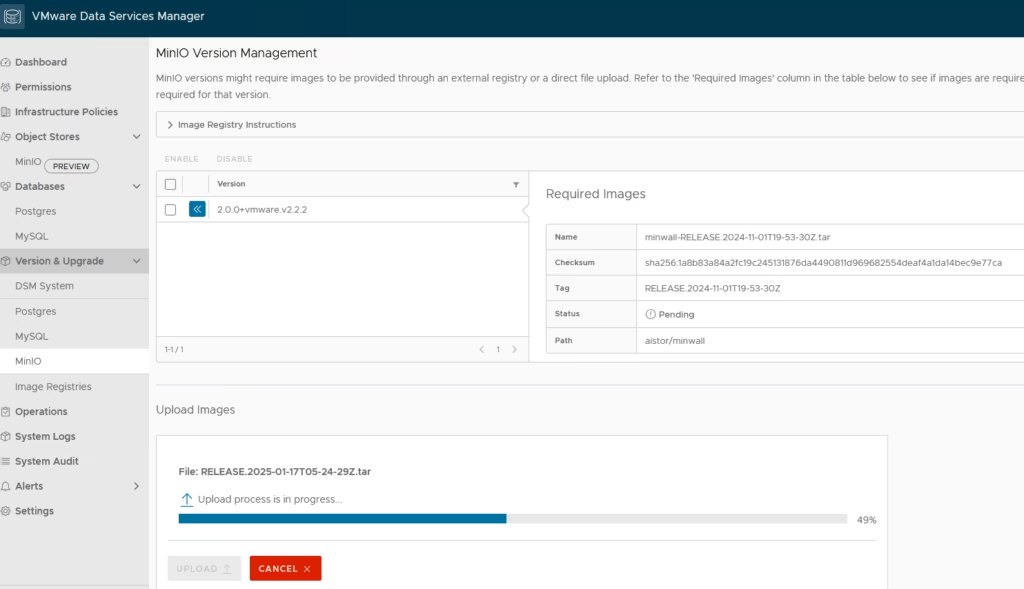
After each upload, DSM updates the status to show the image is available.
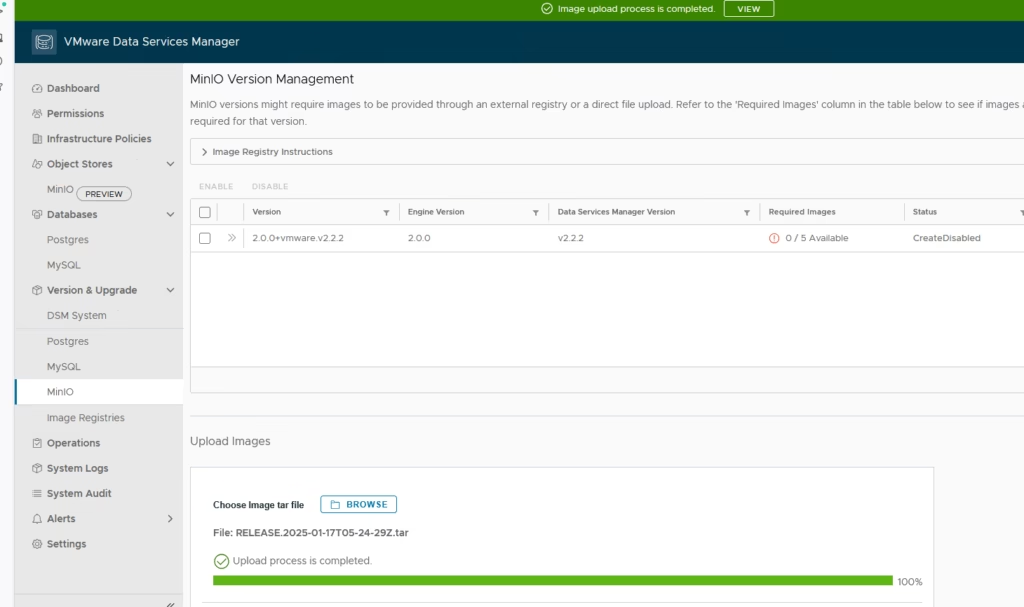
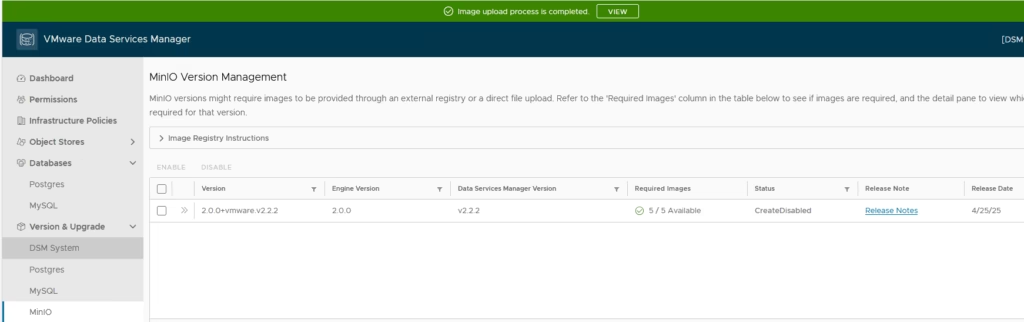
Once all images are uploaded, DSM will show 5 / 5 required images available
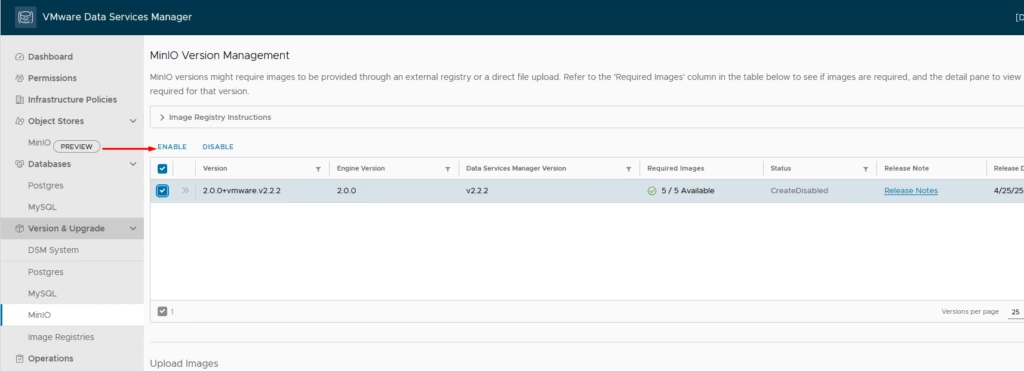
Enable the version
Click Save
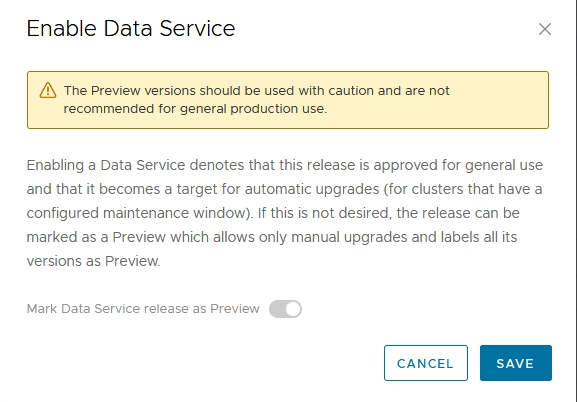
DSM is ready to provision an Object Store.
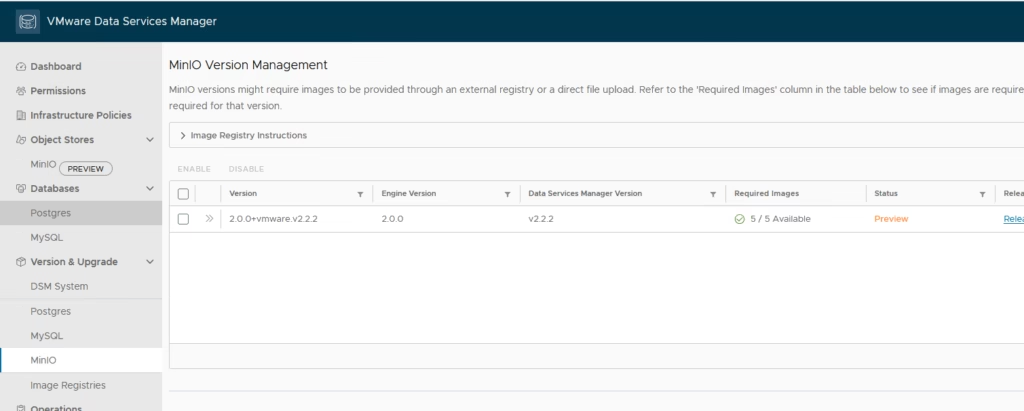
Create the MinIO /Garage AIStor Object Store
Navigate to: Object Stores → MinIO (Preview). DSM immediately prompts for a MinIO AIStor Enterprise License Key.
As mentioned earlier, this must come directly from MinIO — the free version will not work. There is another project called Garage users are talking about but so far I’ve not been to be configure it as a object storage in my lab for use with DSM so i’ll keep trying to find a workaround.
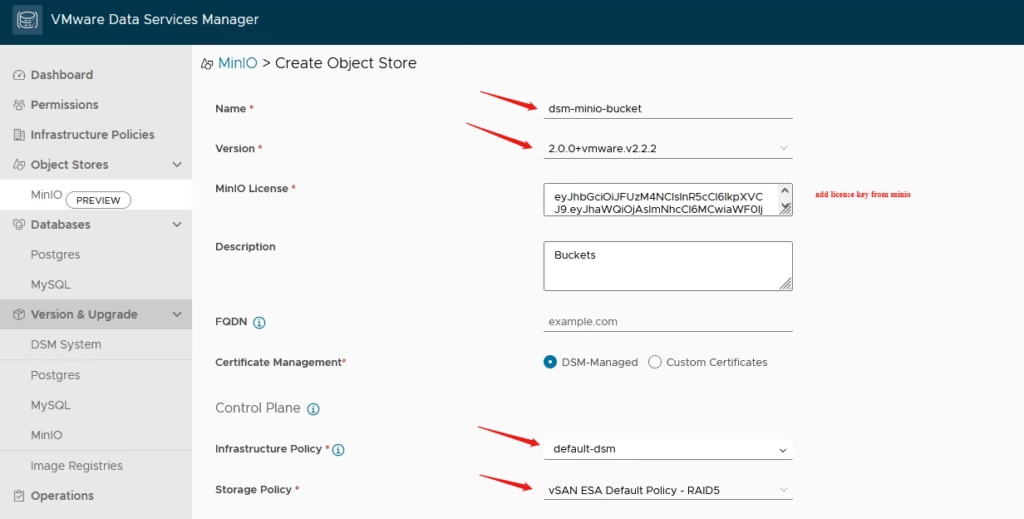
Configuration Steps
- Name:
dsm-minio-bucket - Version: auto‑selected
- License Key: MinIO Enterprise (SUBNET)
- Infrastructure Policy: select the one created earlier
- Under Storage Pool: create a new pool
- VM class: Small
- DSM shows usable capacity on the right
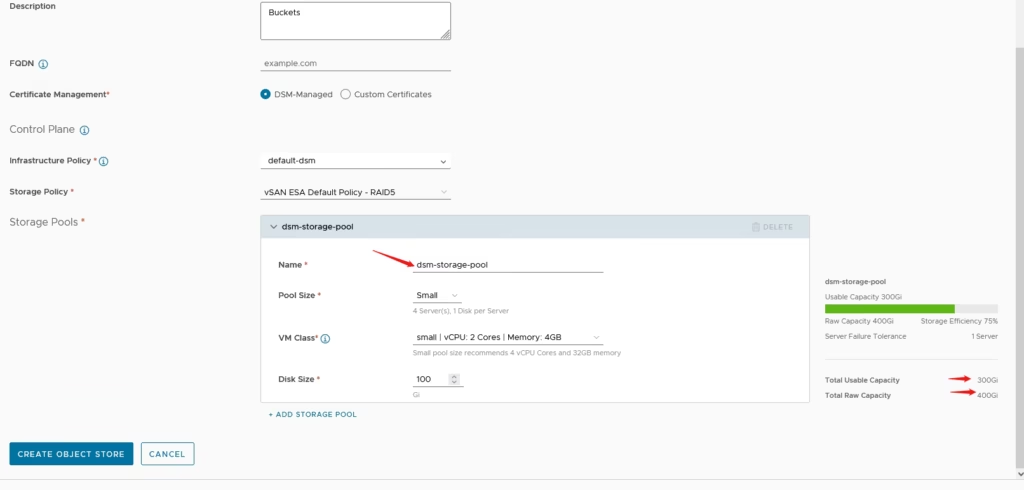
If we had the enterprise license, DSM would now begin deploying the MinIO nodes across the VCF workload domain.
Database Deployment Note
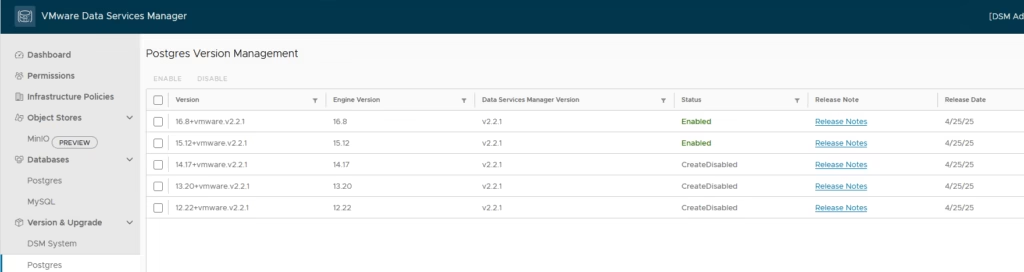
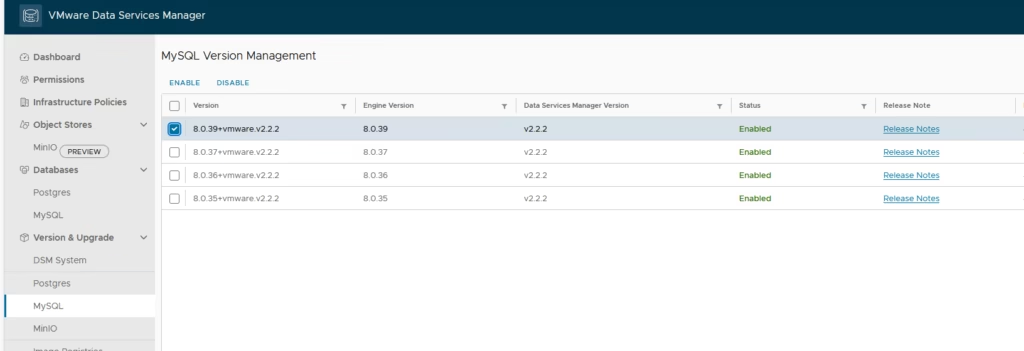
If a specific database version is required (e.g., Postgres), ensure that version is enabled under Version & Upgrade → Databases before provisioning.
Since we’re waiting on MinIO to provide an enterprise trial key, this is where the demo stops for now. If I receive the key, I’ll complete the full deployment workflow and update the blog.
Next up: deploying databases via our VCF 9 automation pipeline.