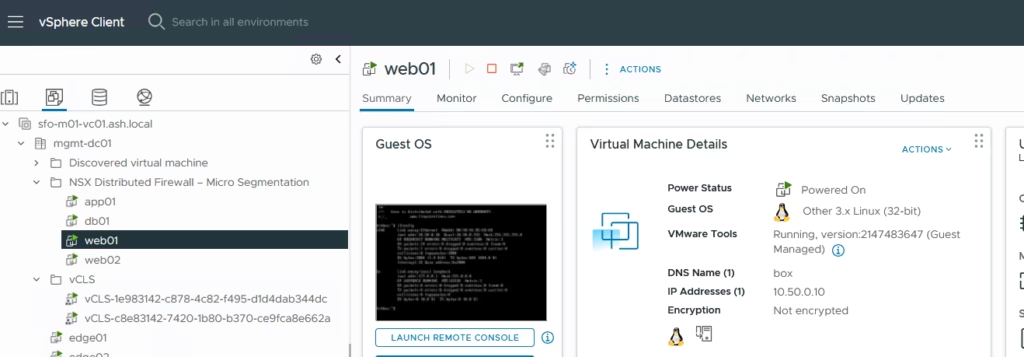
When designing networks in NSX 9, a common requirement is to provide automated IP addressing for virtual machine segments. NSX offers a flexible and powerful DHCP architecture that makes this easy to implement.
In this post, we’ll look at how DHCP functions within NSX 9 and walk through a practical example of configuring a Local DHCP server for VM segments.
NSX supports several DHCP deployment models:
1. Local DHCP Server
A DHCP server that is local to a segment.
- It serves only that specific segment.
- Simple and preferred for isolated management networks (e.g., Avi SE Mgmt, TKG Mgmt).
2. Gateway DHCP Server
A centralized DHCP service running on the Tier-0 or Tier-1 Gateway.
- Serves all segments connected to that gateway.
- Useful when multiple segments must share a common DHCP pool.
3. DHCP Relay
For environments where DHCP is provided by an external physical DHCP server.
- Common in enterprise networks requiring central IPAM.
- NSX forwards requests to the external server.
Important Note for VLAN Segments
When configuring DHCP Server or DHCP Relay on VLAN-backed segments, NSX requires the following to be enabled:
- Forged Transmits
- MAC Learning
Scenario Overview
In this example, we will deploy a Local DHCP Server within NSX to automatically assign IP addresses to VMs on Avi Service Engine (SE) Management segments.
NSX-T DHCP Server Profile Configuration
The core reason of using segment based dhcp services instead of the gateway based dhcp services or external dhcp services is a segment does NOT have a gateway connected.
Create DHCP Logical Segments for Avi SE VMs
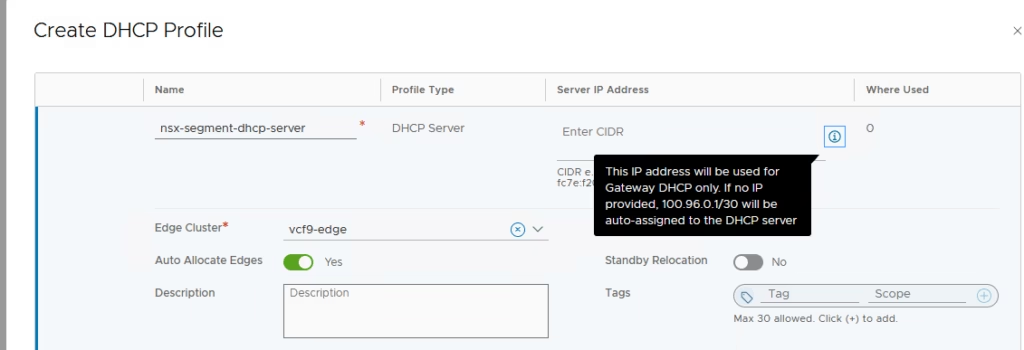
Go to Networking > IP Management > DHCP > Add DHCP Profile or in NSX 9, under Networking >Settings > Networking Profiles > Add DHCP Profile
- Name the DHCP profile as AVI-DHCP-Range
- Select the Profile Type as DHCP Server
- Skip the Server IP address in CIDR column as this will be provided by NSX-T
- Choose the edge cluster where the DHCP service will run nsx-alb-edge
- Leave Server IP Address blank as NSX-T will assign this IP automatically.
Here the dhcp services are served by the edge nodes
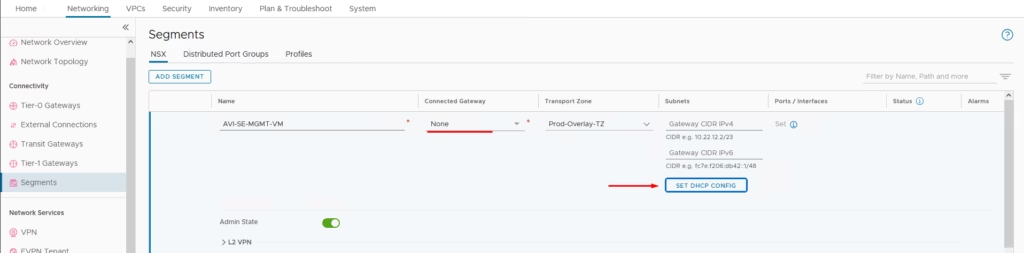
Create Logical Segments for Avi SE Mgmt VMs. Provide the following info
- Name the DHCP segment a name as AVI-SE-MGMT-VM
- Select the edge cluster as None
- Choose the transport mode as the Prod-Overlay
- Choose the subnet CIDR Gateway – Blank
The primary reason of using segment based dhcp services instead of the gateway based dhcp services or external dhcp services is a segment does NOT have a gateway connected
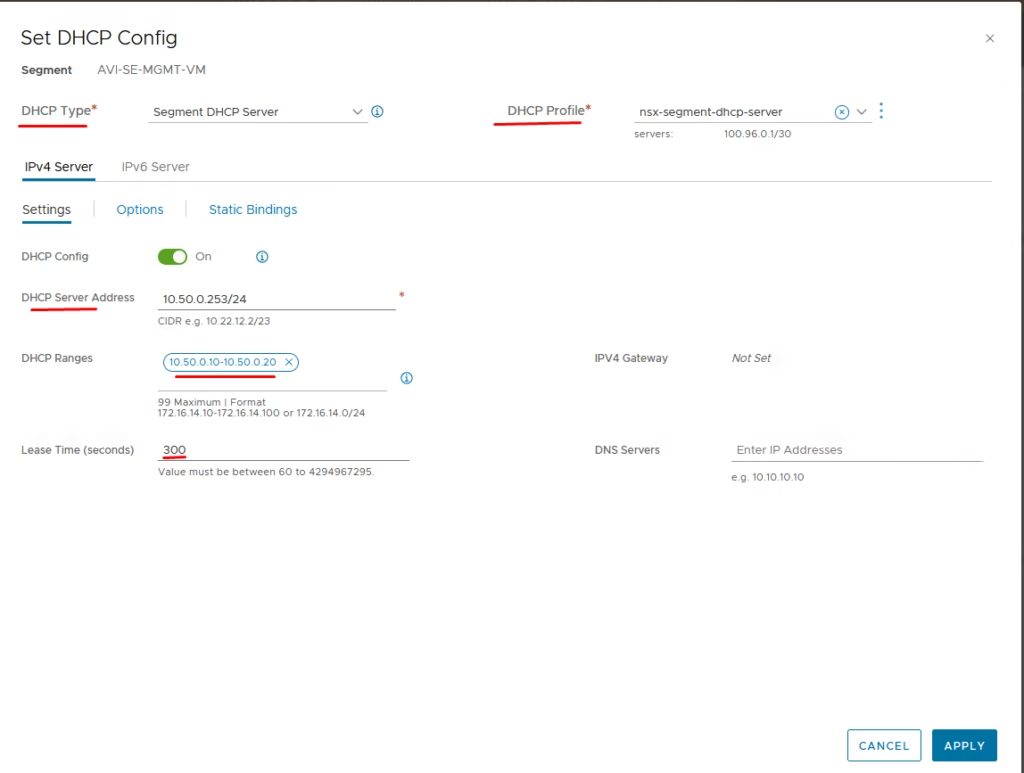
Under the DHCP Config, give the following
- Choose DHCP Type as our Segment DHCP Server
- Choose the DHCP profile as the one we created earlier.
- Choose a DHCP Server Address and the DHCP Range required.
- Provide the DHCP Server address here and that acts as our gateway for the VM’s.
Create a segment and attach a VM to the segment.
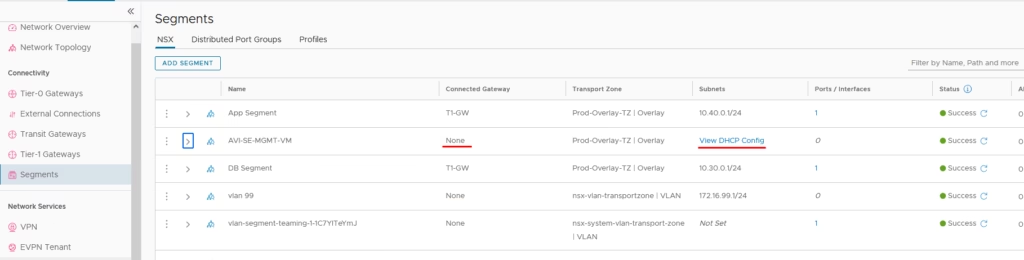
Our servers gets a DHCP IP assigned from NSX-T