

In highly regulated environments—financial institutions, government agencies, defense networks, and similar sectors—administrators often need to display login notices or consent prompts before users access management systems. These banners serve both security and compliance purposes. This quick walkthrough shows how to configure those messages in NSX‑T, with and without explicit user consent.
To begin, set up a basic login banner that appears when users sign in.
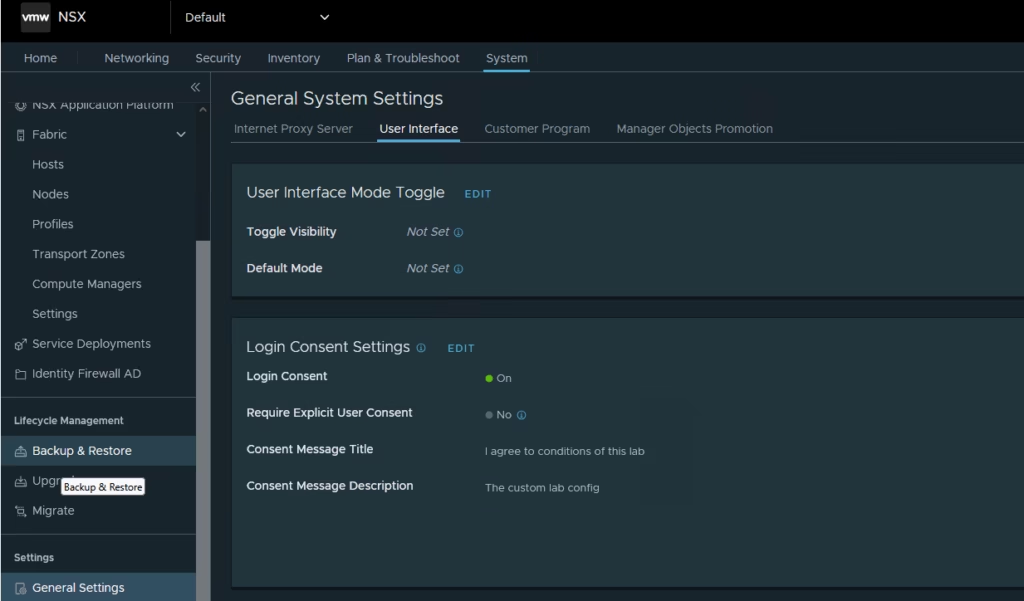
- Navigate to System > General Settings > User Interface.
- Under Login Consent Settings, select EDIT.
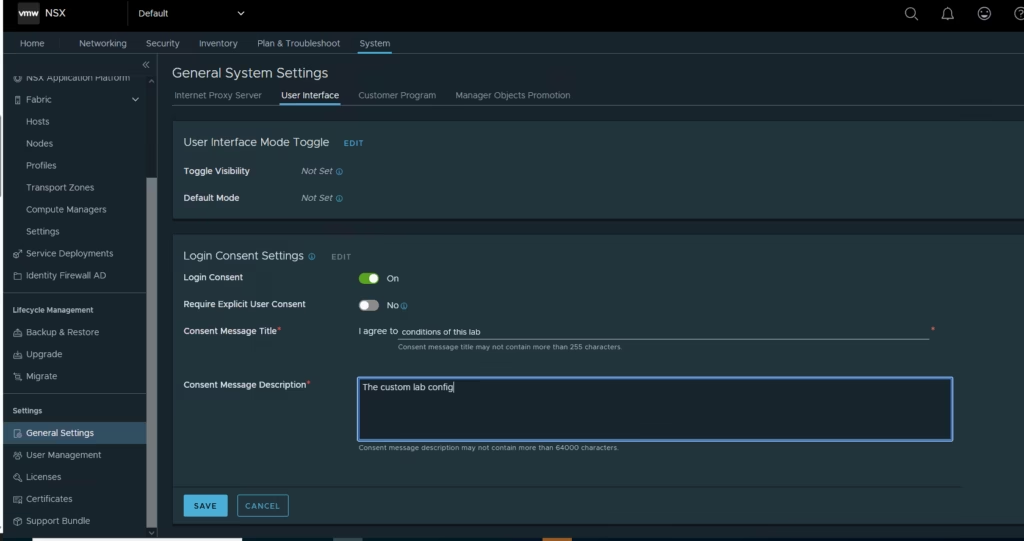
enable Require Explicit User Consent, then click SAVE.
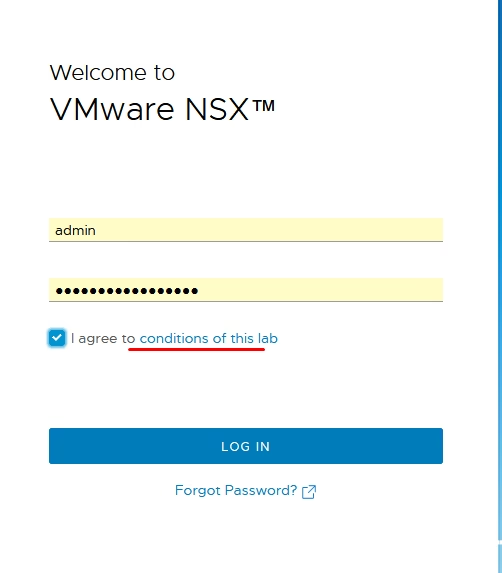
Login and check
(Visited 7 times, 1 visits today)