


VCF 9 introduces a redesigned SSO and identity provider model so Enhanced Linked Mode (ELM) is no longer supported within VCF. Historically, ELM allowed administrators to log into a single vCenter and view all vCenters within the same SSO domain.
In VCF 9, this capability is replaced by a new mechanism called vCenter Linking, managed entirely through the VCF Operations interface. This provides the same “single pane of glass” experience but uses VCF’s new identity architecture and linking groups instead of traditional ELM , which achieve the same outcome while aligning with VCF’s new security and identity model.
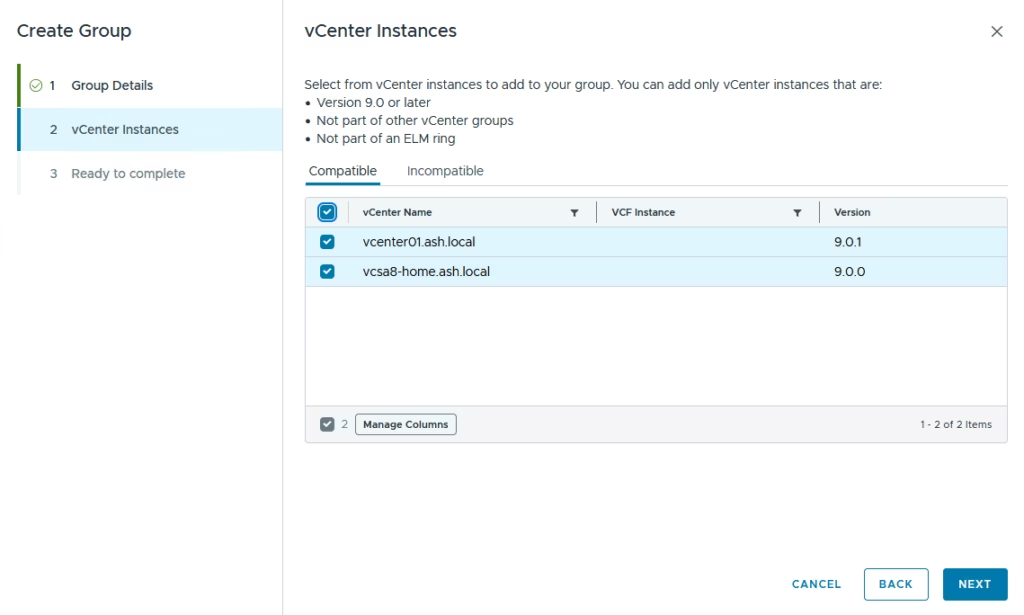
You can add only vCenter instances that are:
- Version 9.0 or later
- Not part of other vCenter groups
- Not part of an ELM ring
Note – Before your vCenters can be grouped, they need a common SSO login similar to what’s on this blog> Fleet Management → Identity & Access > Set up your Identity Provider
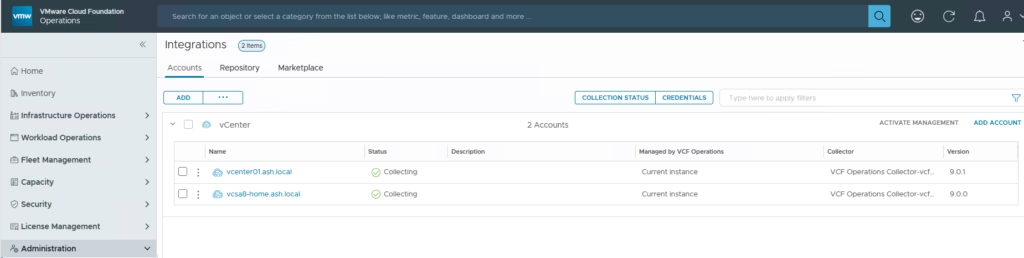
I’ll need to upgrade my existing vCenter 8 to vCenter 9 before i can do the vCenter linking so i’ll just upgrade that quickly.
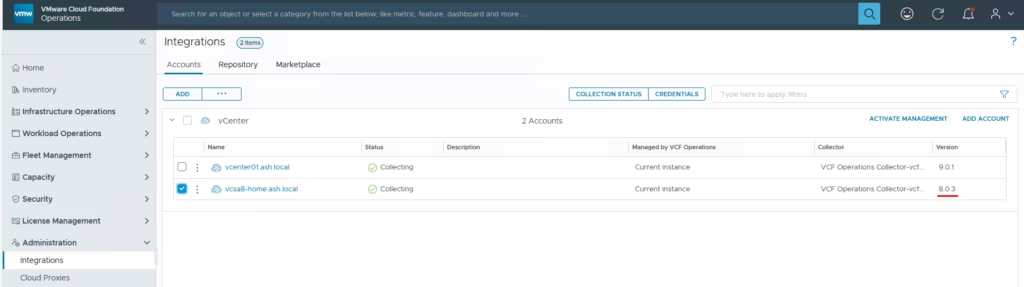
Once all the vCenters are above v9, then it can be linked via this approach
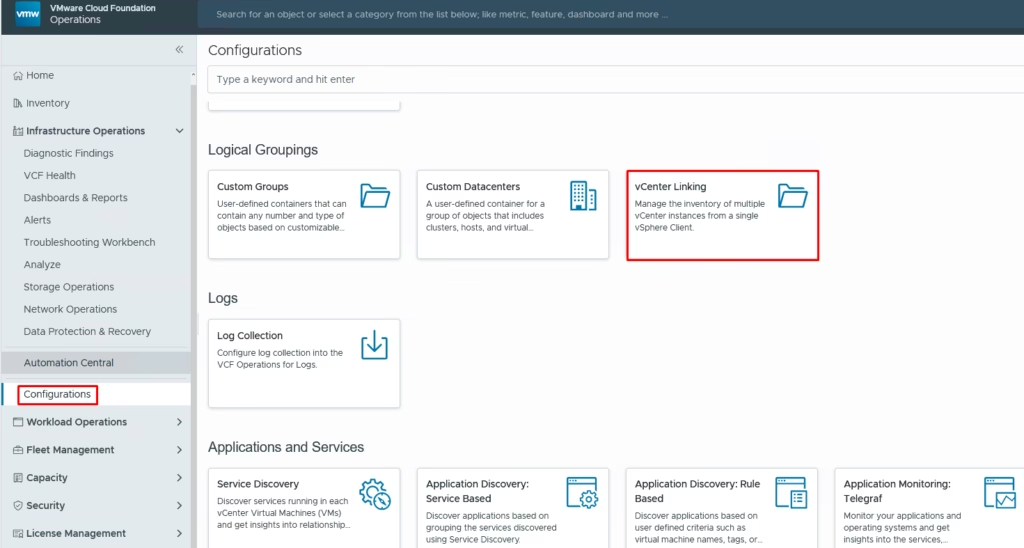
Navigate to Infrastructure Operations → Configurations.
Select vCenter Linking and Scroll to Logical Groupings and click vCenter Linking.
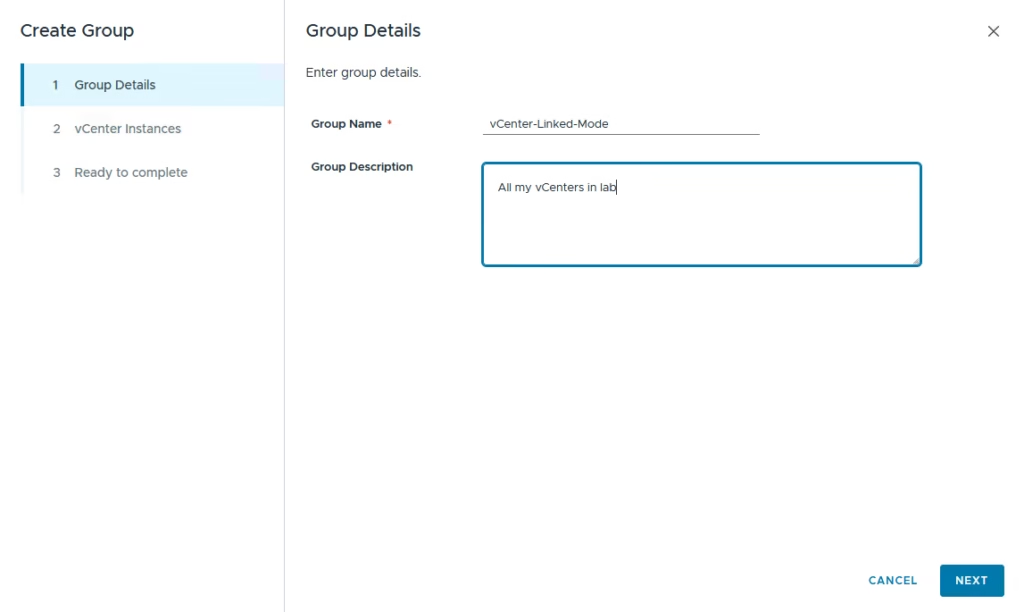
Create a Linking Group > Click Create Group >Name the Group
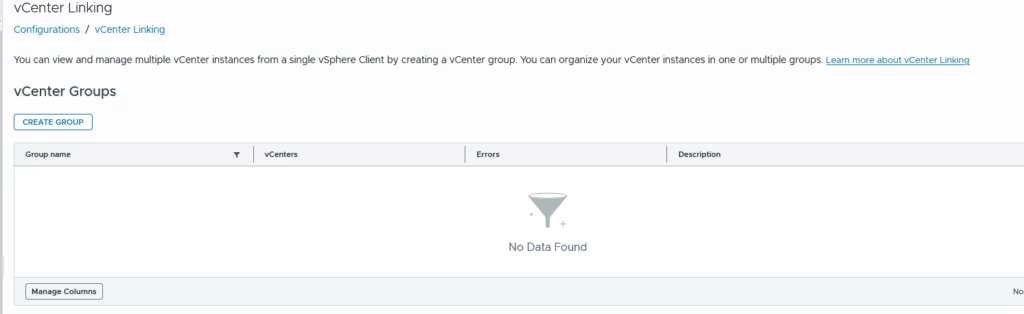
Provide a group name and click Next.
Check the box next to each vCenter you want to include in the group, then click Next.
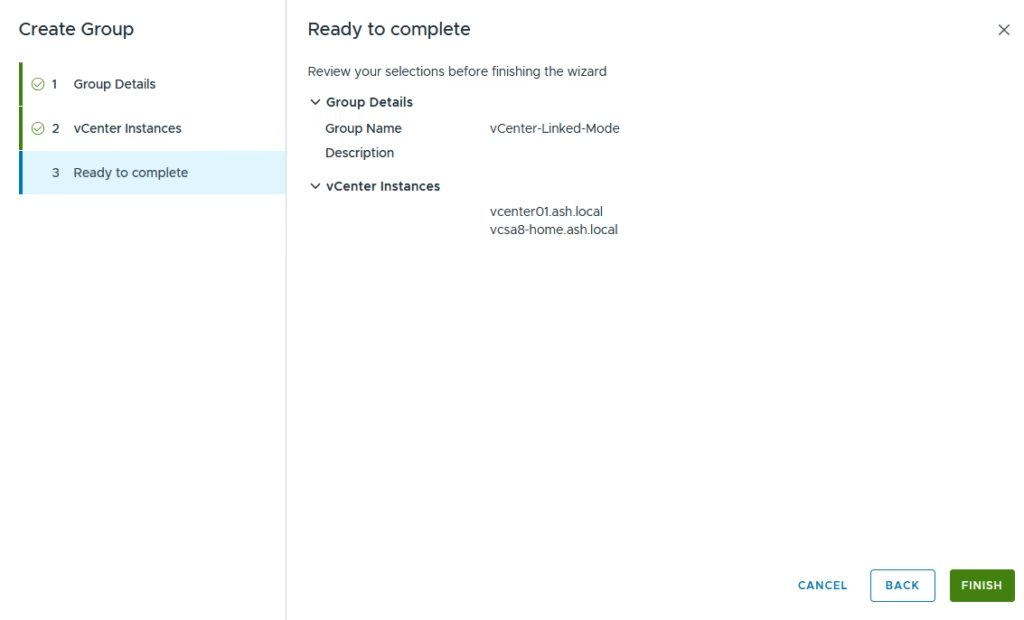
Review the configuration and click Finish to begin the linking process
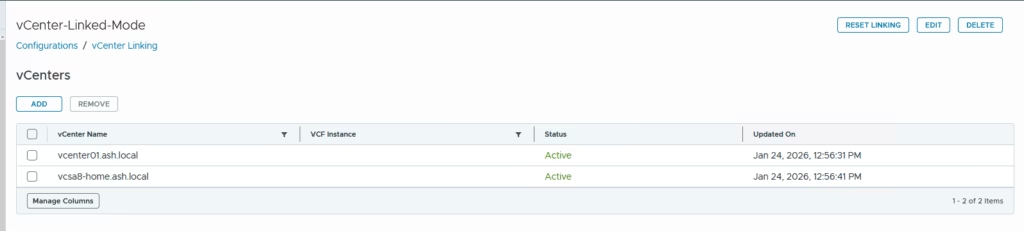
Our vCenters are linked
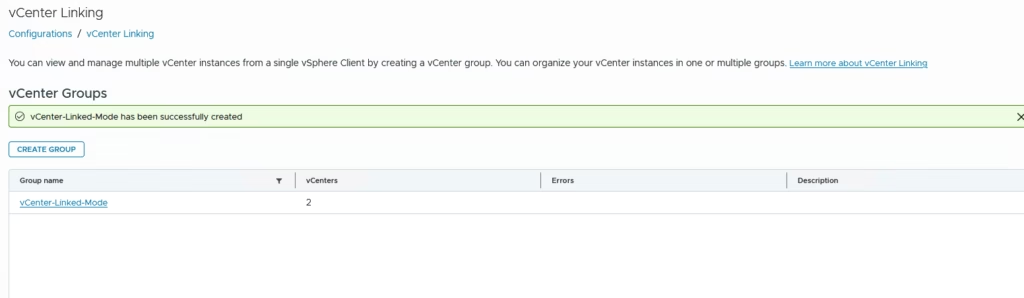
Monitor the progress of the link
Once vCenters are linked, logging into any vCenter with your VCF SSO identity allows you to see and manage all linked vCenters in the same vSphere Client interface.