

Managing certificates in a vSphere environment is one of those tasks that feels simple on paper but quickly becomes a rabbit hole if you don’t follow a structured workflow. In this walkthrough, we’ll replace the Machine SSL certificate on a vSphere 8.x vCenter Server Appliance (vCSA) using a Microsoft Certificate Authority–signed certificate, while validating the environment with vCert, lsdoctor, and the vSphere Diagnostic Utility.
Blog Series
- End‑to‑End Machine SSL Replacement on VVF vSphere 8/9.x with vCert via CLI
- End‑to‑End Machine SSL Replacement on VVF vSphere 8/9.x with vCert via UI
- Walkthrough covers how to install and run the vCert 6.0.0 utility
- Create a CA and Replace vCenter Server SSL certificate with CA signed certificate via vSphere Certificate Manager
- Create Custom CSR for vCenter using OpenSSL
Validate the Environment
Check PNID vs Hostname
/usr/lib/vmware-vmafd/bin/vmafd-cli get-pnid --server-name localhost && hostname -fEnsure both values match.

Check existing SAN or the vCenter DC Name
Run the following command to check the Subject Alternative Name field of the updated Machine SSL Certificate or the vCenter’s registered DCName
/usr/lib/vmware-vmafd/bin/vecs-cli entry list --store MACHINE_SSL_CERT --text | grep -A1 AlternativeCheck Certificate Validity (VECS Stores)
Run the below command to get the status of the environment’s certificates.
for store in $(/usr/lib/vmware-vmafd/bin/vecs-cli store list | grep -v TRUSTED_ROOT_CRLS); do echo "[*] Store :" $store; /usr/lib/vmware-vmafd/bin/vecs-cli entry list --store $store --text | grep -ie "Alias" -ie "Not After";done;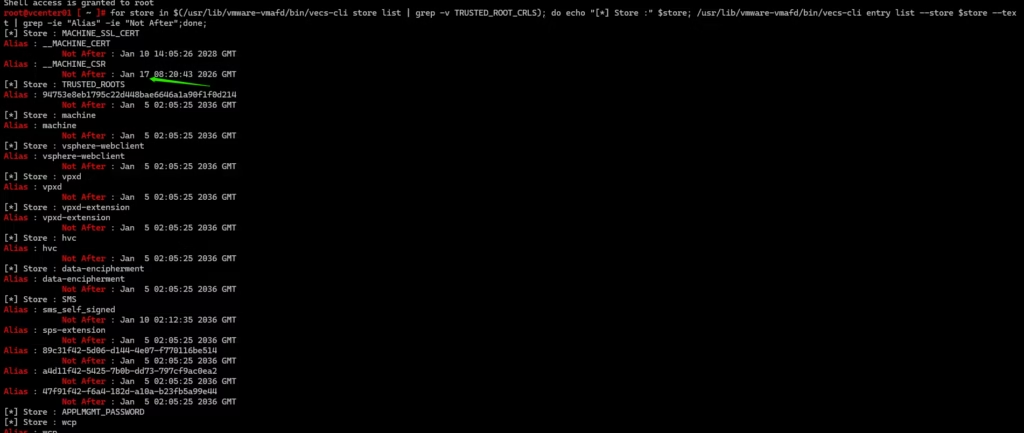
Download from Broadcom:
- vSphere Diagnostic Utility
- lsdoctor
- vCert 6.x
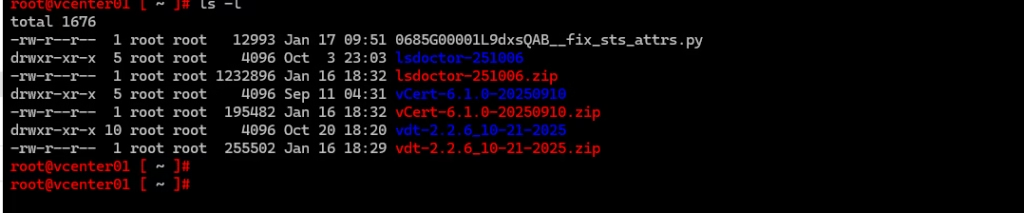
Run each tool to get a baseline health snapshot.
vSphere Diagnostic Utility
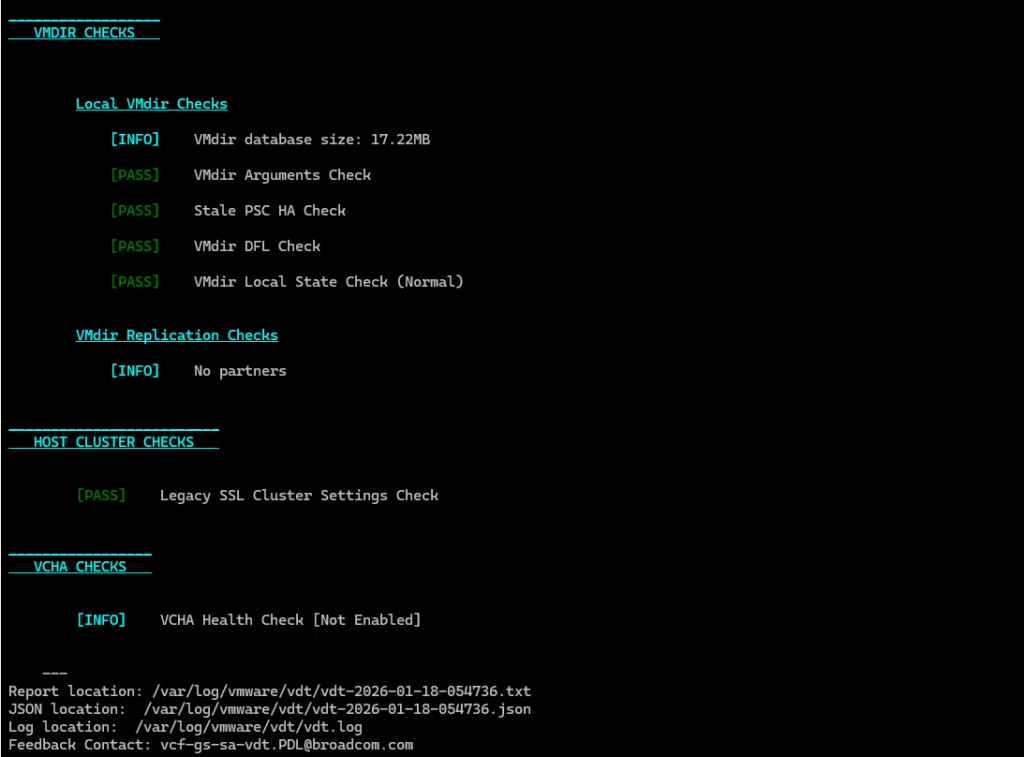
This will flag any certificate‑related warnings early.
vCert 6.x
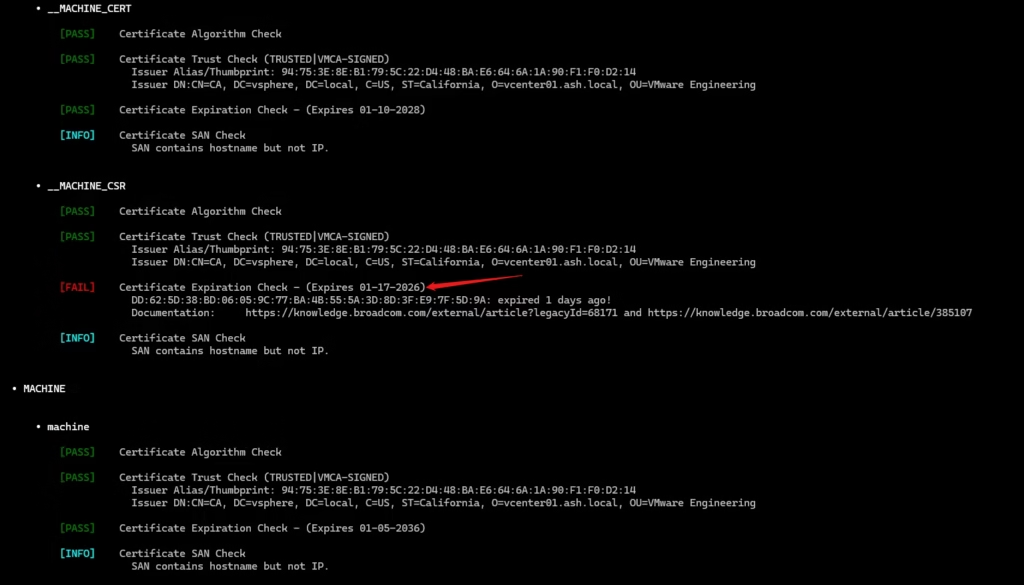
In my case, vCert immediately detected an expired SSL CSR
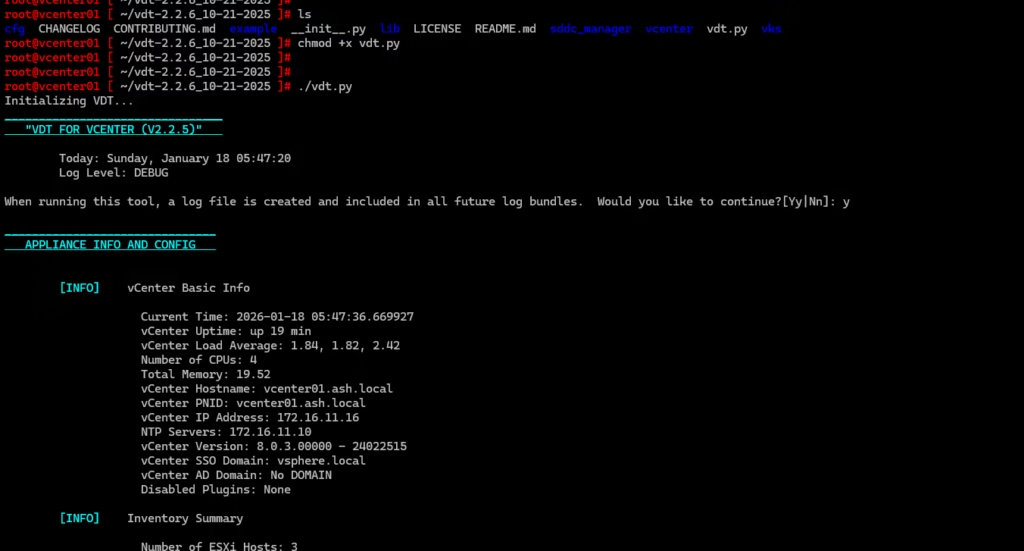
A good catch before attempting replacement.
Exit from the vdt tool
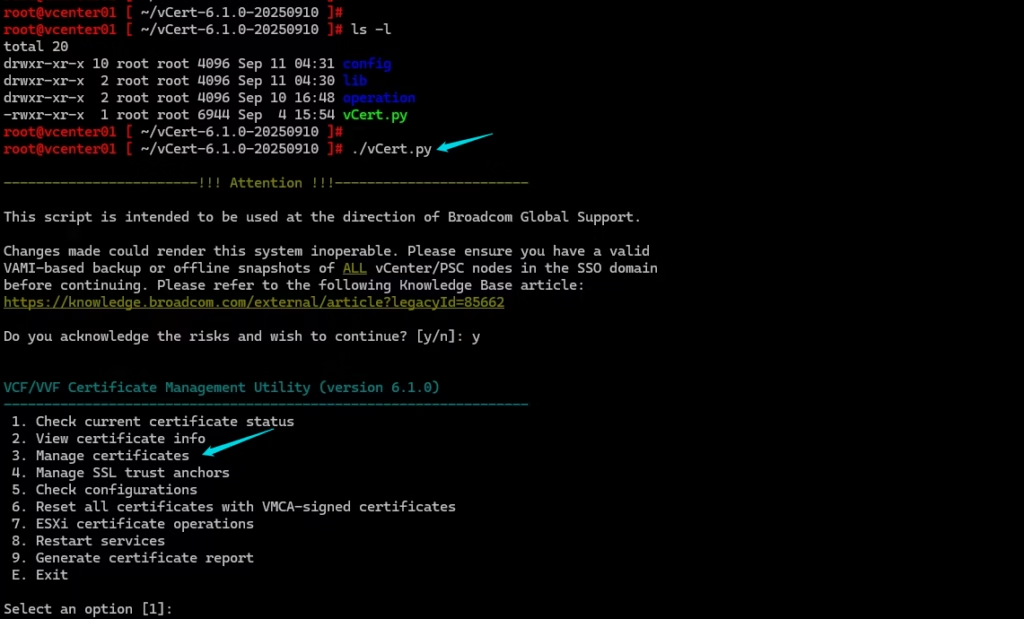
Generate a New Machine SSL CSR Using vCert
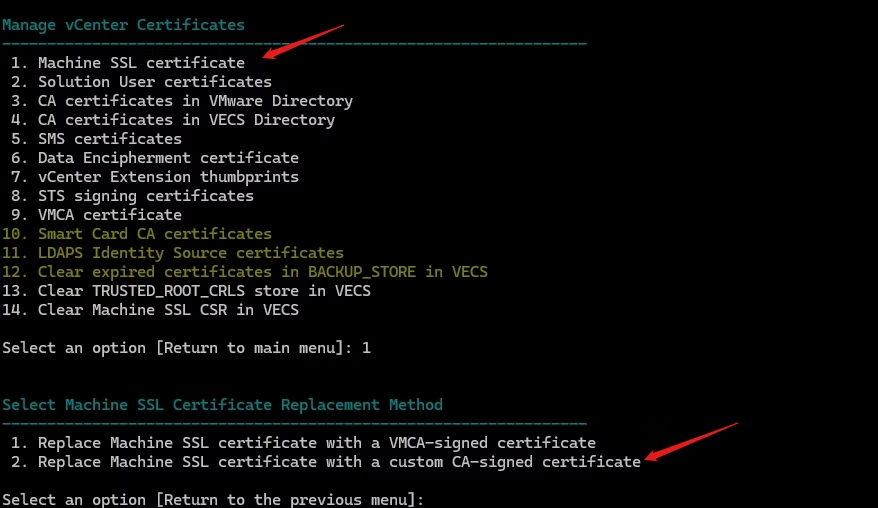
Launch vCert → Manage Certificates → Option 3
Select Option 1 – Machine SSL Certificate
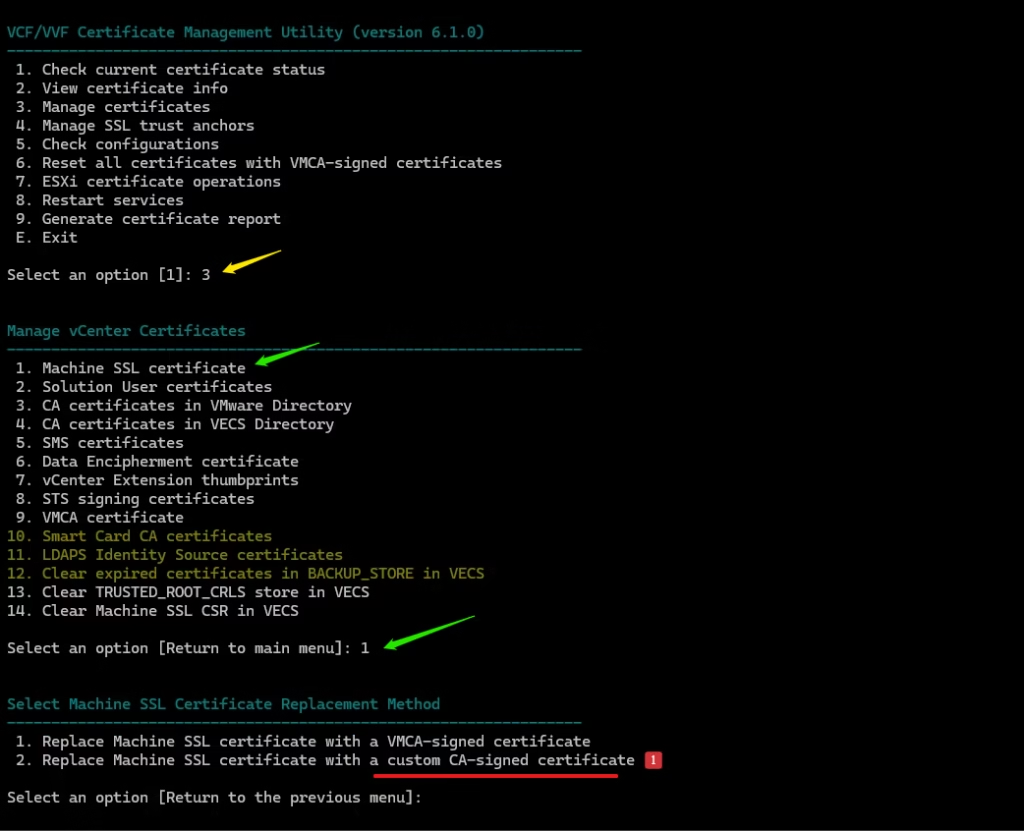
Select Option 1 – Replace with Custom Certificate
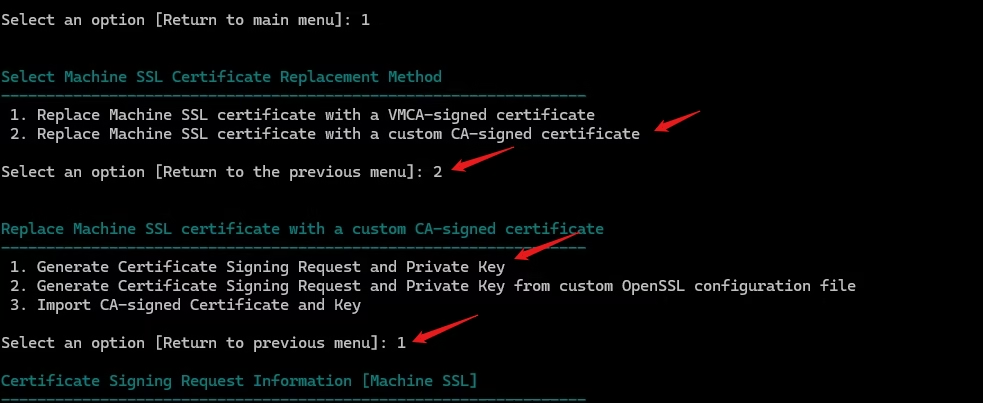
Provide these details to the vSphere certificate manager
| Property | Value |
| Country | GB |
| Name | FQDN vCenter |
| Organization | Default, specify own. |
| Organizational Unit | Default, specify own. |
| State | Default, specify own. |
| IPAddress | Ip of the vCenter |
| Hostname | FQDN |
| VMCA Name | FQDN |
vCert generates machine_ssl.csr. and this now needs to be signed by our external CA
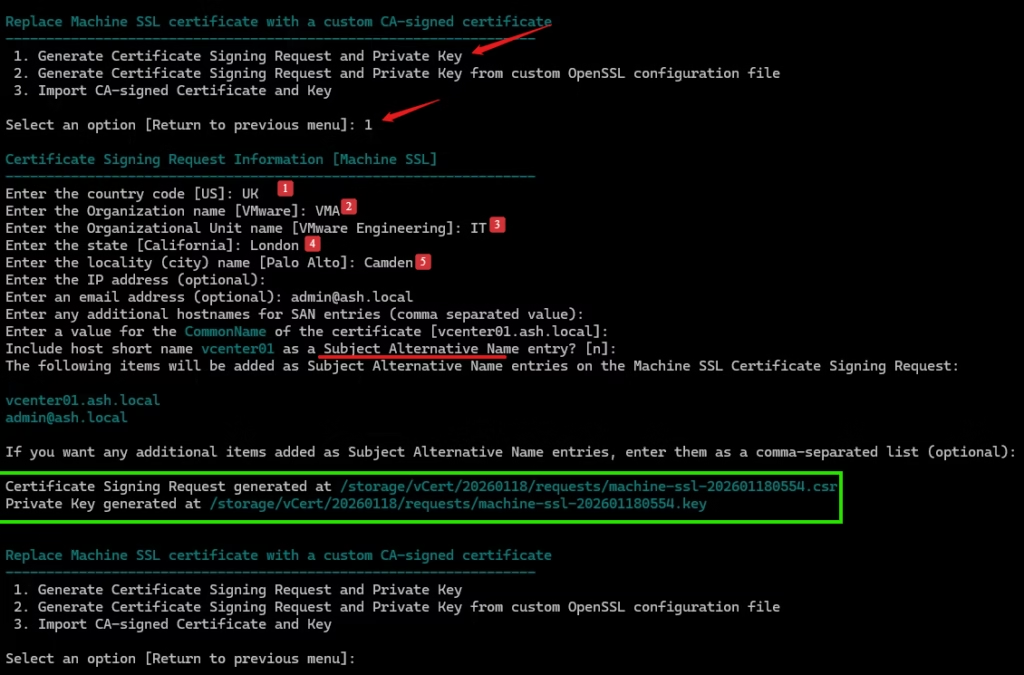
Copy it to your workstation (e.g., via WinSCP)
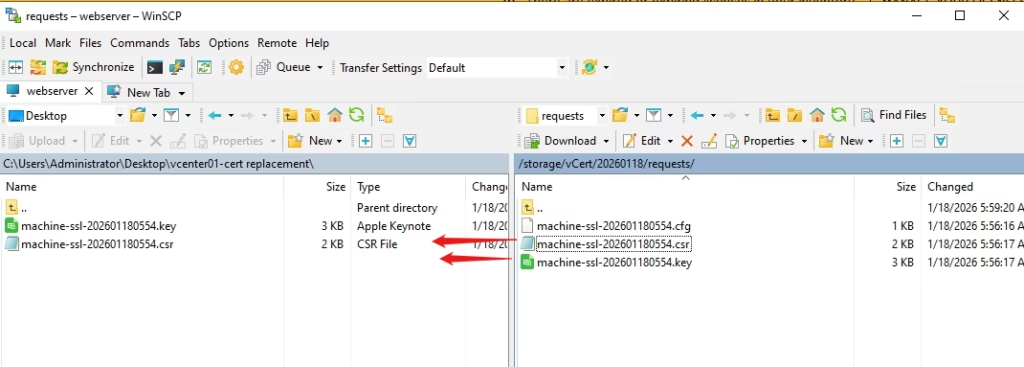
Rename the CSR for clarity — for example: vCenter-unsigned.csr
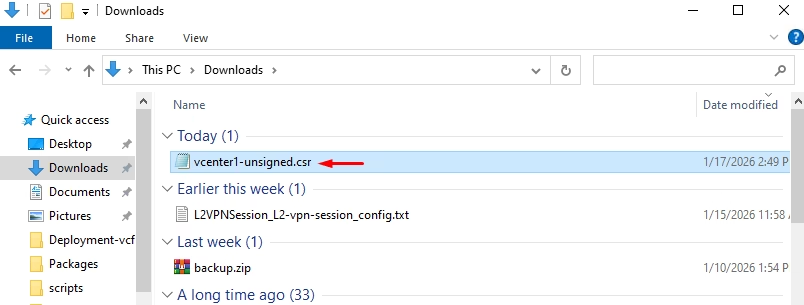
Submit the CSR to Microsoft Certificate Authority
Open your Microsoft CA Web Enrollment page: http:///ca/certsrv
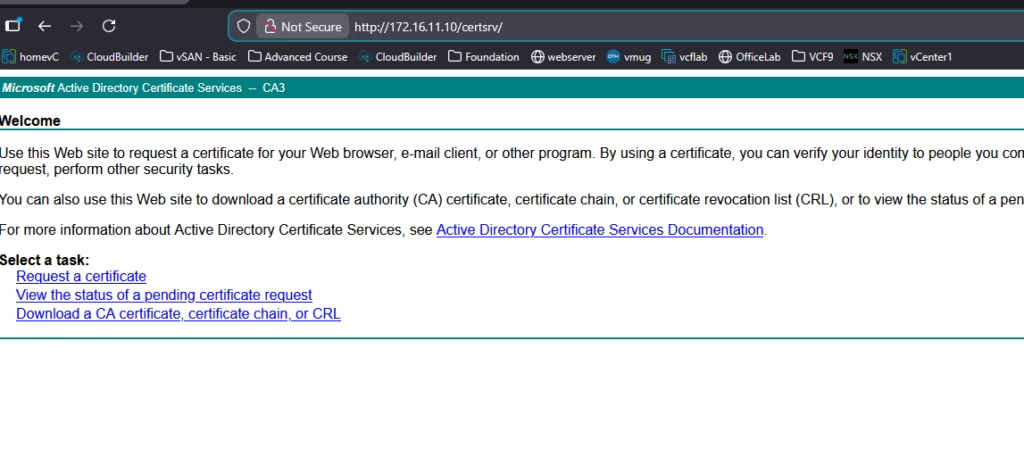
Choose Advanced Certificate Request → Submit a certificate request

Paste the CSR into the request box,
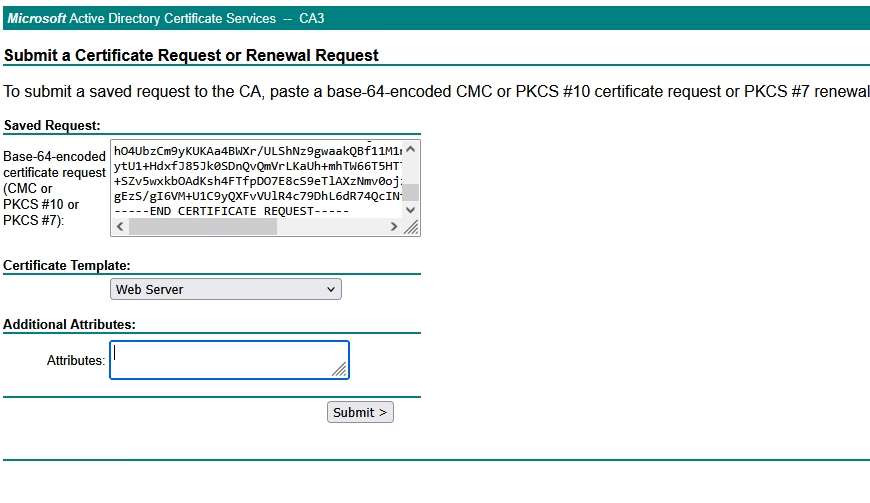
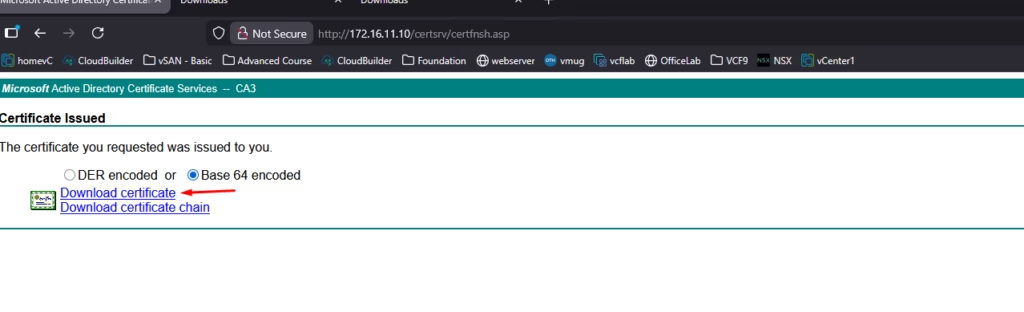
Select Base 64 encoded, and download the issued certificate
Now that we have downloaded the base 64 encoded certificate save it to a folder
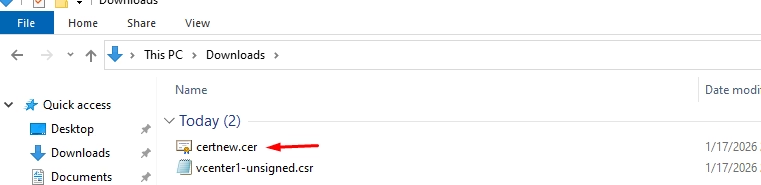
Rename it for clarity, e.g.: vCenter1.ad-signed.cer
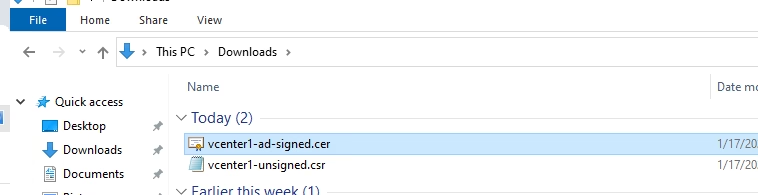
Download the Root (and Sub) CA Certificate
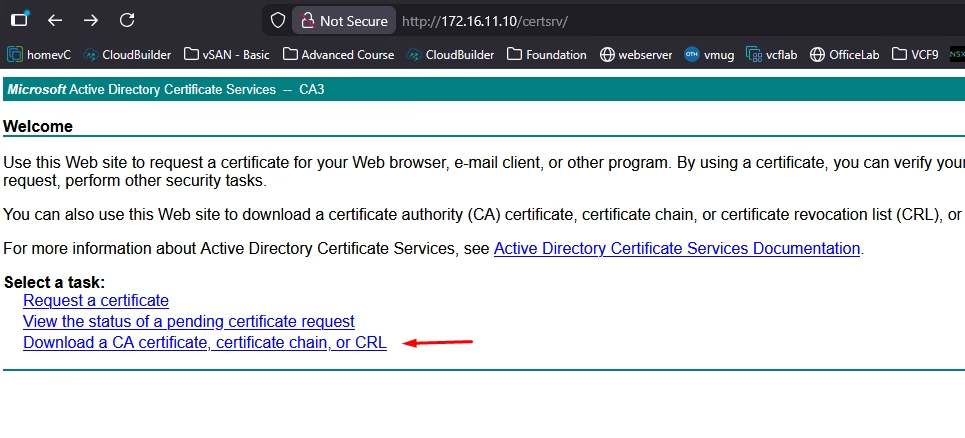
Now that we have downloaded the base 64 encoded certificate for the vCenter, we also need the CA certificate and we can download this from the Microsoft CA Web Portal homepage. Click Download a CA certificate
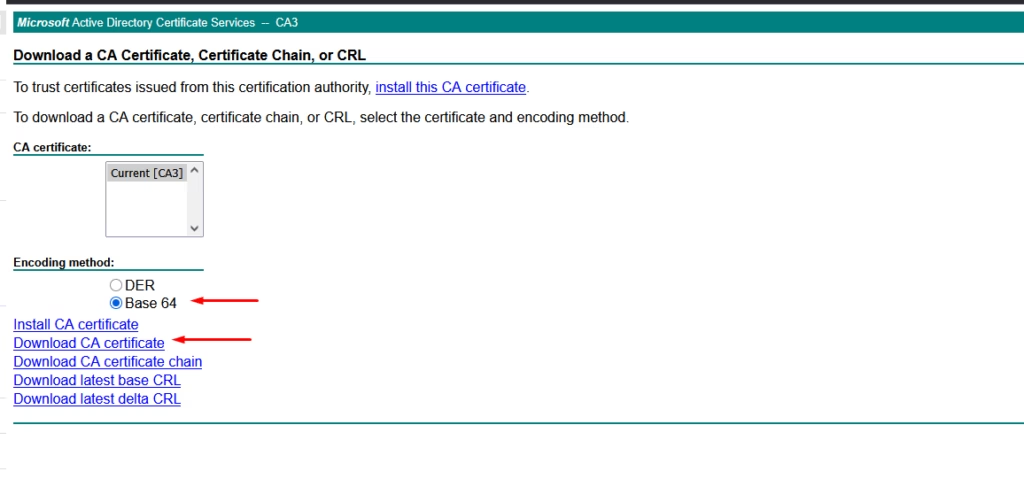
Choose Base 64, download CA certificate
That’s the root CA. If your CA chain includes sub‑CAs, you can extract them from the certificate’s Certification Path tab in this format
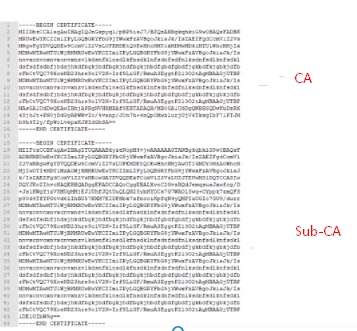

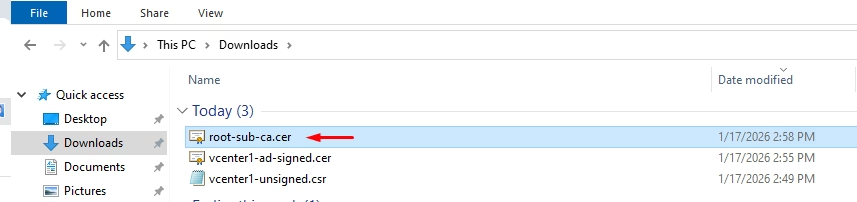
And rename it: root-sub-ca.cer
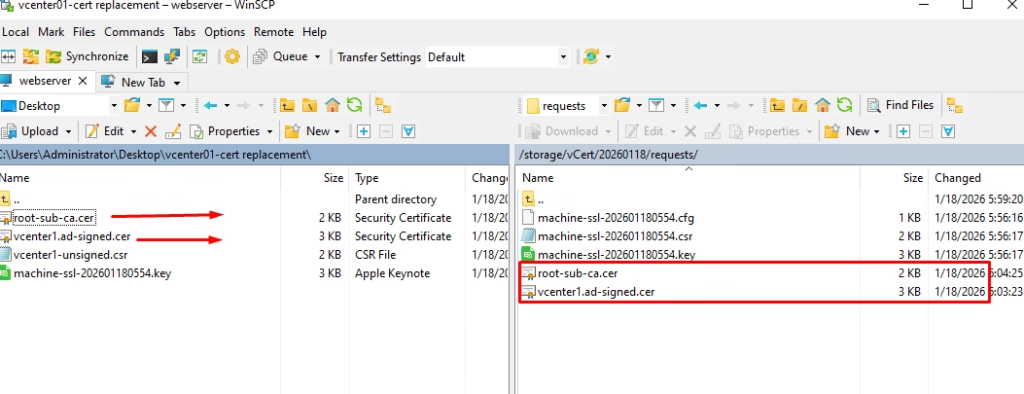
via wincsp move the signed cert back to the vCenter
Import and Replace the Machine SSL Certificate
Run vCert again:
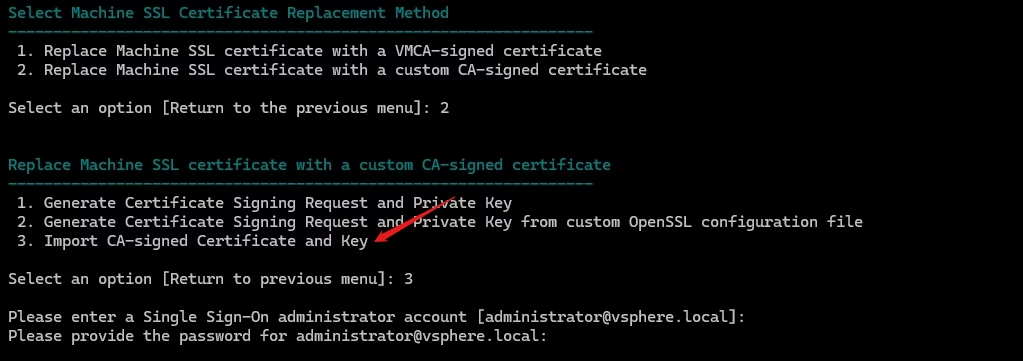
- Option 2 – Continue replacing Machine SSL with Custom Cert
Provide:
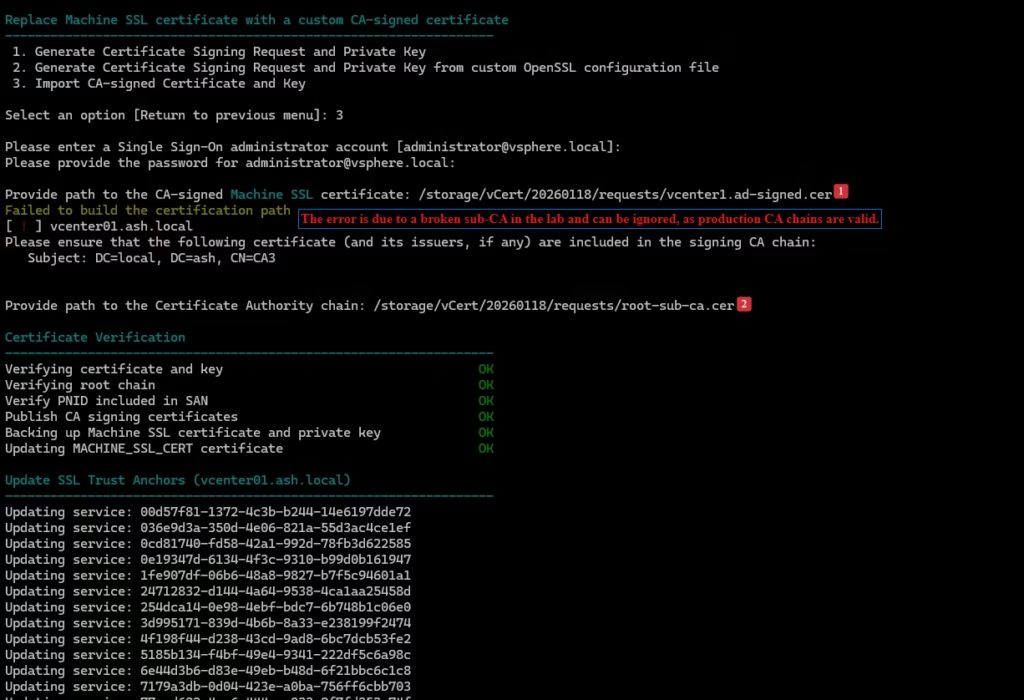
- Custom machine certificate: your AD‑signed cert – vcenter1-ad-signed.cer
- Root CA certificate: your root/sub‑CA bundle root-sub-ca.cer
This error is specific to my CA but on prod, it will just be fine.
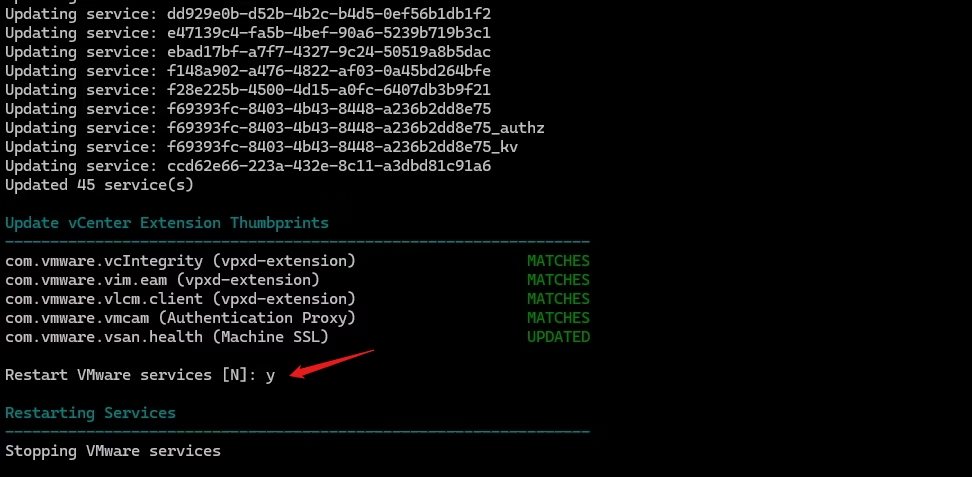
Press Y to continue replacing Machine SSL cert using custom cert
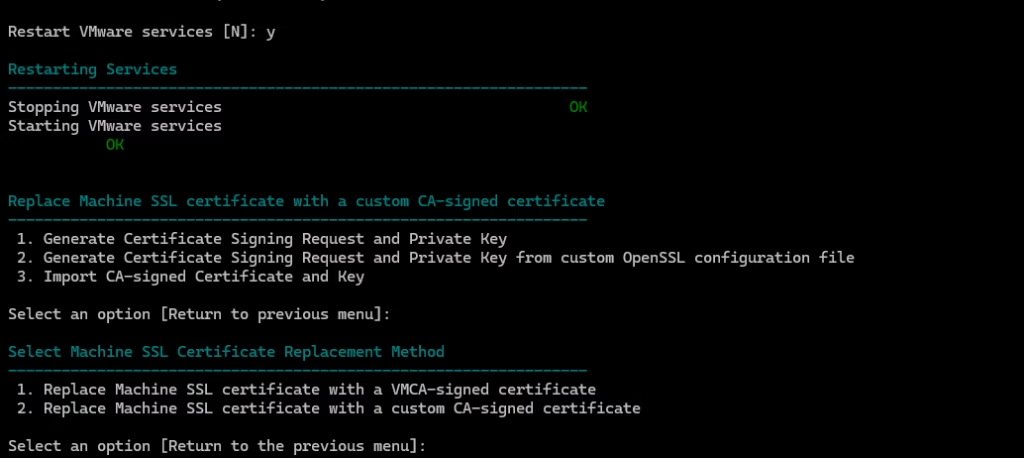
vCenter services restart automatically.
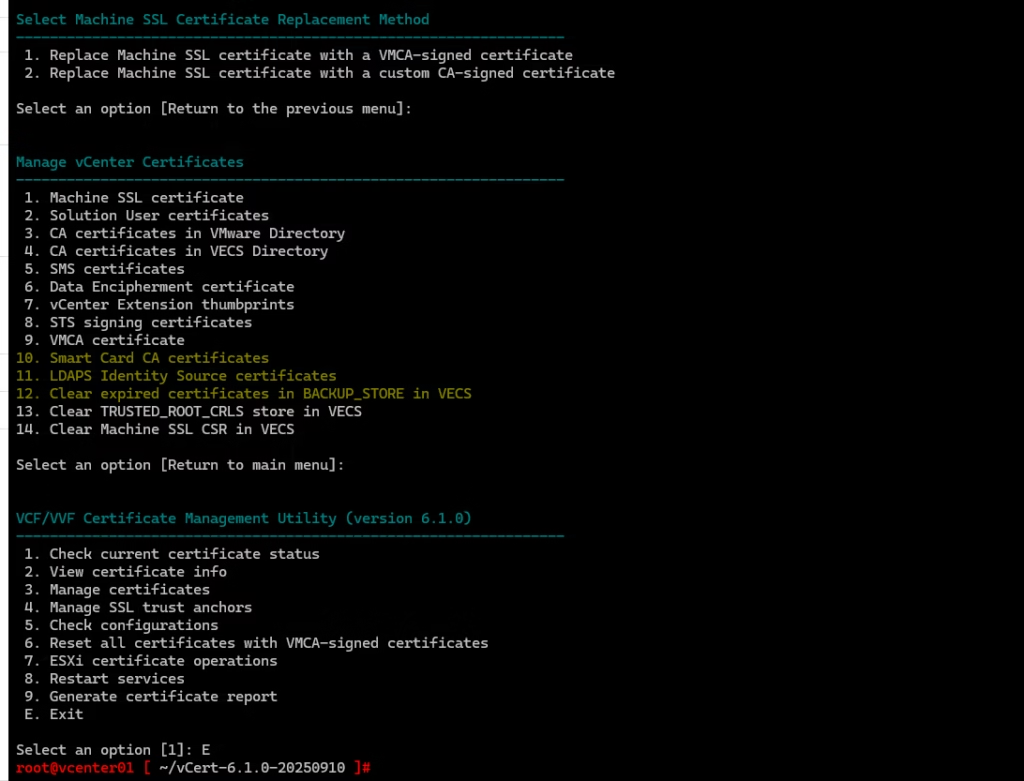
Exit from the vCert tool by hitting Enter button
Post‑Replacement Health Check
Log back into the vCenter UI and re‑run:
- vCert
- lsdoctor
- vSphere Diagnostic Utility
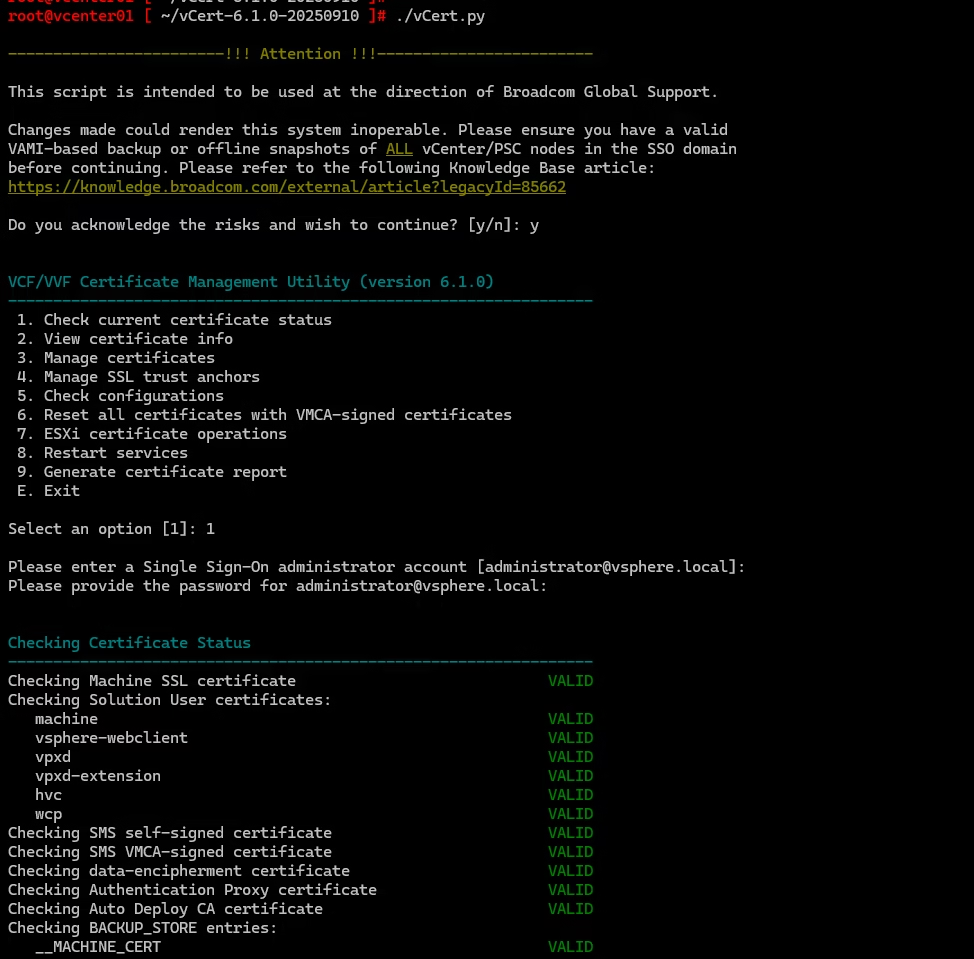
In my case, one issue popped up — a vSAN health service warning.
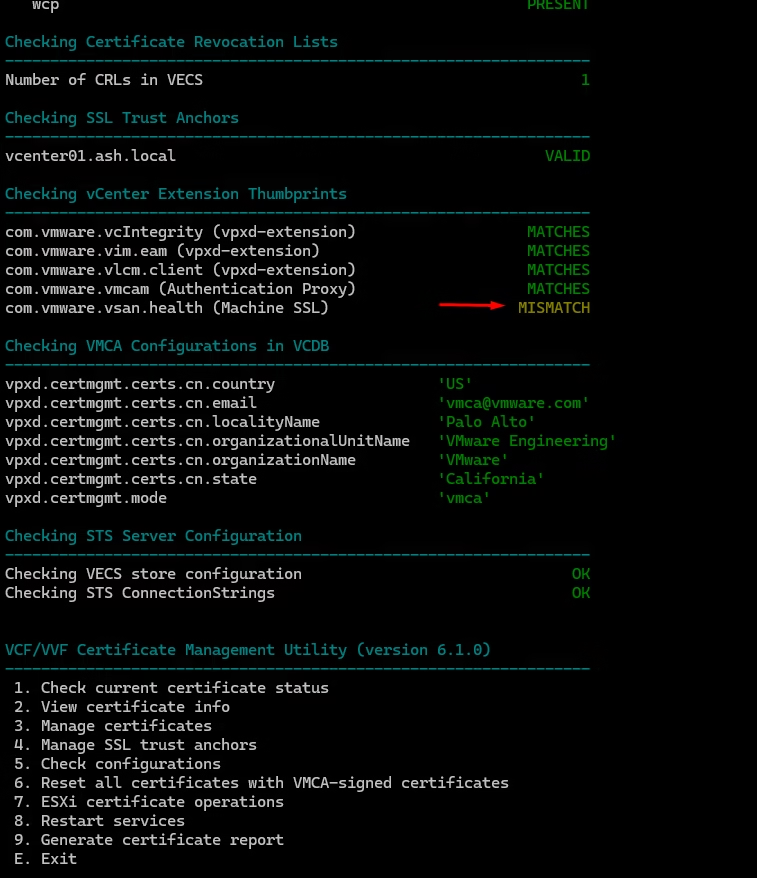
A simple service restart resolved it

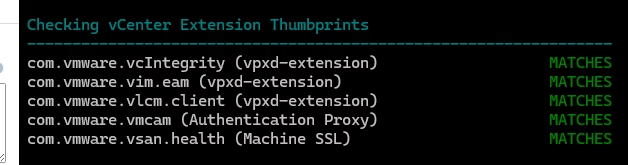
Re‑run all tools to confirm a clean bill of health
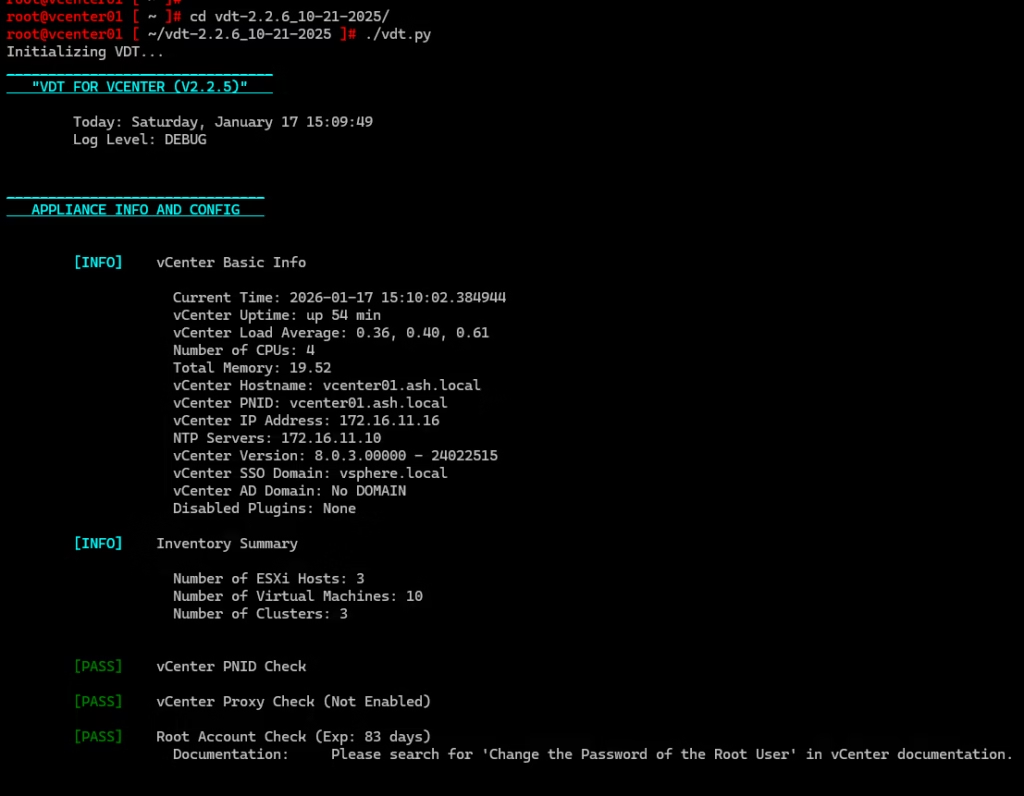
Do one more check from the vSphere diagnostic tool
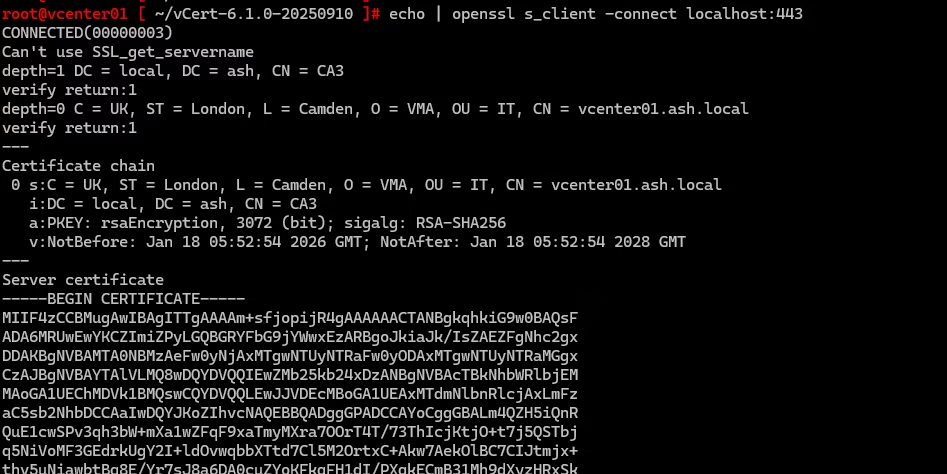
Certs are now replaced so verify SSL on port 443
echo | openssl s_client -connect localhost:443Verify vCenter SSL cert from command prompt or Verify SSL on port 443
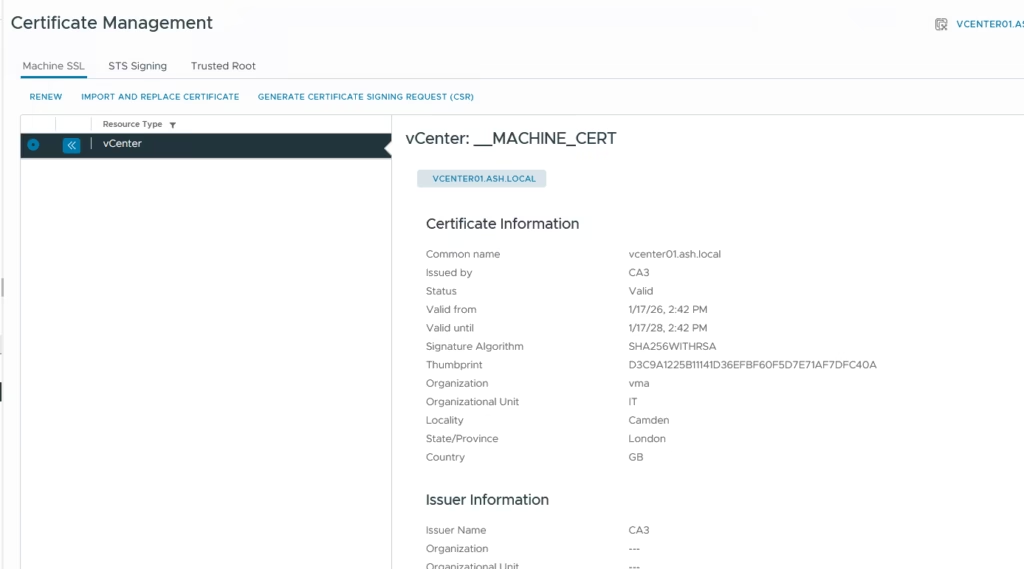
Login to the UI
Useful Commands
If VDT report shows expired CSR after cert replacement, use this Delete an expired CSR from MACHINE_SSL_CERT VECS Store .
Unable to see other Linked-Mode vCenter Servers in inventory
https://knowledge.broadcom.com/external/article/316436/cannot-change-the-vcenter-server-or-plat.html
How to correctly chain custom root/intermediate SSL certificates to import into vCenter
https://knowledge.broadcom.com/external/article/319670/toggling-the-vcenter-server-appliance-de.html
https://knowledge.broadcom.com/external/article/344894/error-the-source-appliance-fqdn-must-be.html
https://knowledge.broadcom.com/external/article/318222/vm-operations-hang-due-to-caseinsensitiv.html
https://knowledge.broadcom.com/external/article/345500
https://knowledge.broadcom.com/external/article/392246/vcenter-services-fail-to-start-when-host.html
https://knowledge.broadcom.com/external/article/399695/updating-the-network-configuration-of-th.html
https://knowledge.broadcom.com/external/article/324990
https://knowledge.broadcom.com/external/article/319670/toggling-the-vcenter-server-appliance-de.html
https://knowledge.broadcom.com/external/article/322262/previous-machinesslcert-subject-alternat.html
https://knowledge.broadcom.com/external/article/387415/pnid-change-causing-wcp-and-managed-serv.html
Manually reviewing certificates in VMware Endpoint Certificate Store for vSphere 6.x and 7.x
https://knowledge.broadcom.com/external/article/305288/unable-to-see-other-linkedmode-vcenter-s.html
Use vmafd-cli to get the PNID value
/usr/lib/vmware-vmafd/bin/vmafd-cli get-pnid --server-name localhost && hostname -fUse below command to confirm the domain-name of the vCenter server. eg: vsphere.local
/usr/lib/vmware-vmafd/bin/vmafd-cli get-domain-name --server-name localhostVerify vCenter SSL cert from command prompt or Verify SSL on port 443
echo | openssl s_client -connect localhost:443To restart all services, first stop then start all the services:
# service-control --stop --all && service-control --start --allCheck PSC Replication Partners
/usr/lib/vmware-vmdir/bin/vdcrepadmin -f showpartners -h localhost -u administrator -w Administrator_PasswordCheck Replication Status
/usr/lib/vmware-vmdir/bin/vdcrepadmin -f showpartners -h localhost -u administrator@vsphere.localRun the following command to check the Subject Alternative Name field of the updated Machine SSL Certificate or the vCenter’s registered DCName
/usr/lib/vmware-vmafd/bin/vecs-cli entry list --store MACHINE_SSL_CERT --text | grep -A1 AlternativeRun the command below to get the output of the TRUSTED_ROOTS certificate store in the VECS:
/usr/lib/vmware-vmafd/bin/vecs-cli entry list --store TRUSTED_ROOTS --text | grep -E "Subject:|Issuer:|Not Before:|Not After|Alias"