


In this blog, we will manually enroll a Windows device using the Settings app in Windows 10/11. Windows enrolment involves applying some management profiles to a device to enable a trust relationship between the device and Intune.
Requirements to Enroll Devices to Intune
- Users can self-enroll their Windows PCs
- Admins can configure policies to force automatic enrollment without any user involvement
User self-enrollment in Intune
Users can self-enroll their Windows device by using any of these methods:
- Bring your own device (BYOD): Users enroll their personally owned devices by downloading and installing the Company Portal App This process registers the device with Azure Active Directory to gain access to corporate resources like email.
- MDM-only enrollment lets users enroll an existing Workgroup, Active Directory, or Azure Active Directory joined PC into Intune. Users enroll from Settings on the existing Windows PC. This method isn’t recommended because it doesn’t register the device into Azure Active Directory. It also prevents the use of features such as Conditional Access.
- Azure Active Directory (Azure AD) Join – Joins the device with Azure Active Directory and enables users to sign in to Windows with their Azure AD credentials. If Auto Enrollment is enabled, the device is automatically enrolled in Intune. The benefit of auto-enrollment is a single-step process for the user. Otherwise, they’ll have to enroll separately through MDM only enrollment and reenter their credentials. Users enroll this way either during the initial Windows OOBE or from Settings. The device is marked as a corporate-owned device in Intune.
- Autopilot – Automates Azure AD Join and enrolls new corporate-owned devices into Intune. This method simplifies the out-of-box experience and removes the need to apply custom operating system images onto the devices. When admins use Intune to manage Autopilot devices, they can manage policies, profiles, apps, and more after they’re enrolled. There are four types of Autopilot deployment: Self Deploying Mode (for kiosks, digital signage, or a shared device), User Driven Mode (for traditional users), Windows Autopilot for pre-provisioned deployment enables partners or IT staff to pre-provision a Windows 10 PC so that it is fully configured and business-ready and Autopilot for existing devices enables you to easily deploy the latest version of Windows 10 to your existing devices.
- Enroll the device in Intune as a personal-owned device (BYOD). If an administrator has configured Auto-enrollment (available with Azure AD premium subscriptions), the user only has to enter their credentials once. Otherwise, they’ll have to enroll separately through MDM only enrollment and reenter their credentials.
Administrator-based enrollment in Intune
Administrators can set up the following methods of enrollment that require no user interaction:
- Hybrid Azure AD Join lets administrators configure Active Directory group policy to automatically enrol devices that are hybrid Azure AD joined.
- Configuration Manager Co-management lets administrators enroll their existing Configuration Manager-managed devices into Intune to get the dual benefits of Intune and Configuration Manager.
- Device enrollment manager (DEM) is a special service account. DEM accounts have permissions that let authorized users enroll and manage multiple corporate-owned devices. These types of devices are good for point-of-sale or utility apps, for example, but not for users who need to access email or company resources. This method does not allow the use of features such as Conditional Access.
- Bulk enroll lets an authorized user join large numbers of new corporate-owned devices to Azure Active Directory and Intune. You create a provisioning package with the Windows Configuration Designer (WCD) app. Then, using USB media during the initial Windows OOBE experience or from an existing Windows PC, you install the provisioning package to automatically enrol the devices into Intune. This method does not allow the use of Conditional Access.
- Enrolling Windows IoT Core devices is accomplished by using the Windows IoT Core Dashboard to prepare the device, and then using Windows Configuration Designer to create a provisioning package. Then, using SD Card media during initial boot up, it installs the provisioning package to automatically enrol the devices into Intune.
Terminologies
| Active Directory Domain Joined | Joined by On-Prem AD | No record of the device in our On-prem |
| Azure Active Directory Domain Joined | Joined by Azure AD | No record of the device in Azure AD |
| Hybrid Active Directory Domain Joined | No record of the device in On-prem | The device has access to Azure AD and can be managed by Intune. |
How to Join Windows 10/11 Windows Device to Azure Active Directory – Manual Method (BYOD)
This enrollment is favored when a user wants to connect to our Intune manually and a good example of that is a BYOD device.
We have our local PC that’s not joined to a domain so we will attempt to enroll this BYOD device to Intune.
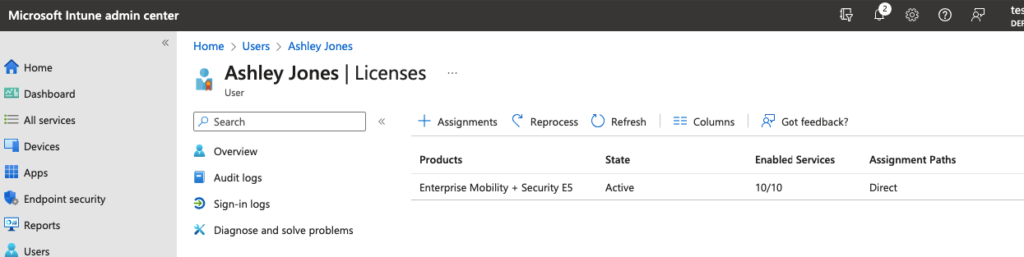
Ensure that an Intune license is allocated to the user ajones@grandvm.com
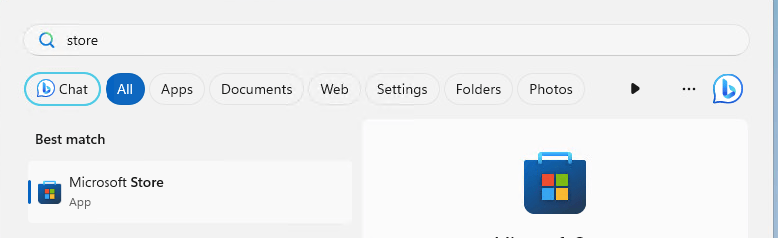
Login in as the local administrator of the BYOD device and search for Microsoft Store
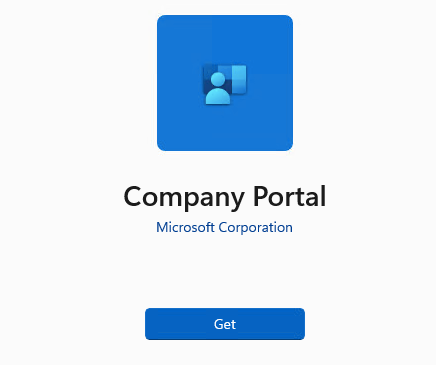
Search for the Company portal in the Microsoft Store and download it.
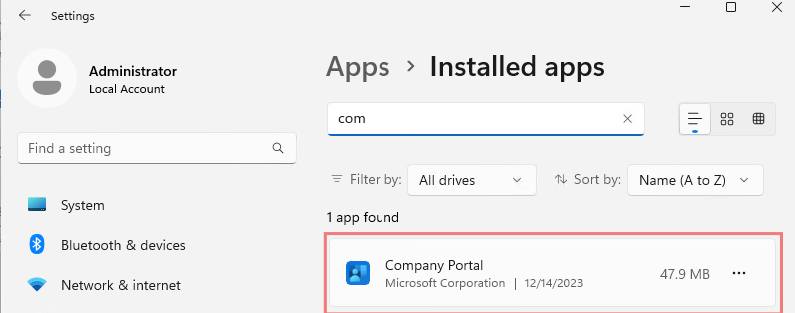
The app will be installed on the system.
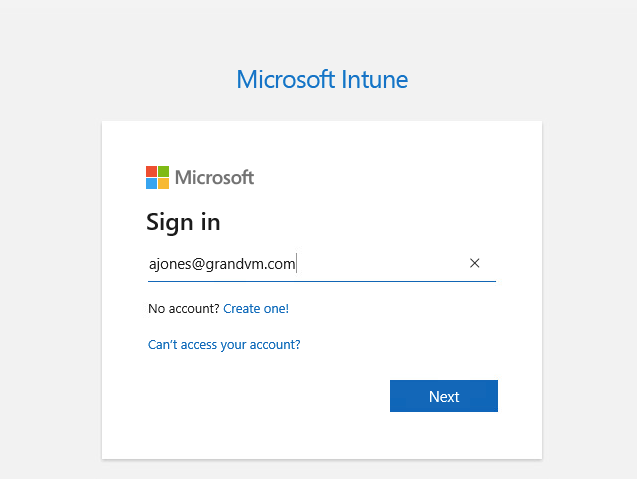
Launching the app will ask you to provide the credentials to connect to our Intune environment.
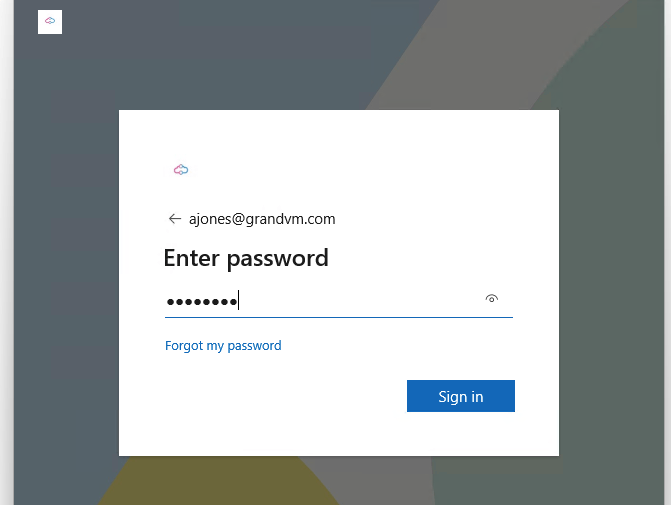
Provide the password for the account
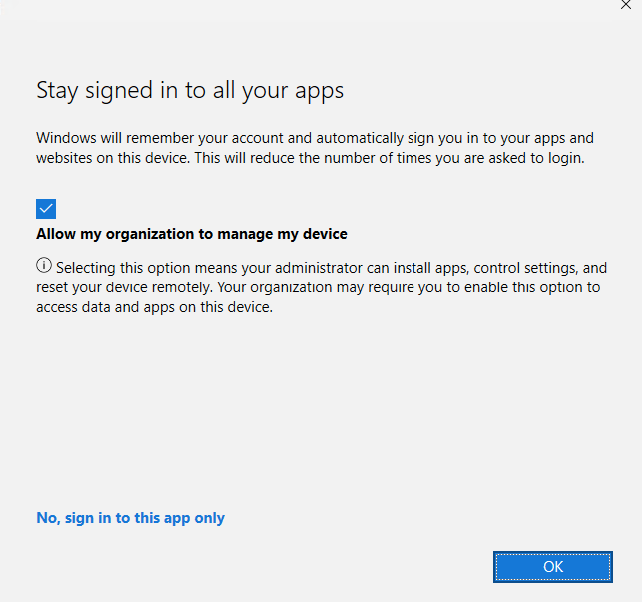
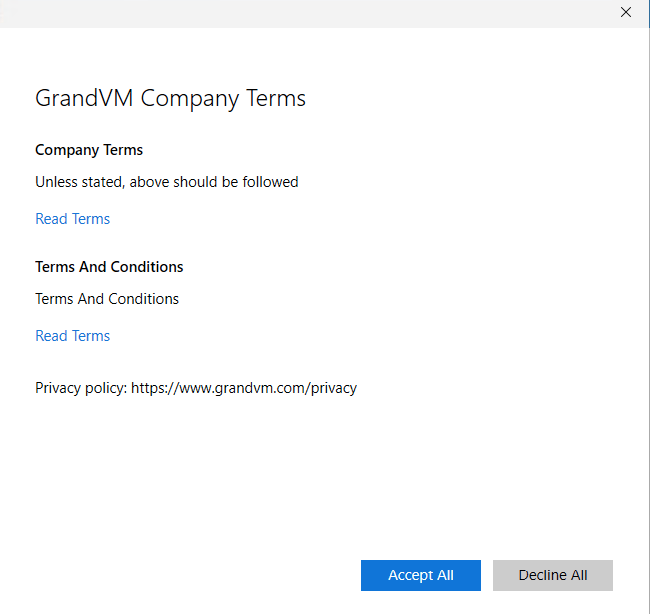
Read the Terms and Conditions and Click Next to Continue
It will take a while to register the device to Intune

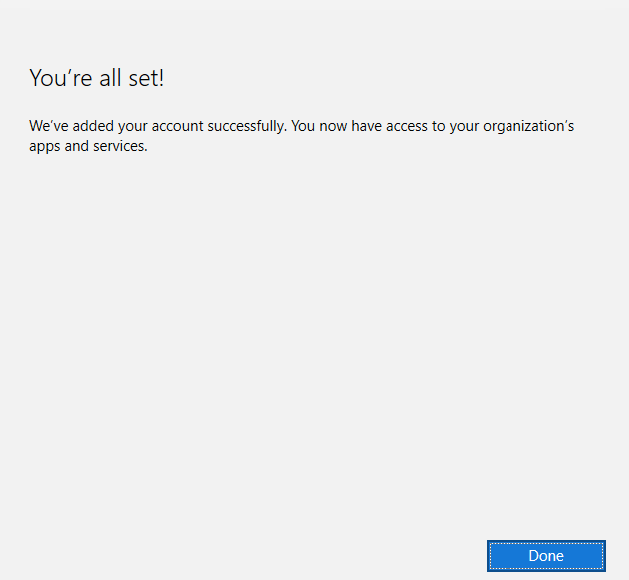
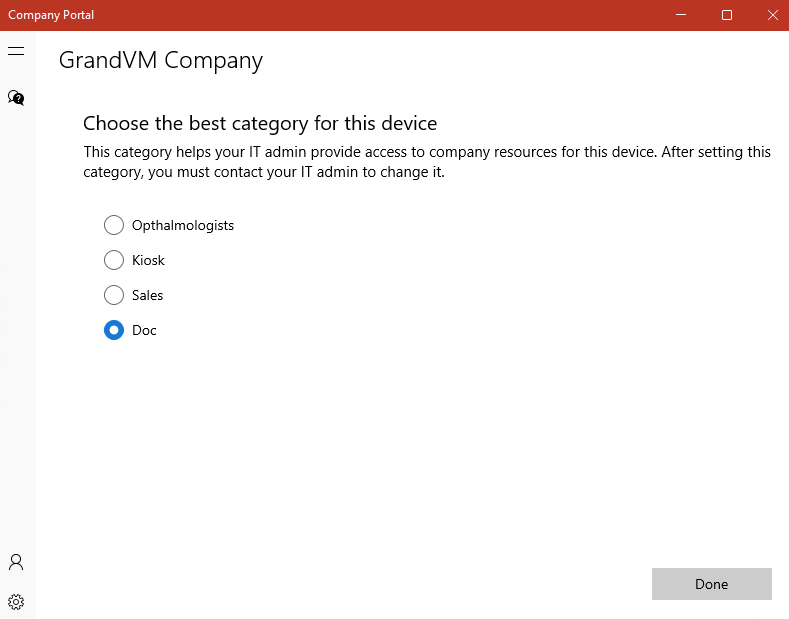
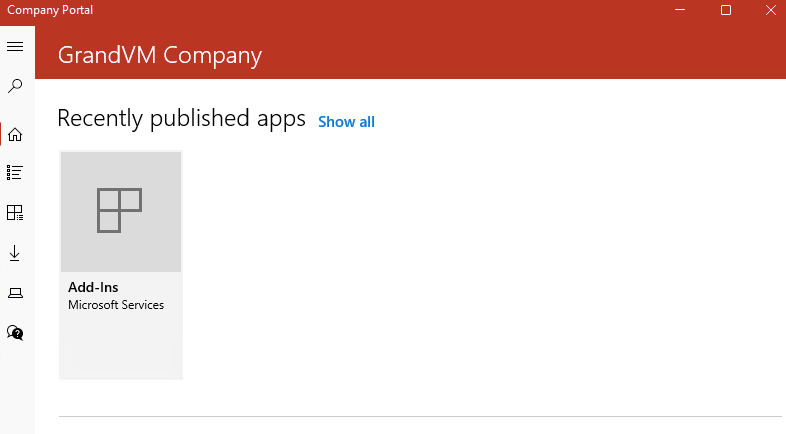
We can go ahead and confirm whether your device is Azure AD registered under Settings >Accounts > Access work or school > Connect >Click on added Work or School Account > Click on Manage Your Account Link, and this link redirects to the below screen, and you can confirm whether AAD is Registered /Workplace Joined.
How to verify Intune enrollment
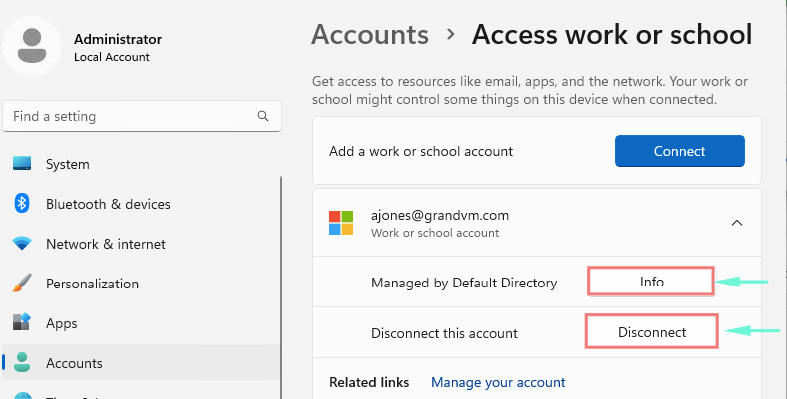
When you join a device with Azure AD, you see the Disconnect option in settings under the Work or School account. But when a device is enrolled with Intune, you will see the Info option as well. So if you see Info that means, this device is enrolled with Microsoft Intune.
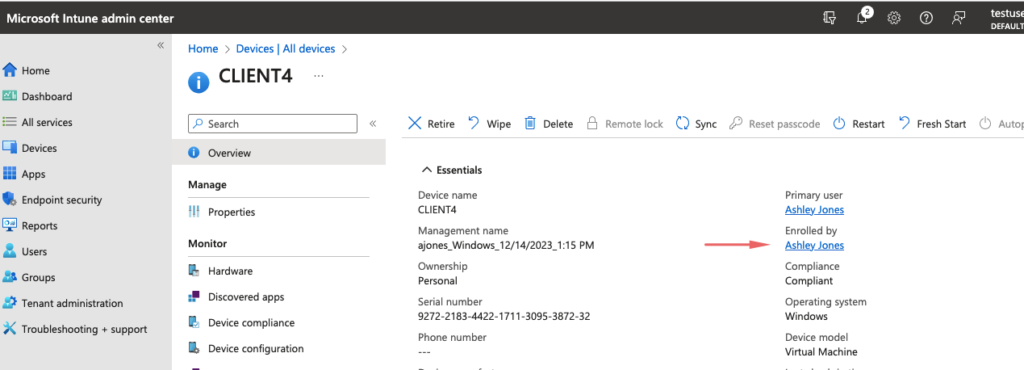
Under Intune, we can see Ashley Jones is the user who registered this PC to Intune.
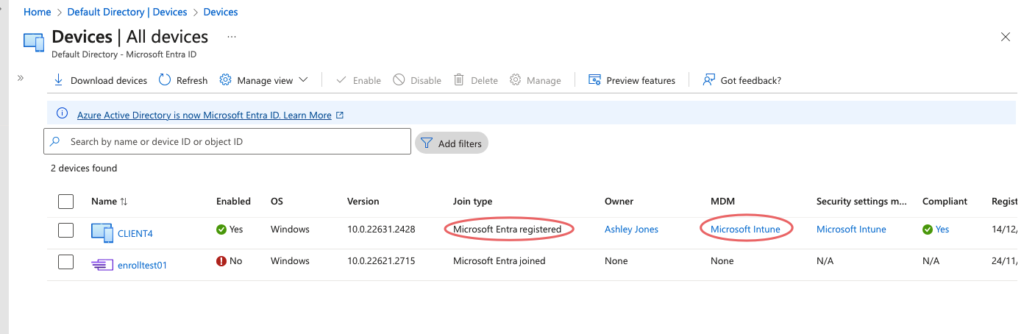
Another way to look at the results of Windows 11 Intune Enrollment is from the Azure AD portal – Devices tab – The device shows as Entra AD registered and MDM enrollment /Intune managed.
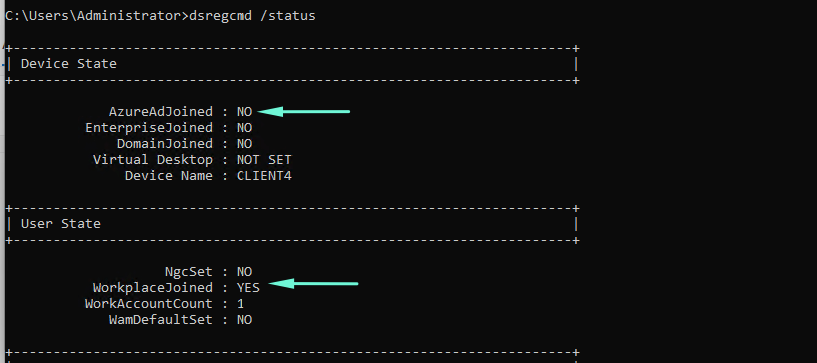
DSREGCMD /STATUS command will also display the status of our enrollment. The device is not joined with Azure AD but the user is enrolled to WorkPlace.
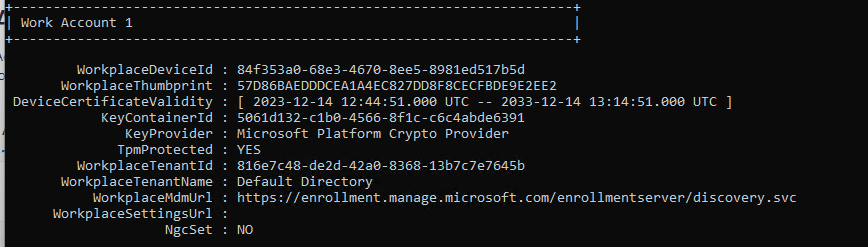
We can see MDM URLs that indicate the device is enrolled with Intune.
Self Enrollment method in Azure AD
In this article, we will enrol a corporate-owned Windows 11 device into Azure AD. An end user can enroll a corporate-owned Windows 11 machine and we will check the status of the device post-enrollment.
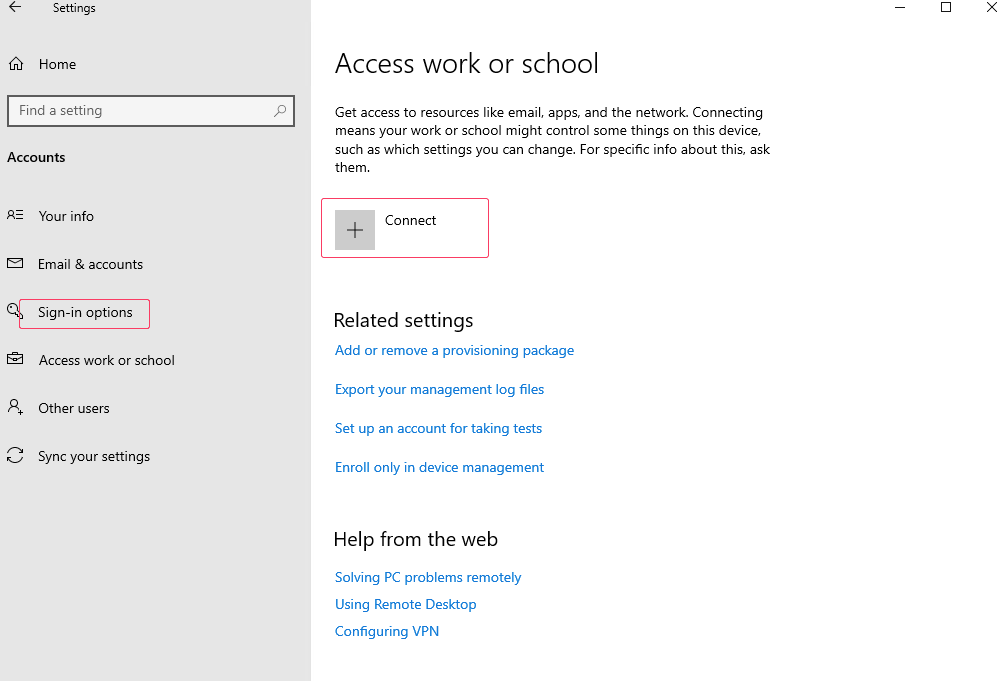
On a Windows 10/11 device, go to Windows 11 Settings > Accounts > Now click the Access work or school option and click the + Connect button.
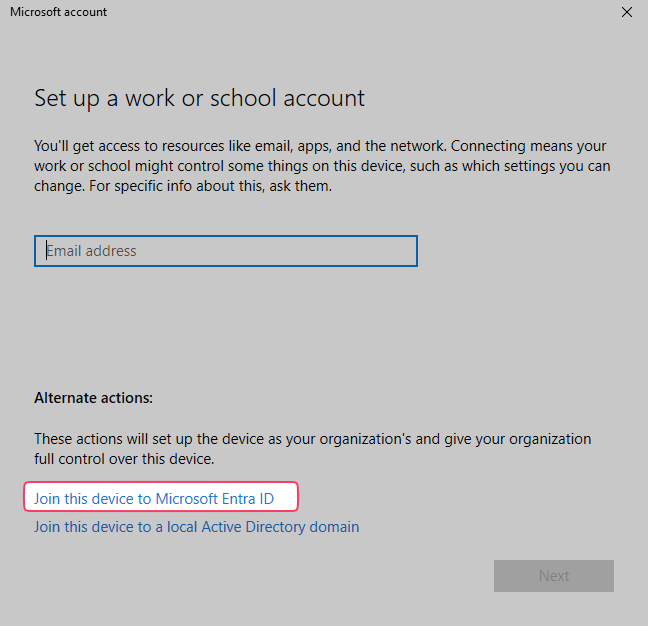
Join this device to the Microsoft Entra ID link
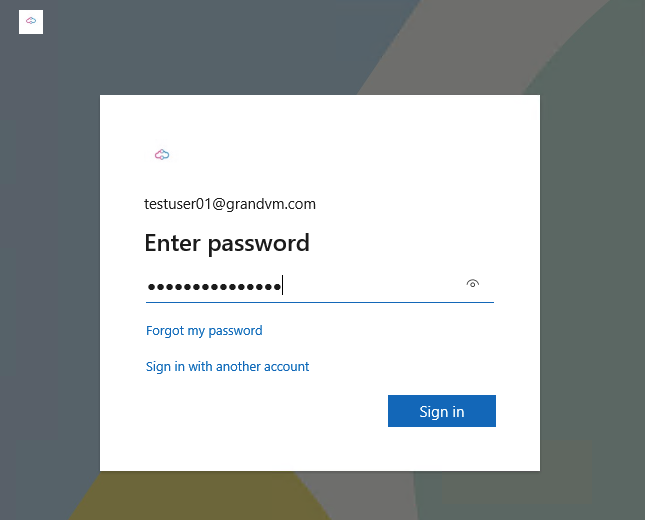
Enter the work or school account that has the necessary license assigned to be able to enroll a device in Intune click Next and click Sign in.
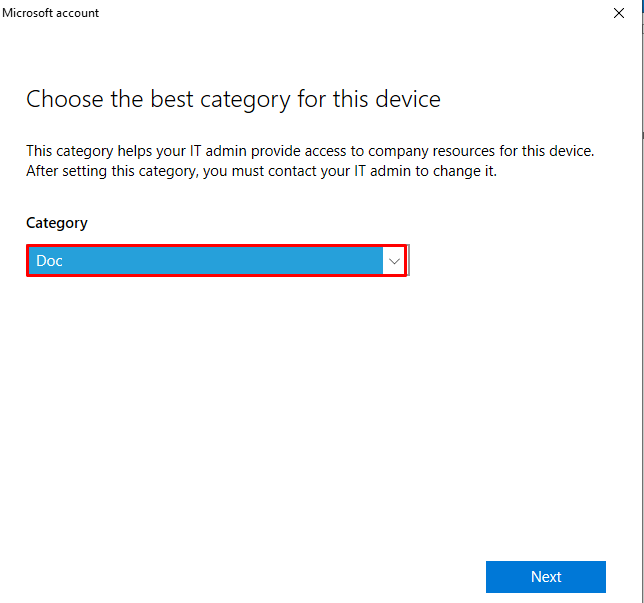
Choose the device category to enroll
Click the Join button.
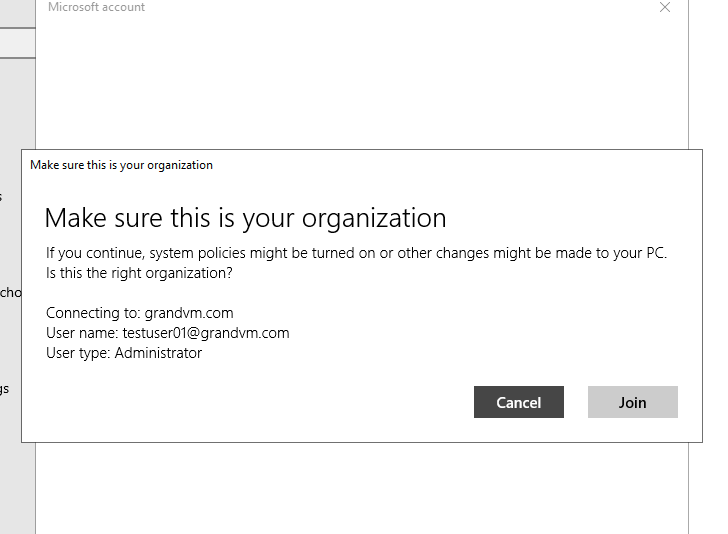
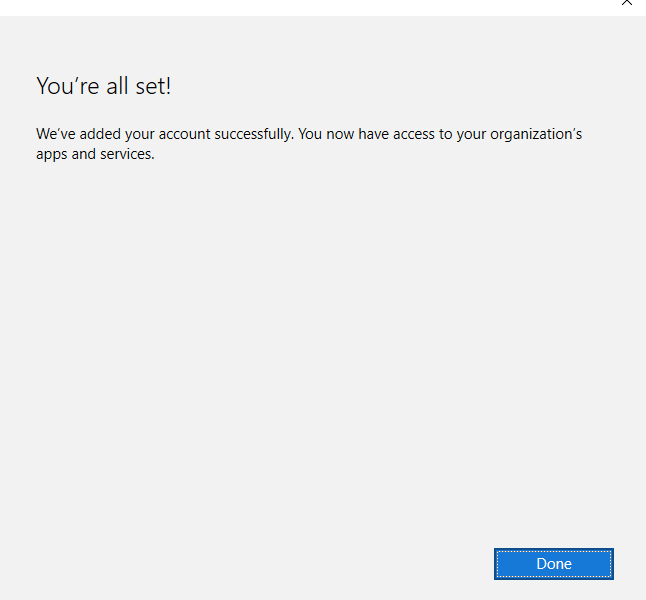
Once the device is connected, Click Done to complete.
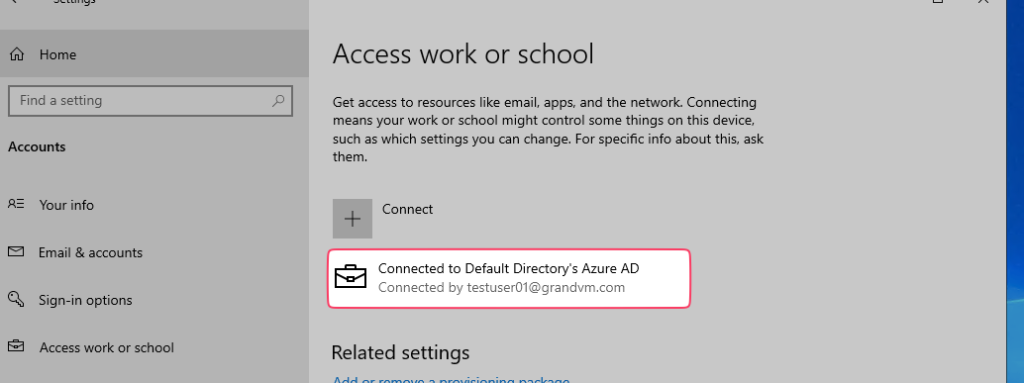
You’ll notice that you now have a Connected to section showing the user name.
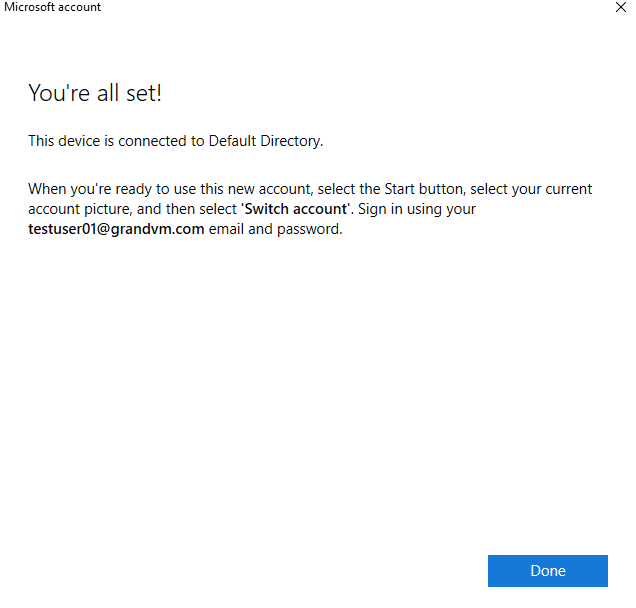
Back in the Access Work or School section of the Settings app, we can see that we have a Connected to section.
Log in as the user, and with the device enrolled, we’ll see a new object in your Azure Active Directory.
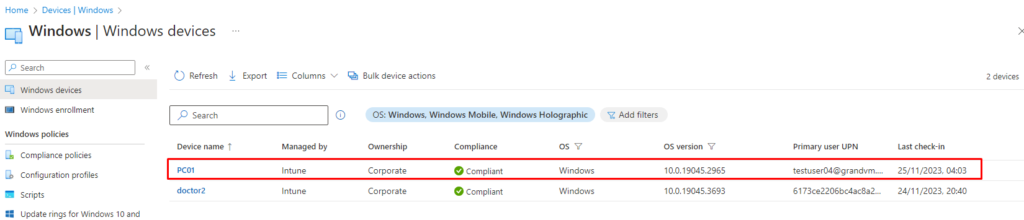
Enroll Devices via Bulk Enrollment method (Auto Enrol)
The bulk enrollment method in Azure AD allows multiple devices to be connected and enrolled in Microsoft Intune. Administrators create a provisioning package, which is then sent to users via email. Users can install the package to automatically enroll their devices into Microsoft Intune. Additionally, the DSREGCMD /STATUS command can be used to check the enrollment status, indicating that the device is not joined with Azure AD but the user is enrolled in WorkPlace.
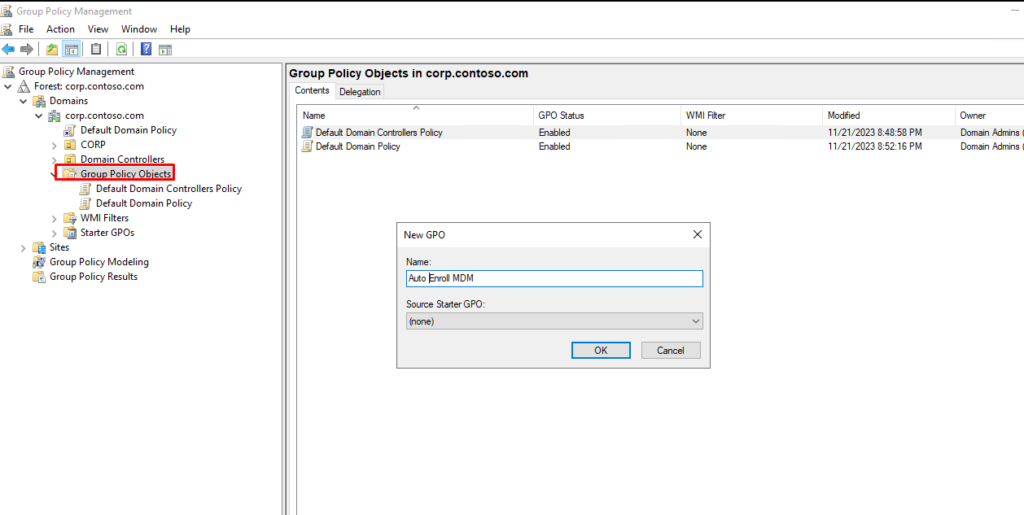
To configure Group Policy, open it and select your domain, then navigate to Group Policy Objects. Click on “New” to create a new policy and give it a desired name. Once created, the policy will appear under the new Group Policy Object. Right-click on it and select “Edit” to make changes.
Go to Administrative Templates > Windows Components > MDM > Enable automatic MDM enrollment.
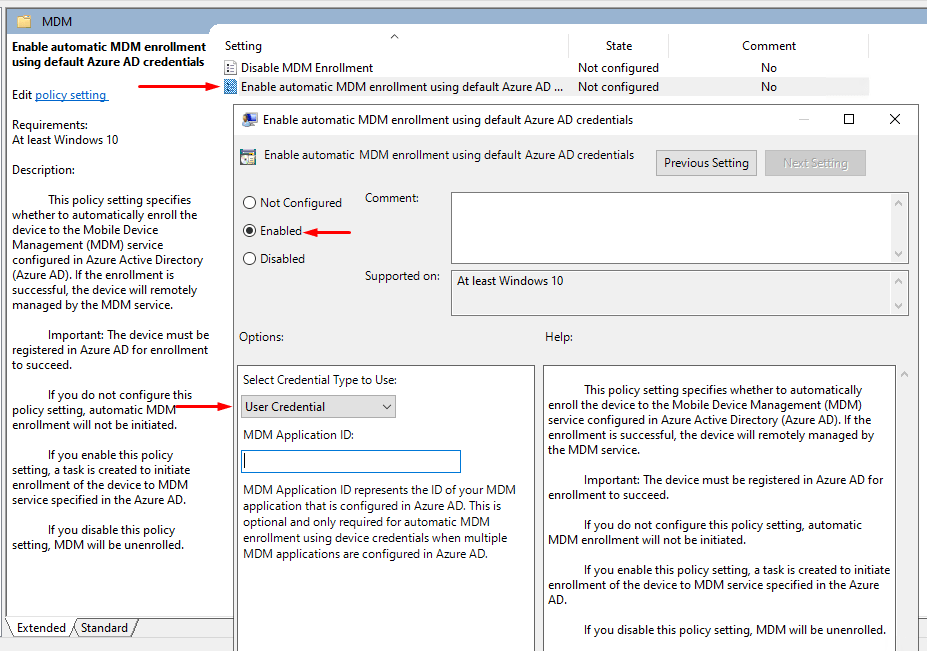
Link the Group Policy to the Child Computers OU

Join Windows 11 to Azure AD & Intune
Remember that you can be connected to either Azure AD or Active Directory because one of it will be the authority.